Screaming Frog SEO Spider is a desktop crawler. Point it at a site and it fetches every reachable page the way a search engine would, then organizes what it finds into 33 tabs of SEO data: titles, meta descriptions, headings, response codes, canonicals, directives, images, structured data, JavaScript differences, links, and more. Each tab has its own filters, so "Page Titles: Over 60 Characters" or "Canonicals: Non-Indexable Canonical" is one click away. A crawl of a typical small business site takes a few minutes; the master export alone carries about 75 columns per URL.
Reach for it whenever you need the truth about a site rather than a summary of it. Site audits, pre-launch and post-launch checks, migration verification, redirect mapping, finding orphan pages, validating structured data, and building complete URL inventories are all core jobs. It's the evidence layer: dashboards tell you traffic changed, Screaming Frog tells you what on the site could explain it.
Read this before your first crawl
On a default configuration, several data columns stay empty by design. Structured data validation, PageSpeed, analytics, near-duplicate detection, and spelling all report nothing until you switch them on. An empty column means "not measured," never "no problems found." The configuration sections below cover how to turn everything on.
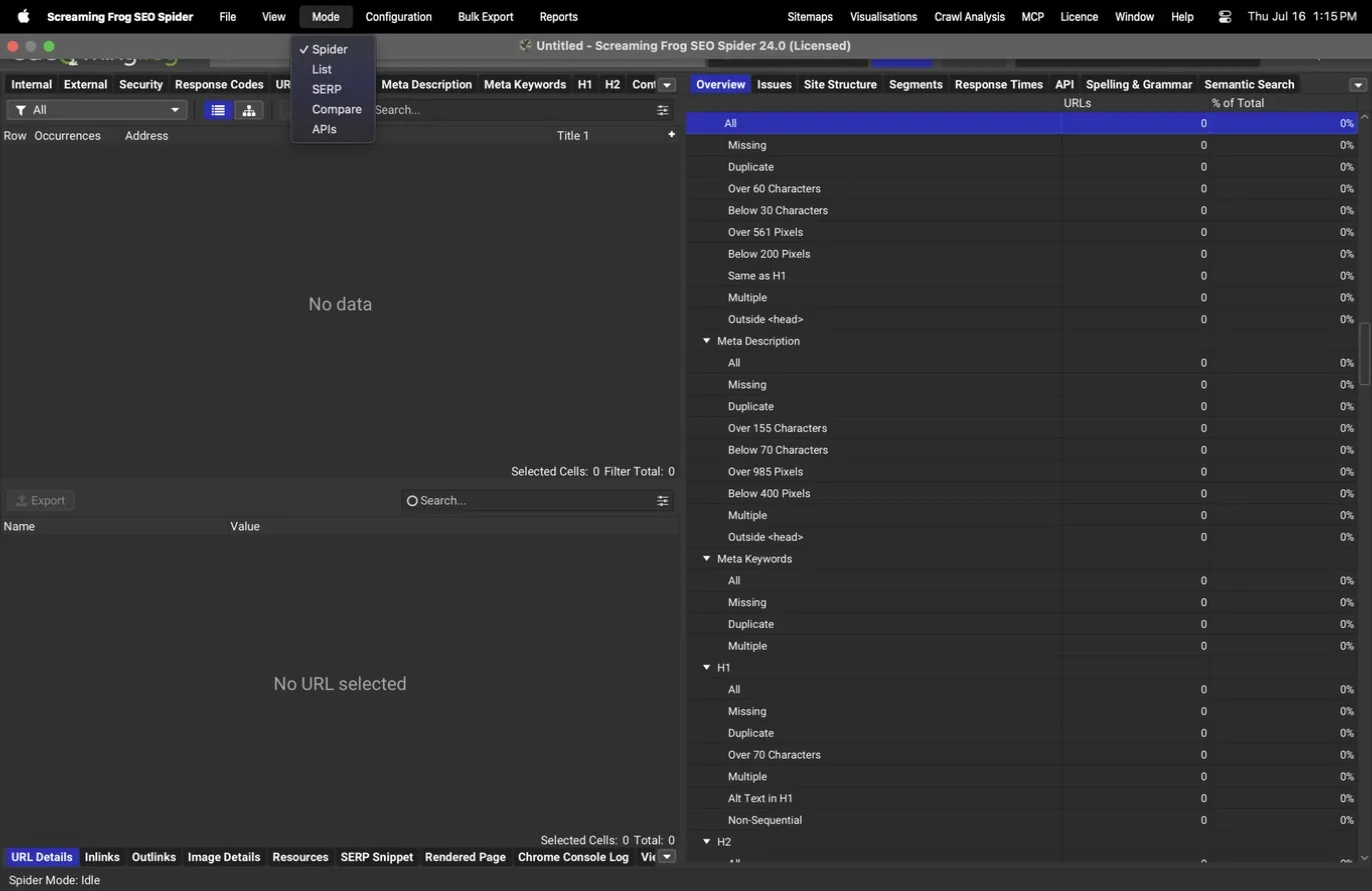
The five modes
The Mode menu switches how the tool acquires URLs. Spider is the default: give it a start URL and it discovers the site by following links. List takes a fixed set of URLs you paste or upload and audits exactly those, which is the right mode for checking a redirect map, a sitemap file, or a batch of landing pages. SERP works with title and description data for snippet preview work without crawling.
Compare runs a crawl-over-crawl diff. Load two crawls of the same site and it reports what changed between them across 15 change detection dimensions, which turns a monthly recrawl into a regression report. APIs pulls connected API data (Search Console, GA4, and so on) for a URL list without crawling the pages at all, useful when you want fresh metrics but the pages themselves haven't changed.
| Mode | What it is | What it answers | You supply | Example job | Best for | Limitation |
|---|---|---|---|---|---|---|
| Spider | Discovery crawl from a start URL, following links the way a search engine would | What exists on this site, and what state is it in? | One start URL | First full audit of a new client site | Site audits, inventories, finding what you didn't know was there | Only finds what links reach; orphans need sitemap/API discovery |
| List | Fixed-set audit of exactly the URLs you paste or upload | What is the current state of these specific URLs? | A pasted or uploaded URL list | Verifying every row of a redirect map after migration | Redirect checks, sitemap validation, money-page spot checks | No discovery; it will never tell you about a URL you didn't supply |
| SERP | Snippet workshop for title and description data, no crawling | How will these titles and descriptions render in a result? | Title/description data | Rewriting titles in bulk and previewing pixel widths | Snippet rewrites and CTR work | Preview only; it does not fetch or validate the live pages |
| Compare | Crawl-over-crawl diff across 15 change detection dimensions | What changed between these two crawls? | Two saved crawls of the same site | Monthly recrawl turned into a regression report | Recrawls, pre/post-deploy checks, migration verification | Needs database storage mode and consistent settings across both crawls |
| APIs | API-only data pull (GSC, GA4, and so on) for a URL list, no page fetching | What do the connected data sources say about these URLs right now? | A URL list + connected APIs | Refreshing GSC clicks for the money-page list without recrawling | Fresh metrics when the pages themselves haven't changed | No on-page data at all; it never touches the pages |
Agency tip
Run client sites in Spider mode for discovery, then keep a List mode project with the client's money pages for fast spot checks between full crawls.
Crawl configuration
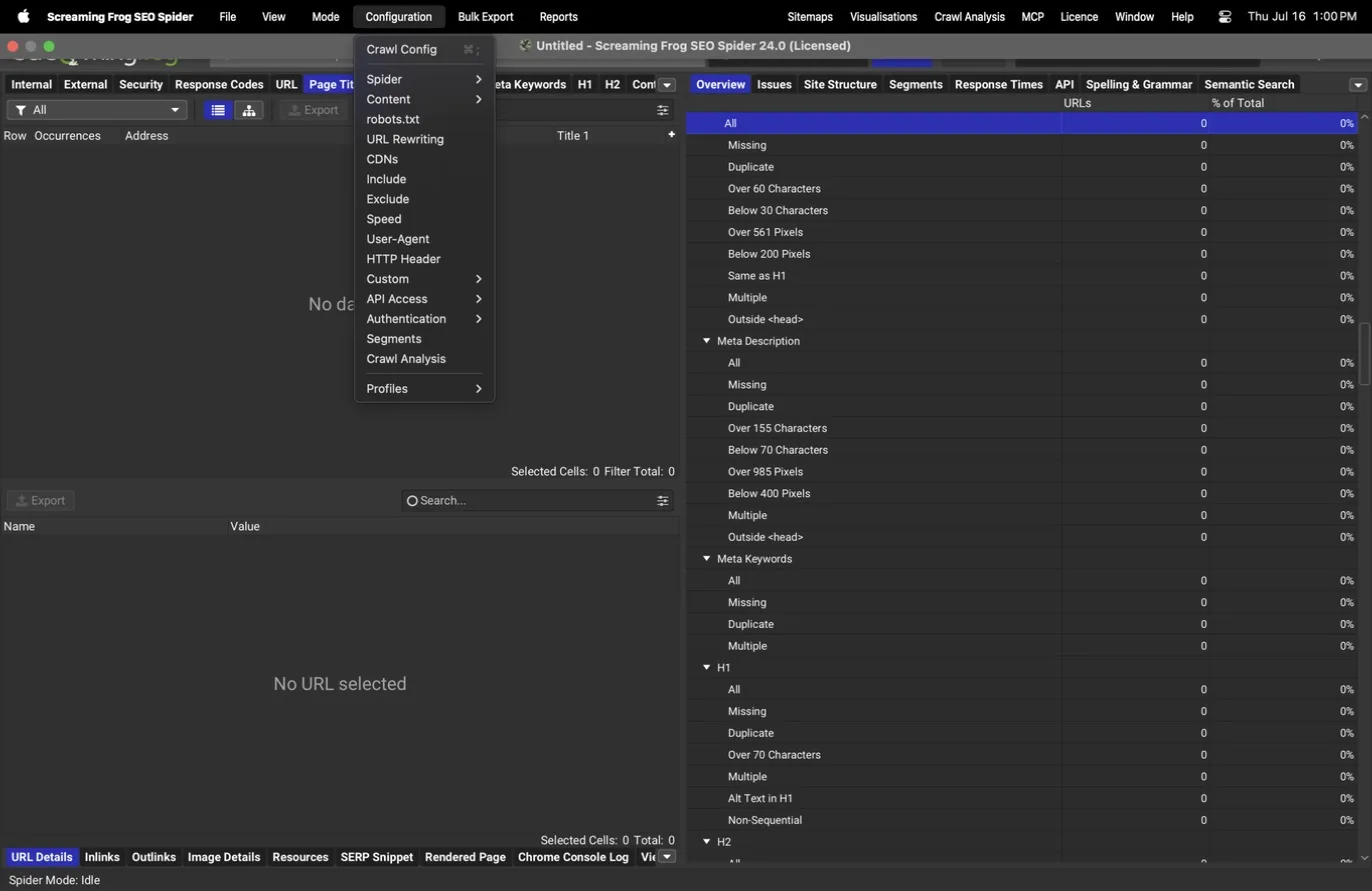
The SEO Spider consolidates what used to be a dozen separate dialogs into one unified Crawl Config window (Cmd+; on macOS) with a searchable left navigation, a layout it has had since v19. Every item under the Configuration menu opens a pane of this same window, so once you learn the layout you can move through the whole configuration in one sitting.
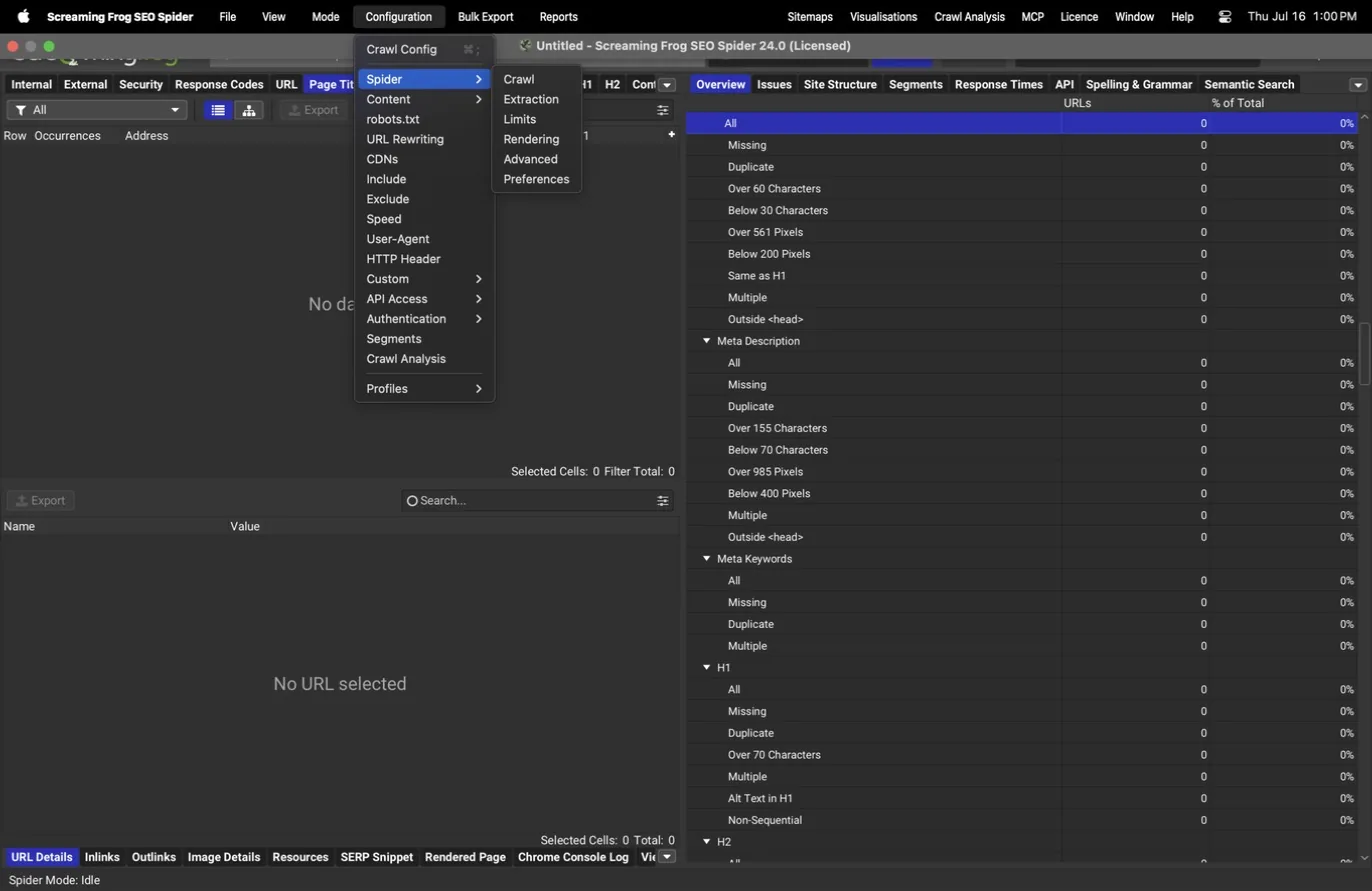
The Spider section is where most crawls are shaped. It has six panes: Crawl, Extraction, Limits, Rendering, Advanced, and Preferences.
Crawl
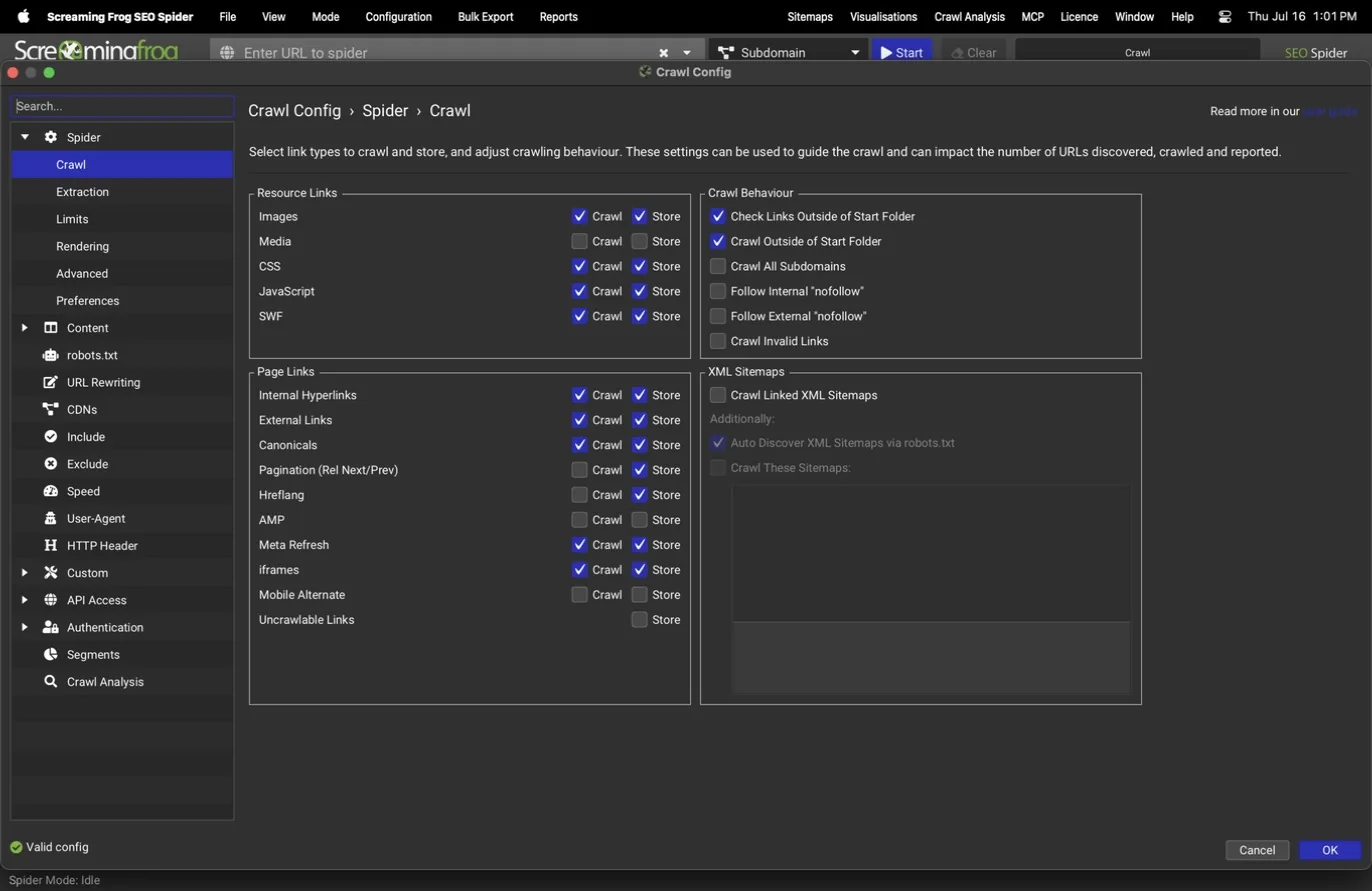
The Crawl pane decides what the spider follows and what it stores. Each resource type (images, CSS, JavaScript, SWF, and so on) has separate Crawl and Store toggles, and there are switches for internal and external links, subdomains, nofollow links, and XML sitemap discovery. Storing a resource type means it shows up in the tabs and exports; crawling it means its own response is checked.
For audits, crawl and store everything. Disabling images or JavaScript makes a crawl faster, but it also means broken image references and script errors go unseen. Turn on sitemap discovery so the crawl can compare what the sitemap declares against what actually exists, which is where orphan page detection starts.
Extraction
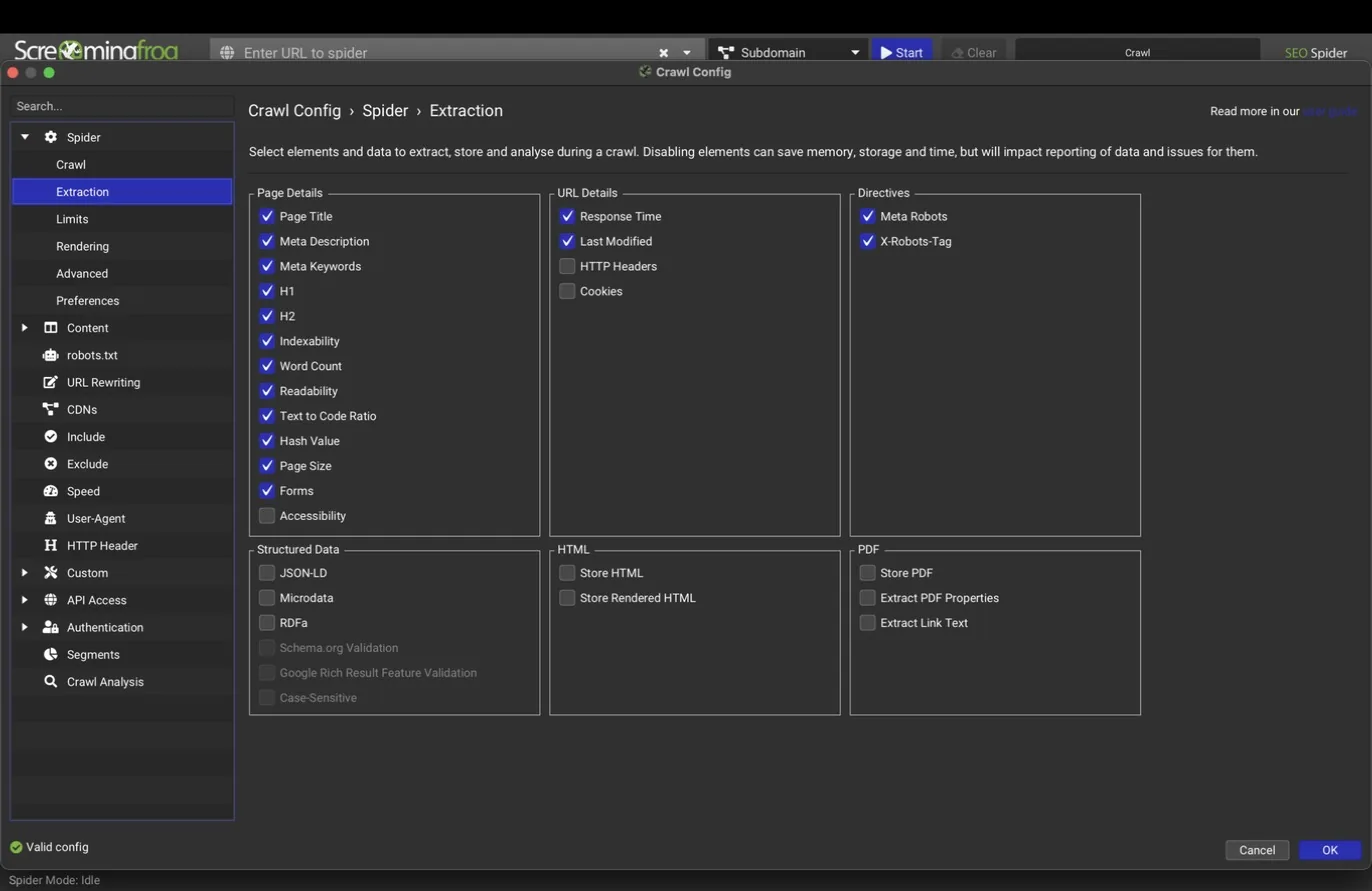
The Extraction pane controls which on-page elements are pulled out of each page: page details, directives, structured data formats (JSON-LD, microdata, RDFa), and HTML storage. The options worth calling out are Store HTML and Store Rendered HTML, which keep both the raw source and the post-JavaScript version of every page so you can diff them later, plus forms, accessibility data, and PDF properties.
Turn on structured data extraction with validation for any site that depends on rich results. Store both HTML versions on JavaScript-heavy sites; the raw-versus-rendered comparison is often the fastest way to prove that content or links only exist after JavaScript runs.
What teams use this for
Validate rich results across the whole catalog
Structured data validation runs on every product and article page at once, instead of pasting URLs into a one-page tester.
Prove content only exists after JavaScript
Store both HTML versions and diff them; the raw-versus-rendered comparison ends the debate in one export.
Keep a before snapshot ahead of a migration
Stored HTML from the pre-launch crawl is the evidence you will wish you had when something breaks after.
Limits
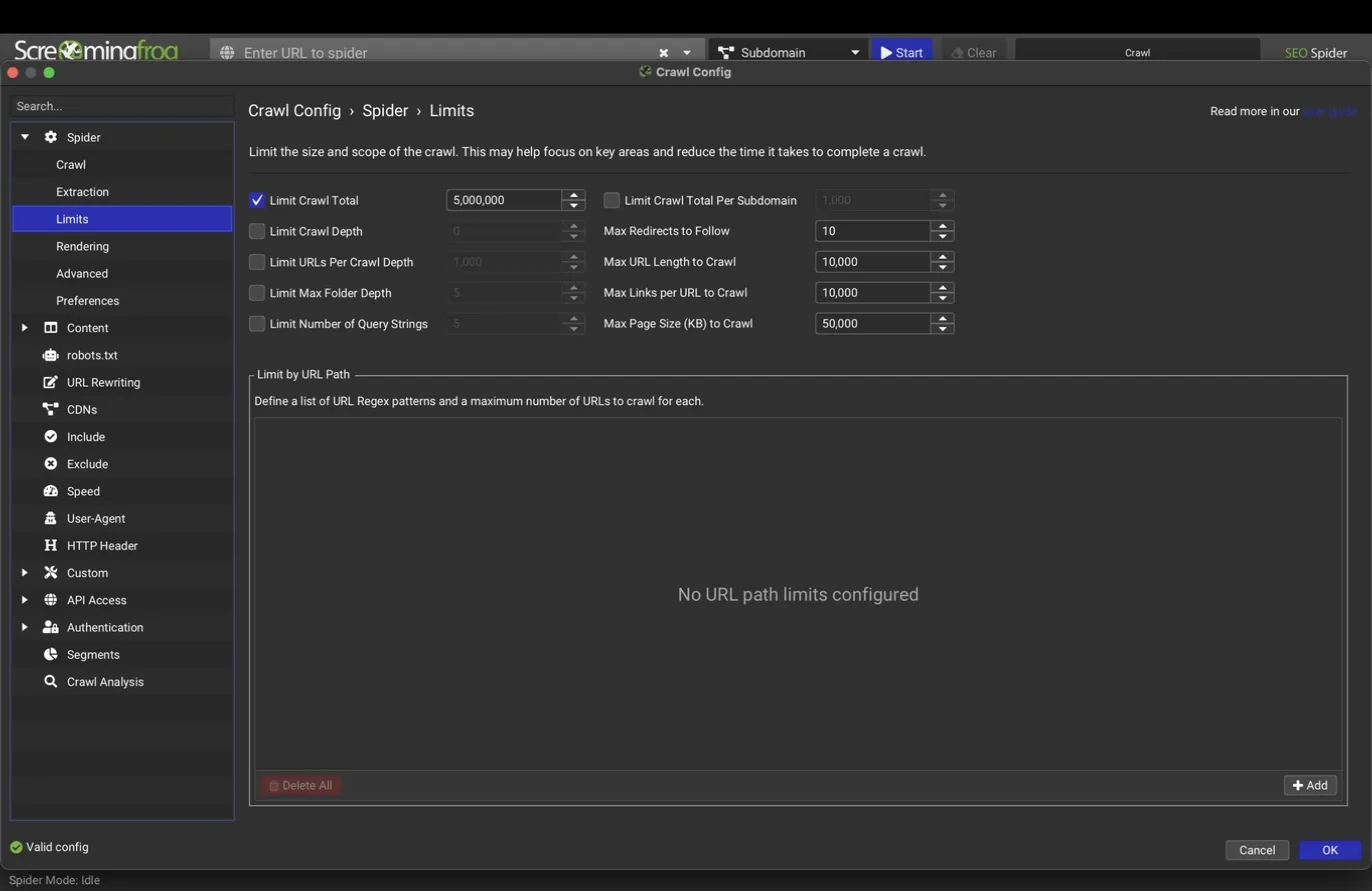
Limits caps the crawl: total URLs, crawl depth, folder depth, number of query strings, redirect hops to follow, and URL length. There's also a per-URL-path table that applies a regex-based cap to specific sections of a site, which is the polite way to sample a huge blog archive or faceted category without crawling all of it.
For most sites, leave limits open so the crawl is complete. Use them deliberately on large e-commerce sites where faceted navigation can generate millions of URL combinations; capping query strings at a low number keeps the crawl focused on real pages.
What teams use this for
Sample a million-URL catalog politely
Per-path caps take a representative slice of each faceted category instead of crawling every filter combination.
Stop parameter explosions before they start
Cap query strings low so campaign and filter URLs stop eating the audit itself.
Time-box a pre-sales look at a prospect
A total-URL cap gives an agency a fast, honest first read before scoping the real engagement.
Rendering
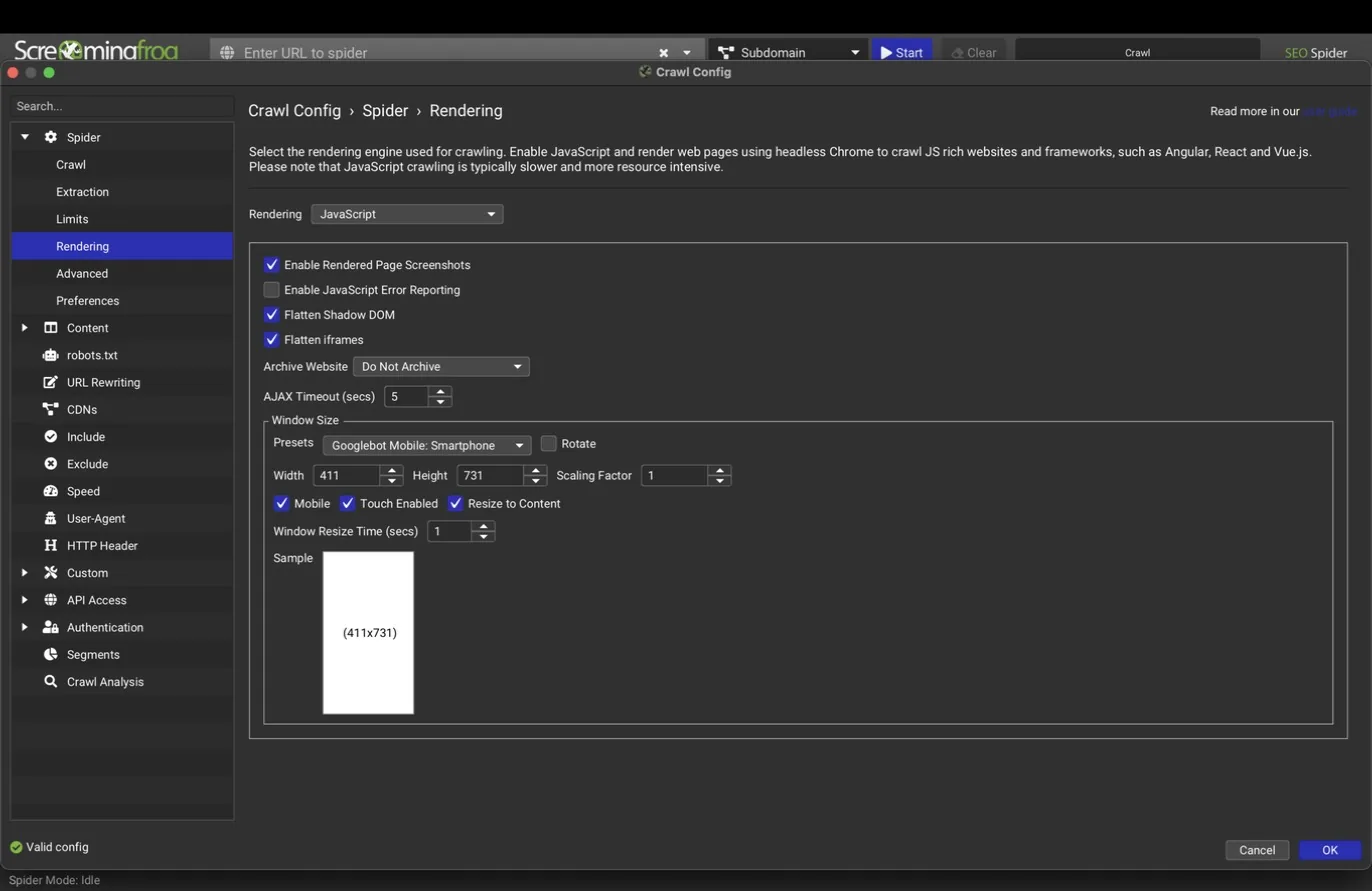
Rendering has three modes: Text Only (fast, raw HTML only), Old AJAX Crawling Scheme (legacy), and JavaScript (a headless Chrome renders each page the way Google does). JavaScript rendering is slower but it's the only way to see what a modern framework site actually serves.
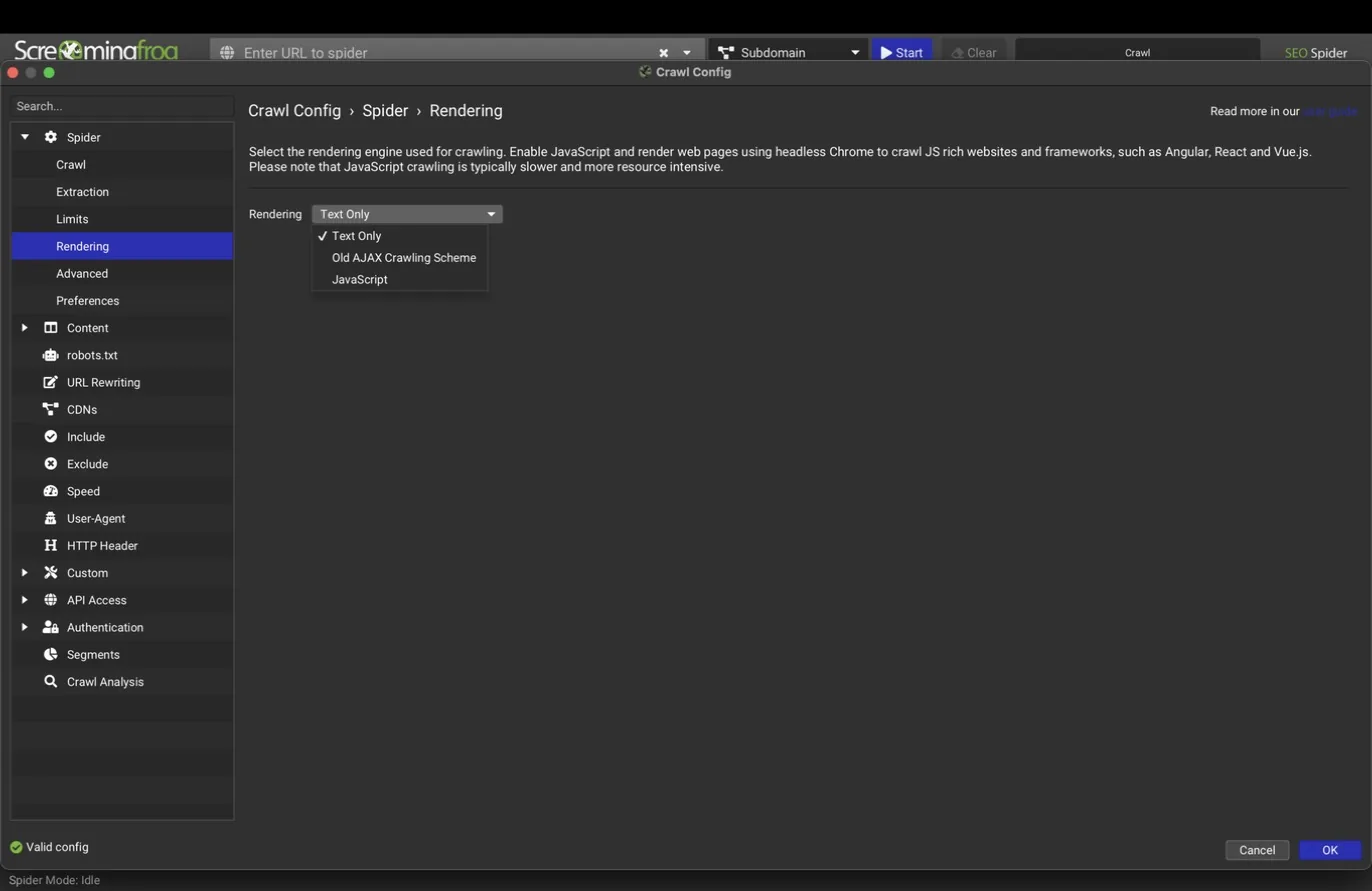
With JavaScript selected, the pane expands with rendered page screenshots, JavaScript error reporting, flattened shadow DOM and iframes, the AJAX timeout, and viewport presets including Googlebot Smartphone. Screenshots cost disk space but make client conversations much easier: you can show exactly what the crawler saw.
Agency tip
Default to JavaScript rendering for the first crawl of any new site. If the JavaScript tab then shows no meaningful raw-versus-rendered differences, you can drop back to Text Only for routine recrawls and get the speed back.
What teams use this for
Prove a JavaScript site is hiding from Google
Crawl in Text Only, recrawl in JavaScript mode, and show how many pages and links only exist after rendering. That gap is the business case for server-side rendering.
Catch script errors that blank real content
JavaScript error reporting lists pages where a failed script leaves Googlebot a partial page, before rankings show it.
Settle what-does-Google-see arguments
Rendered-page screenshots are evidence for the dev team, not opinion.
Sign off a headless CMS build before launch
A staging crawl in JavaScript mode confirms content, links, and metadata survive hydration.
Advanced
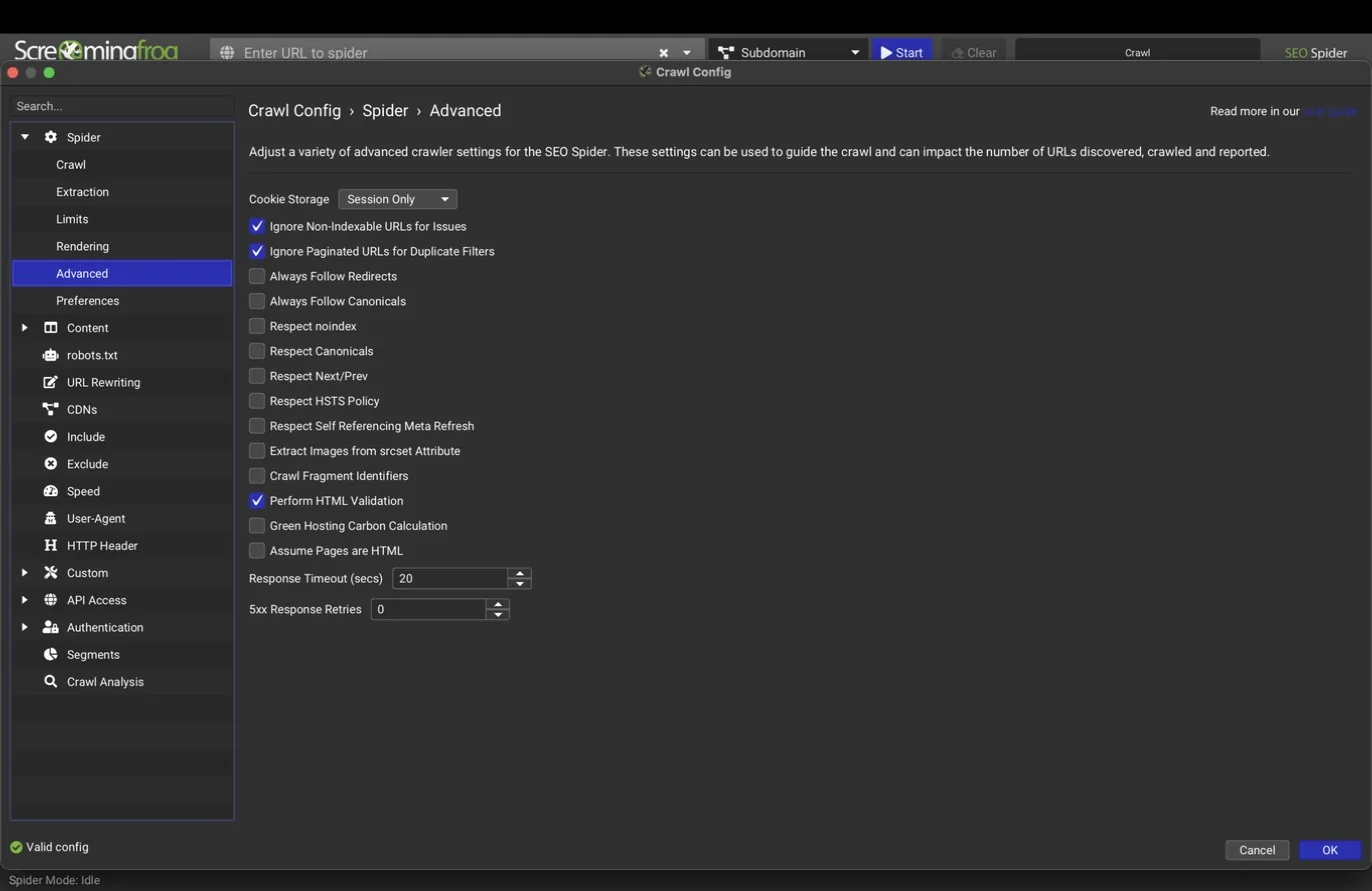
The Advanced pane governs how strictly the crawl mirrors a search engine. Options include respecting noindex, canonicals, and next/prev; HSTS handling; cookie storage; retrying 5xx responses; soft 404 detection with an editable phrase list; HTML validation; and carbon rating calculation.
The respect toggles matter because they change what appears in your reports. With "respect noindex" on, noindexed pages drop out of the crawl views, which matches what Google keeps but hides pages you may want to inspect. For audits, most teams leave the respect options off so everything is visible, then use the indexability columns to filter.
Preferences
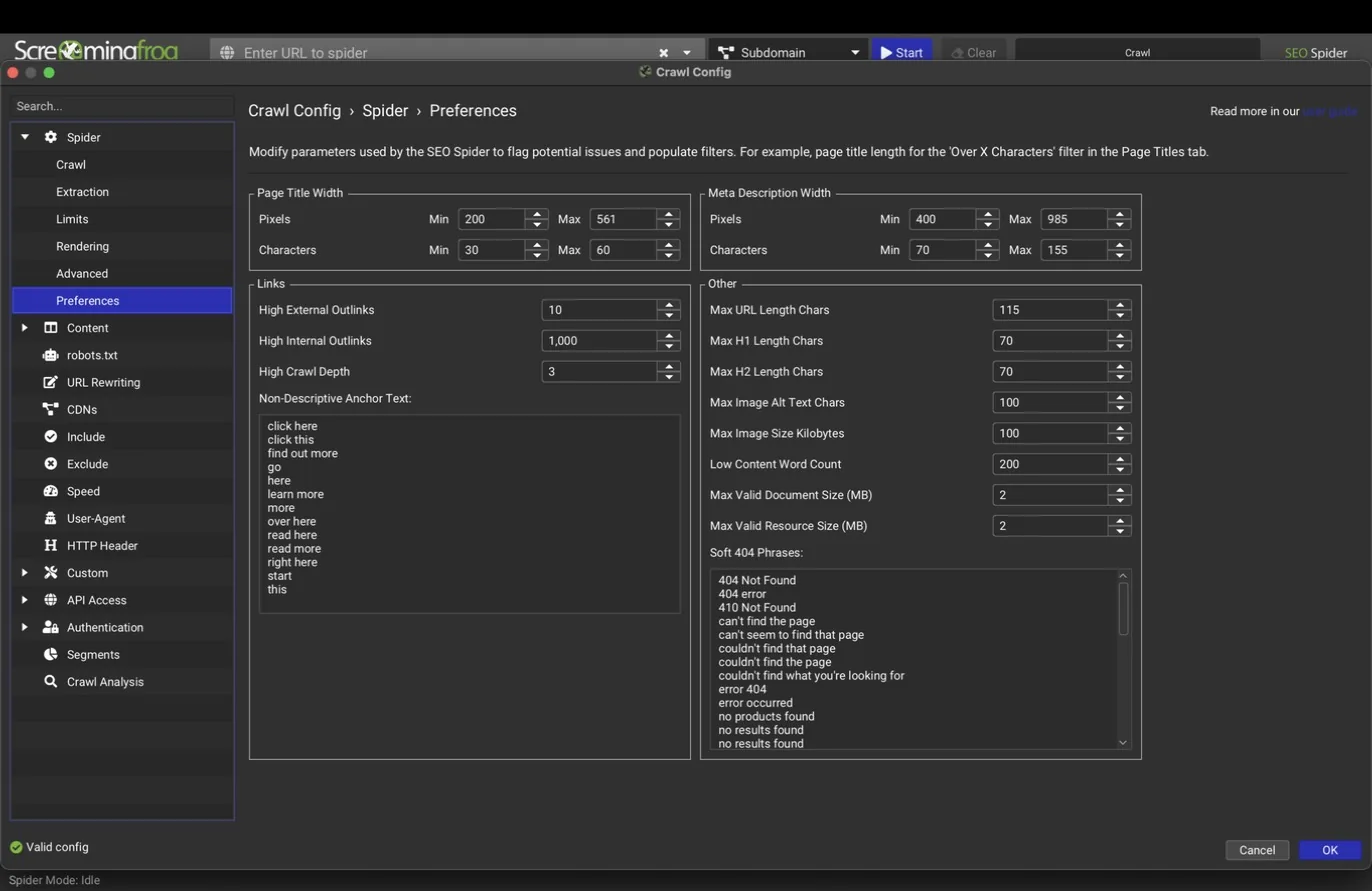
Preferences holds every threshold behind the tool's built-in issue filters: page title width (30 to 60 characters, 200 to 561 pixels), meta description limits (70 to 155 characters, 400 to 985 pixels), maximum URL and H1/H2 lengths, the "high crawl depth" cutoff (3 by default), the low content word count (200 words), and the maximum image size (100 KB). The non-descriptive anchor text list and soft 404 phrase list are editable here too.
These defaults are sensible, but they're opinions, not laws. If a site's vertical routinely runs long titles that perform fine, adjust the threshold rather than reporting hundreds of false alarms. Whatever you choose, keep it consistent across recrawls so trend comparisons stay honest.
Content analysis
The Content section of the config drives four analyses that most people never switch on: content area targeting, duplicate detection, spelling and grammar, and embeddings.
Content area
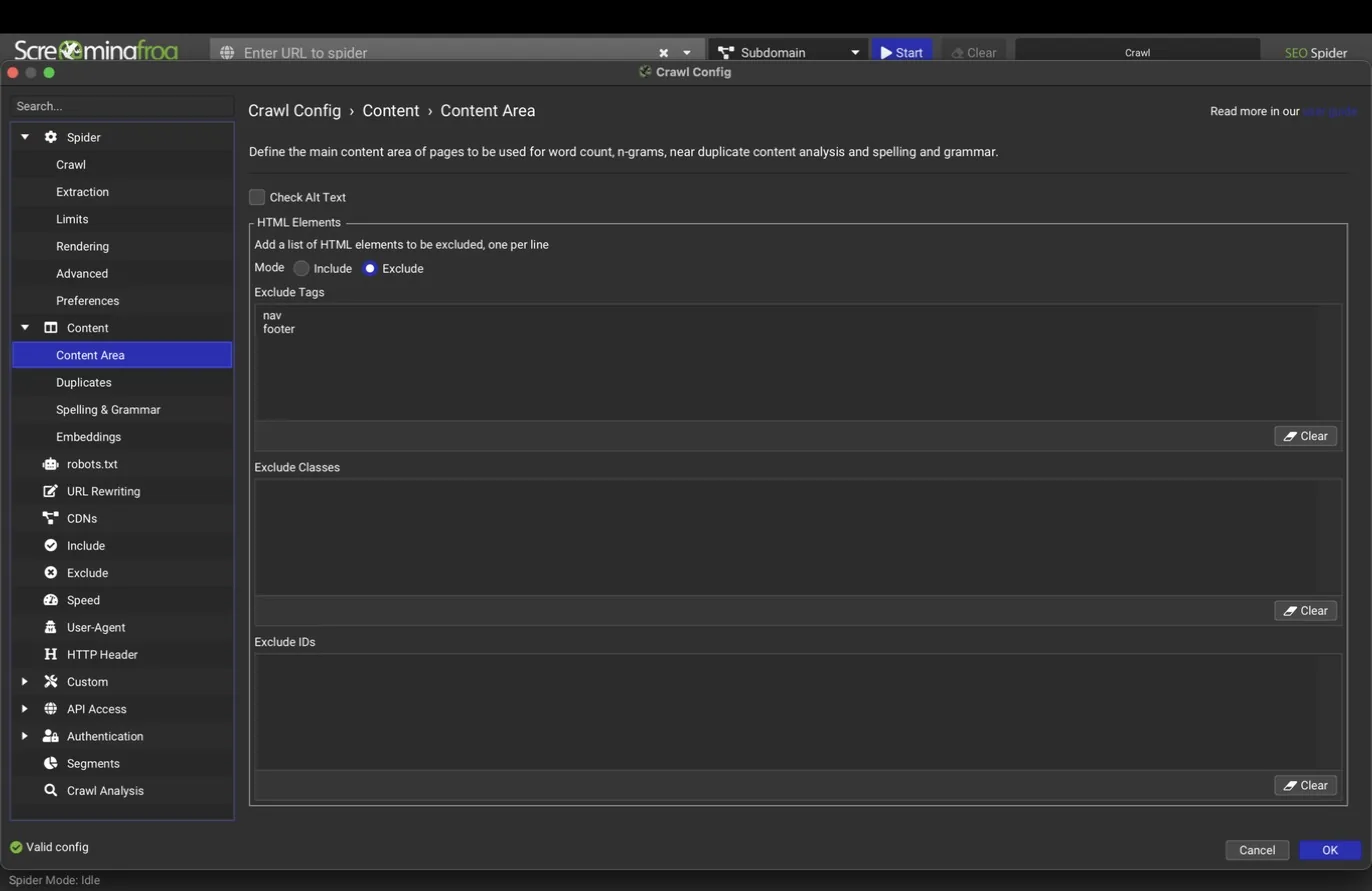
The Content Area pane restricts text analysis to the main content of each page by excluding navigation, footer, and any HTML classes or IDs you specify. Without this, duplicate detection and word counts include the header and footer that repeat on every page, which inflates similarity scores and buries real findings.
Set this per site. Two minutes spent identifying the nav and footer selectors makes every downstream content metric more accurate.
Duplicates
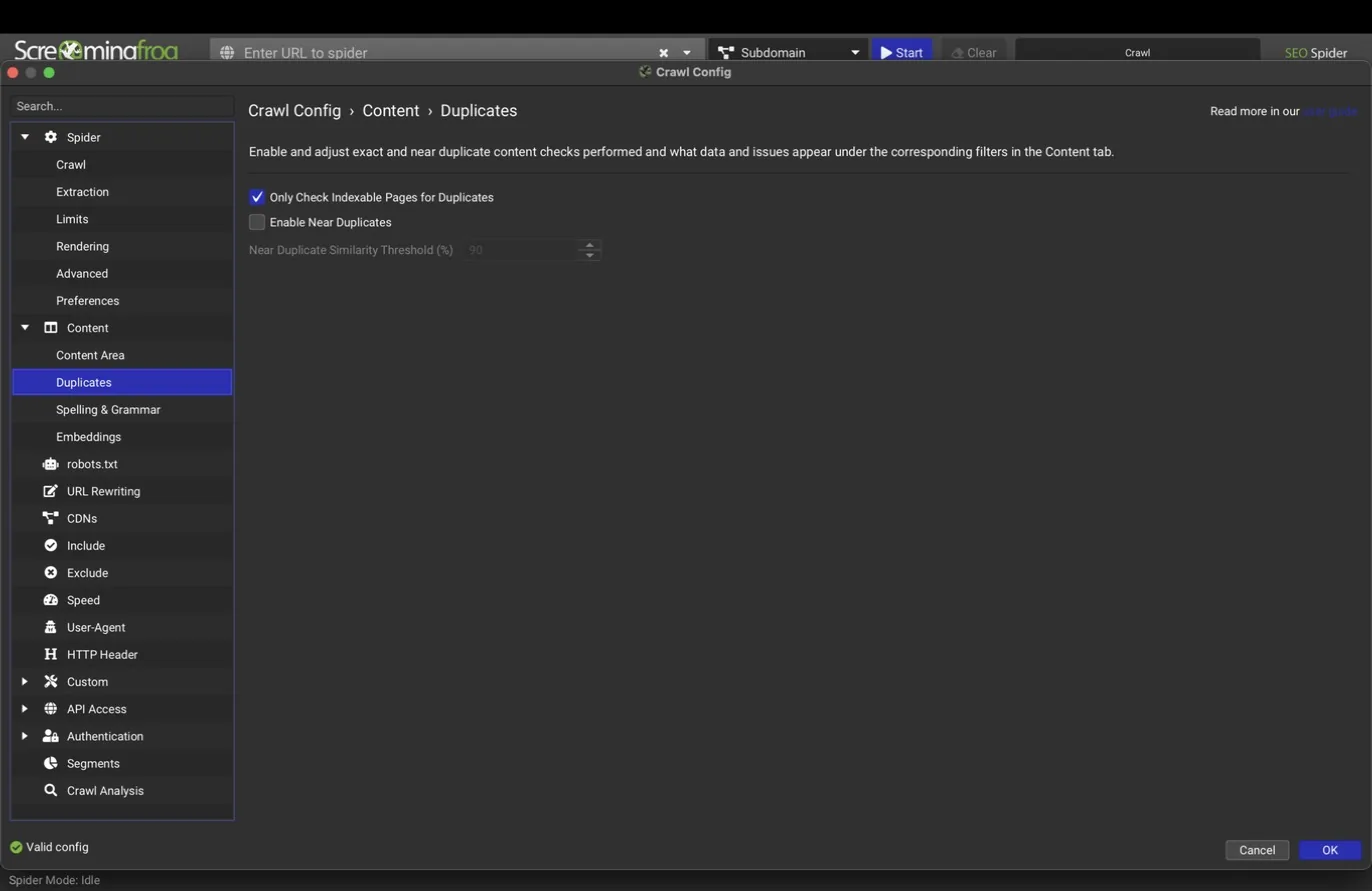
The Duplicates pane enables near-duplicate detection, with a similarity threshold (90 percent by default) and an option to check indexable pages only. Exact duplicates are always detected via page hash; near duplicates require this setting plus a post-crawl analysis run (covered under Crawl analysis below).
Near-duplicate detection is one of the highest-value settings for local SEO and e-commerce work, where templated location pages and product variants quietly cannibalize each other. Pair it with the content area exclusions above or the scores will be skewed by shared page furniture.
Spelling and grammar
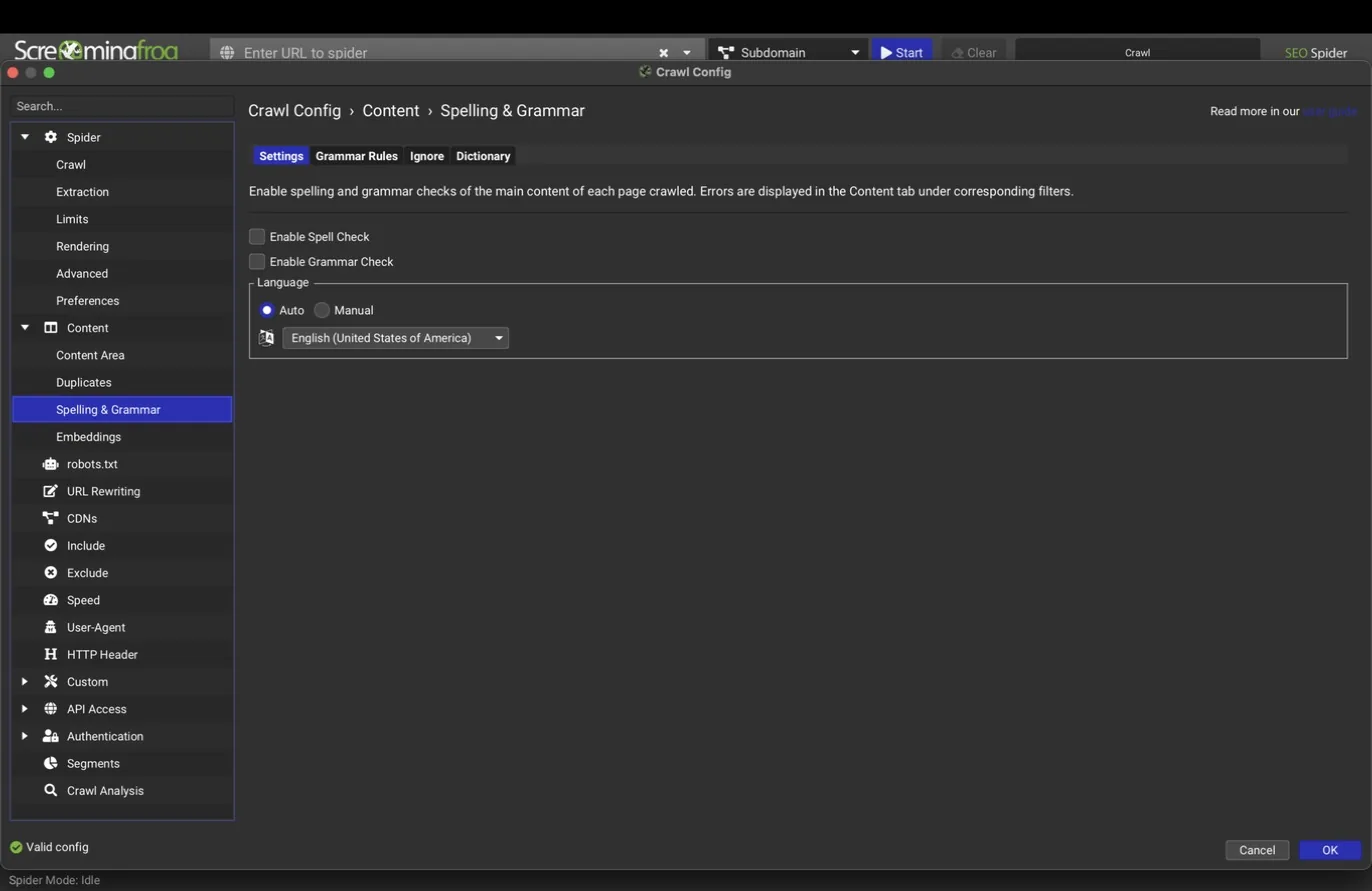
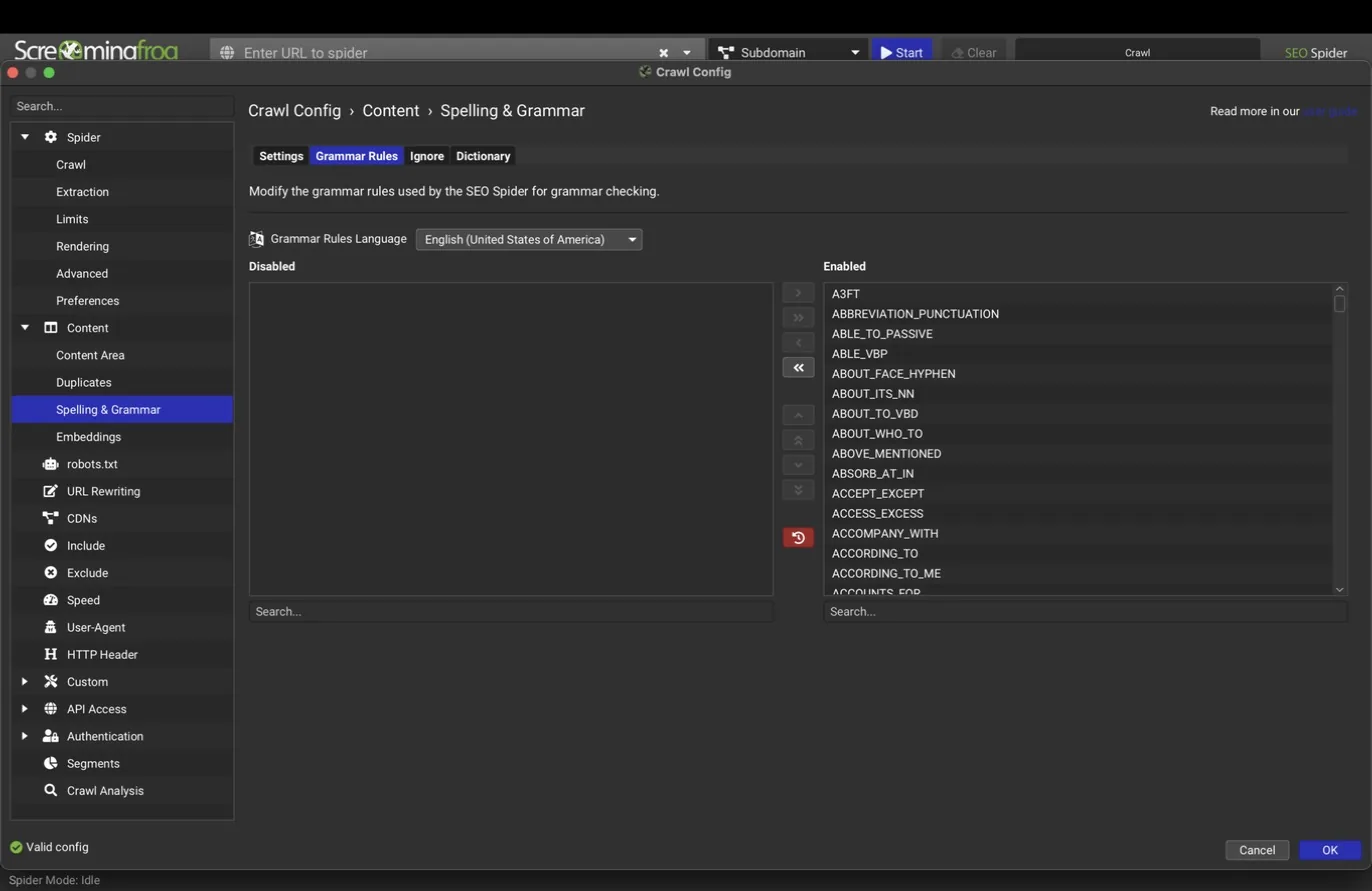
Spelling and grammar checking runs across 39 languages. The settings tab picks the language and toggles each check; the rules tab lists every grammar rule individually so you can disable the ones that generate noise for a particular site, and a custom dictionary handles brand names and industry jargon.
This is an easy add-on deliverable. Clients rarely expect their SEO crawl to catch typos on money pages, and it costs nothing extra once enabled.
Embeddings
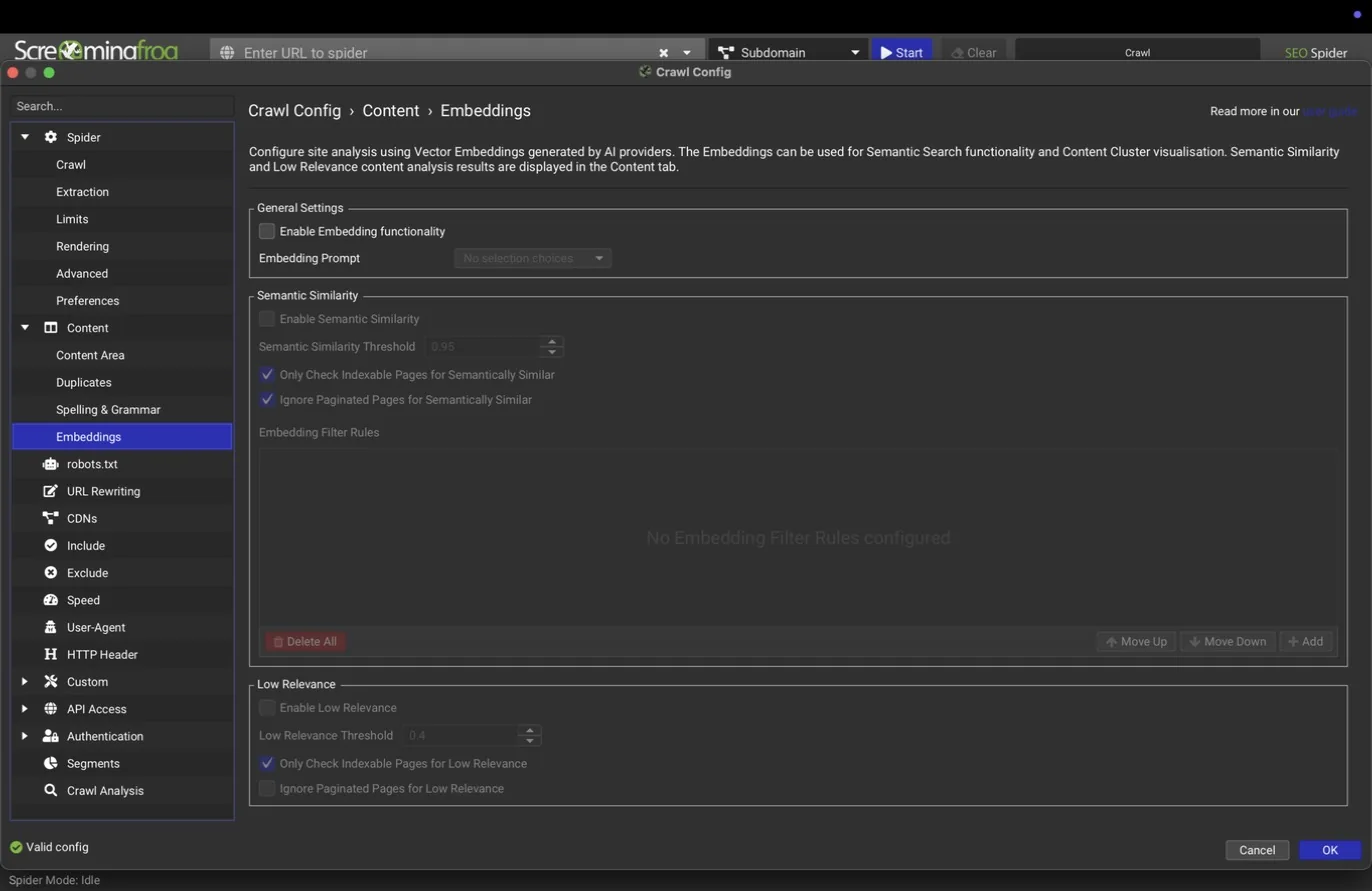
New territory for a desktop crawler: the Embeddings pane generates a vector embedding for each page's content during the crawl. Two thresholds drive the analysis: semantic similarity (0.95 default) flags pages that say nearly the same thing even when the words differ, and low relevance (0.4 default) flags pages that drift from the site's overall topic. Filter rules let you scope which URLs get embedded.
Embeddings power two features covered later in this guide: the Semantic Search tab, which lets you search a crawl by meaning, and semantic similarity filters in the Content tab. For content-heavy sites, this catches cannibalization that word-level duplicate detection misses.
What teams use this for
Find location pages eating each other
Near-duplicate detection on templated city pages is the fastest cannibalization catch in local SEO.
Catch same-intent pages that use different words
Semantic similarity from embeddings flags two posts chasing one query even when the wording differs.
Sweep money pages for typos
Spelling and grammar across 39 languages is an add-on deliverable clients do not expect from a crawler.
Surface off-topic drift
Low-relevance scores point to pages that no longer belong to the site's theme, a ready-made pruning list.
Crawl scope and behavior
Seven panes control where the crawl goes and how it presents itself to the server.
robots.txt
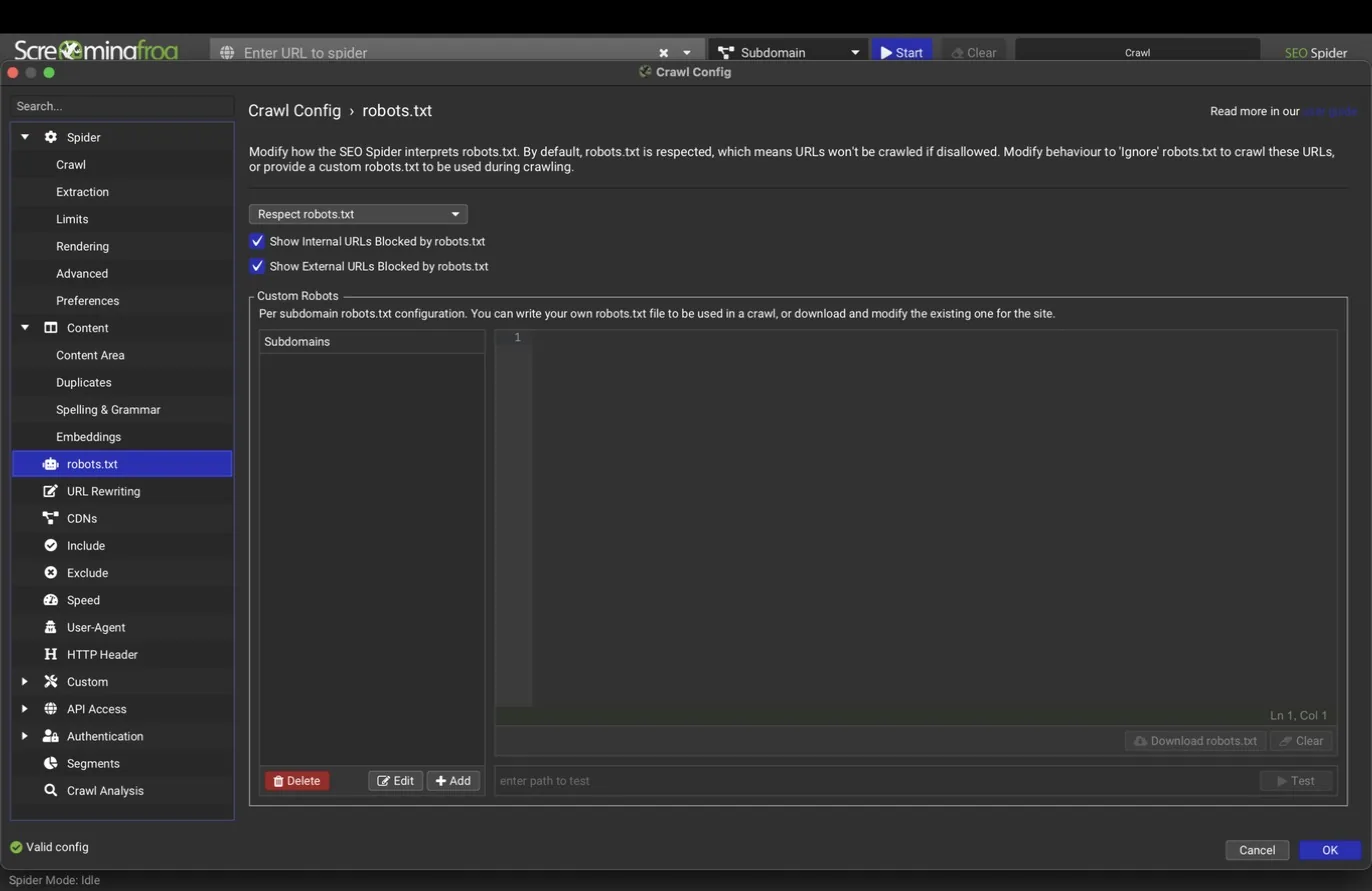
The robots.txt pane sets whether the crawl respects, ignores, or ignores-but-reports robots.txt rules, and lets you supply a custom robots.txt to test against. The custom option is the underused one: you can validate a proposed robots.txt change against a real crawl before anyone touches production.
URL rewriting
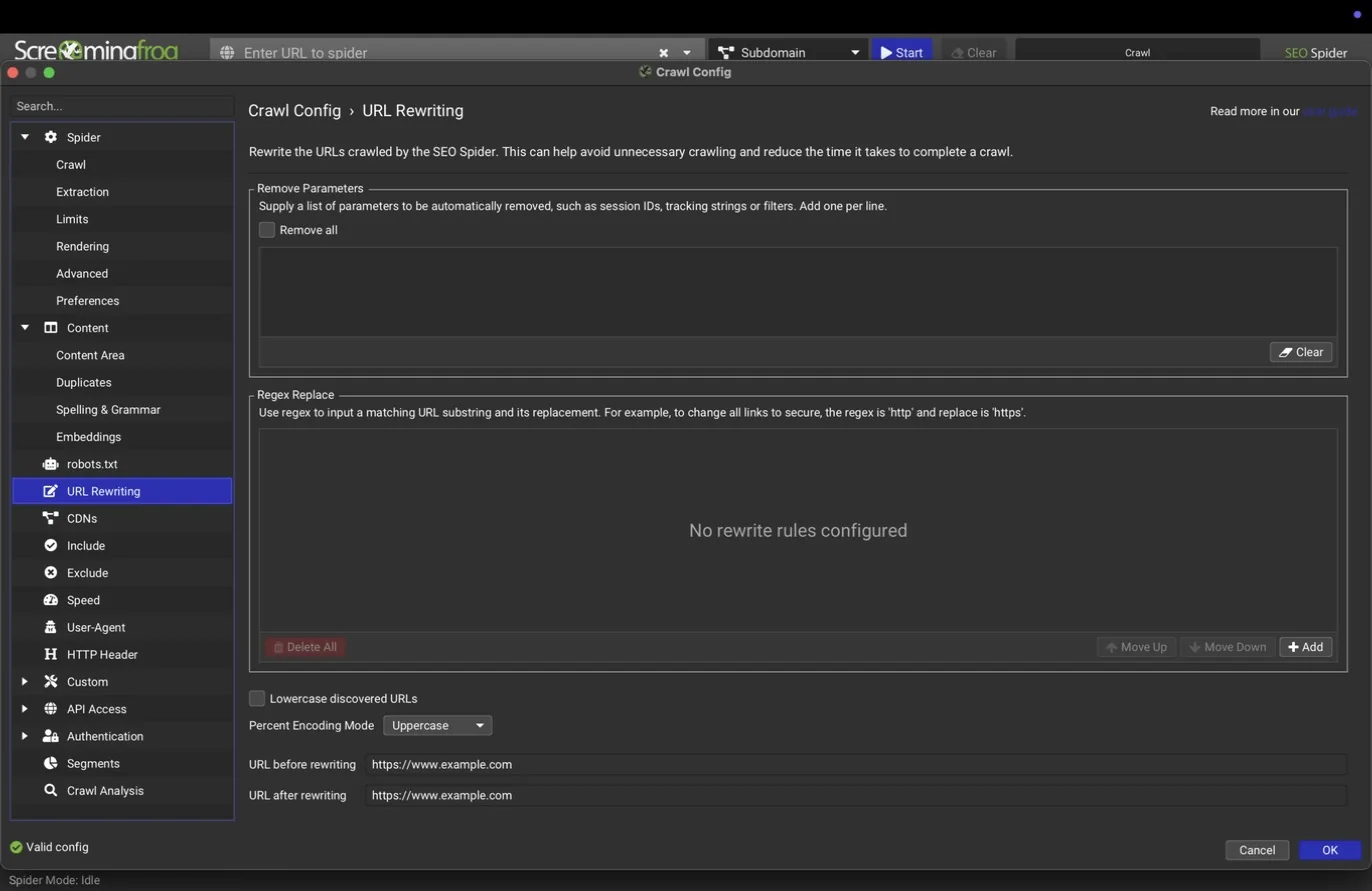
URL Rewriting strips query parameters or applies regex replacements to URLs before they're crawled. The classic use is removing tracking parameters (utm_source and friends) so the same page isn't crawled once per campaign link. Test rewrites in the dialog before running; a bad regex here silently merges URLs that should stay distinct.
CDNs
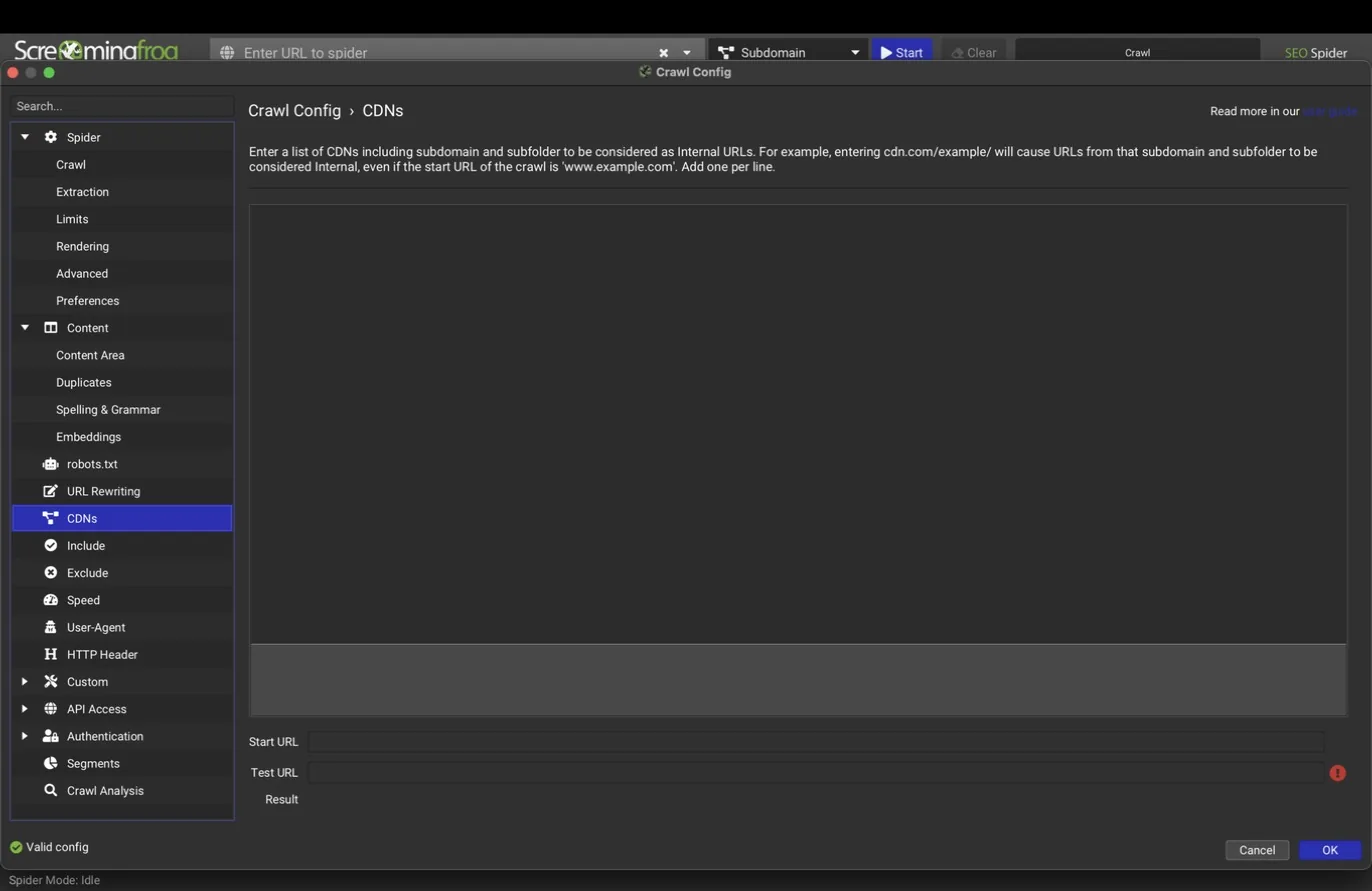
The CDNs pane lists domains that should be treated as internal even though they sit on a different hostname. If a site serves images from a CDN domain, add it here; otherwise every image shows up as external and drops out of the image audits.
Include and exclude
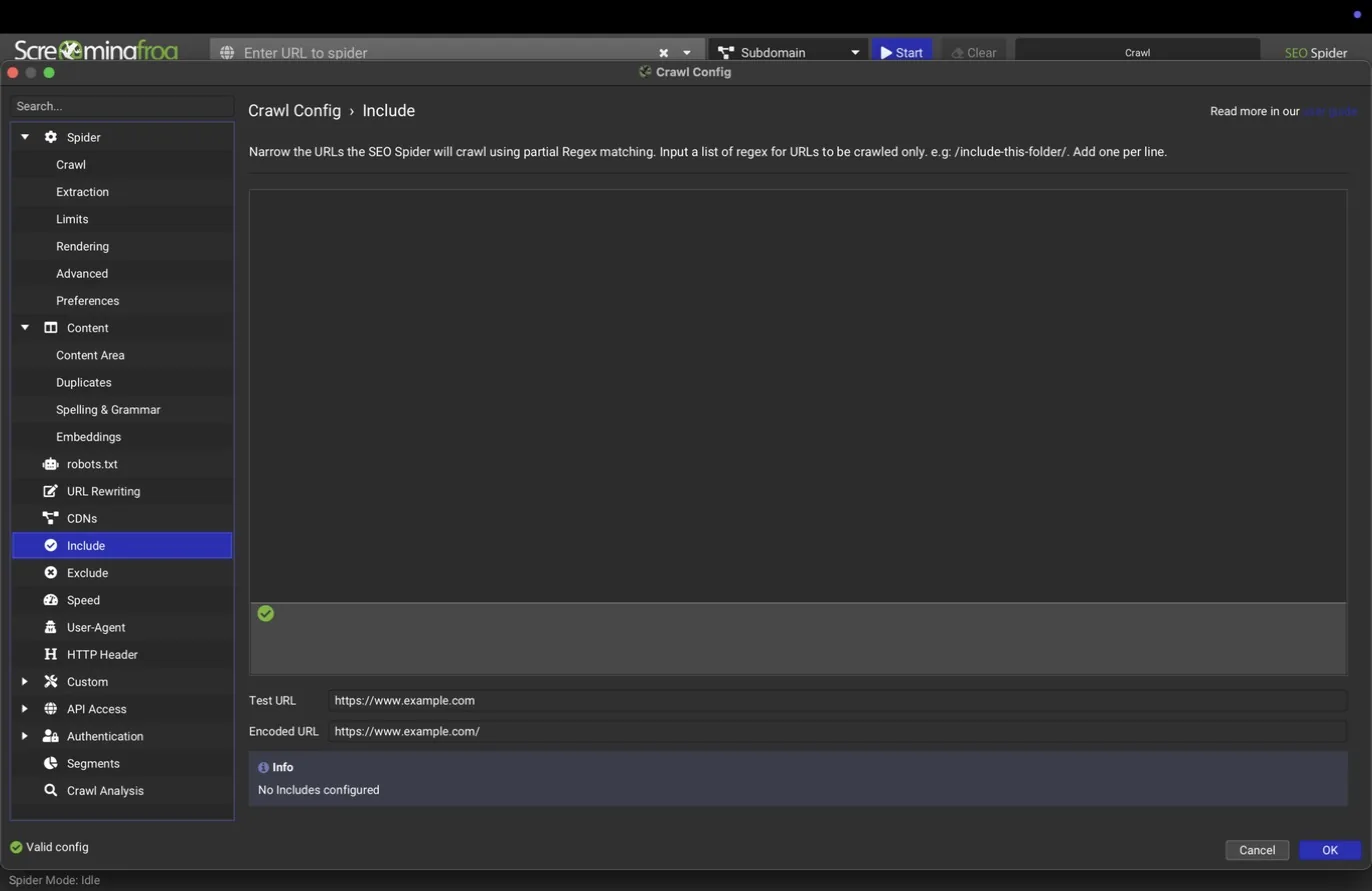
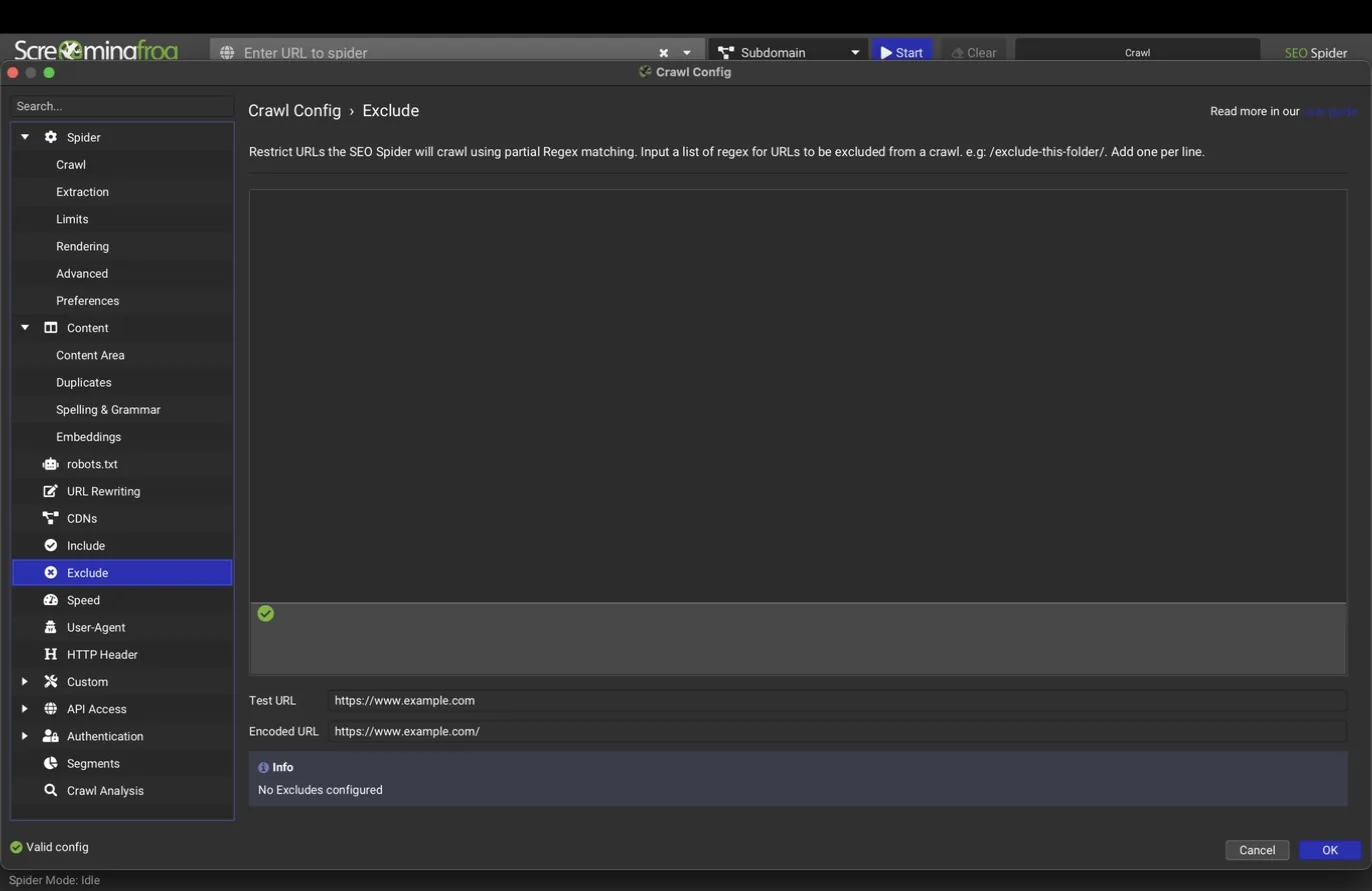
Include and Exclude take regex patterns that scope the crawl. Include restricts the crawl to matching URLs; Exclude removes matching URLs from it. Both panes have a test field so you can paste a URL and confirm the pattern behaves before crawling. Exclude wins when both match.
Use Include to audit one section of a large site (a /blog/ directory, one country folder) and Exclude to skip infinite URL spaces like calendar pages or logout links. Always run a pattern through the test field first; regex mistakes are the most common reason a crawl comes back mysteriously small.
What teams use this for
Audit one market at a time
An Include pattern on the /uk/ or /es/ folder keeps international audits focused and comparable.
Keep crawl traps out of the data
Exclude calendars, carts, logout links, and faceted URL spaces before they poison the counts.
Break an enterprise site into repeatable chunks
Section-by-section crawls with the same profile make ten-million-URL properties auditable on a desktop.
Speed
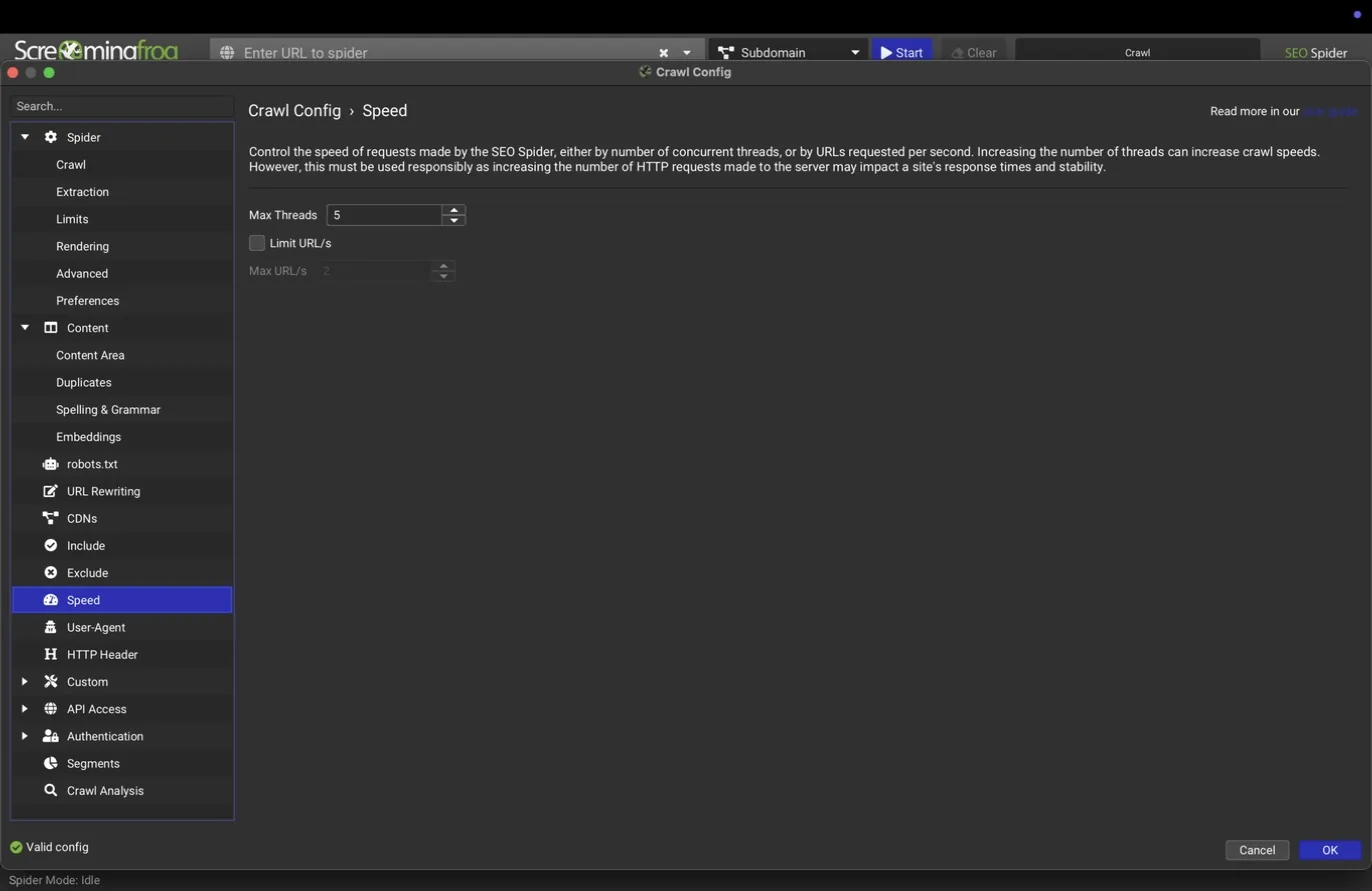
Speed sets the maximum threads and, optionally, a cap on URLs per second. More threads means faster crawls and more load on the target server. For sites you don't control, stay conservative; a crawl that degrades a client's site is a bad first impression that no report recovers from. Slow down further for shared hosting and small business sites.
User-agent
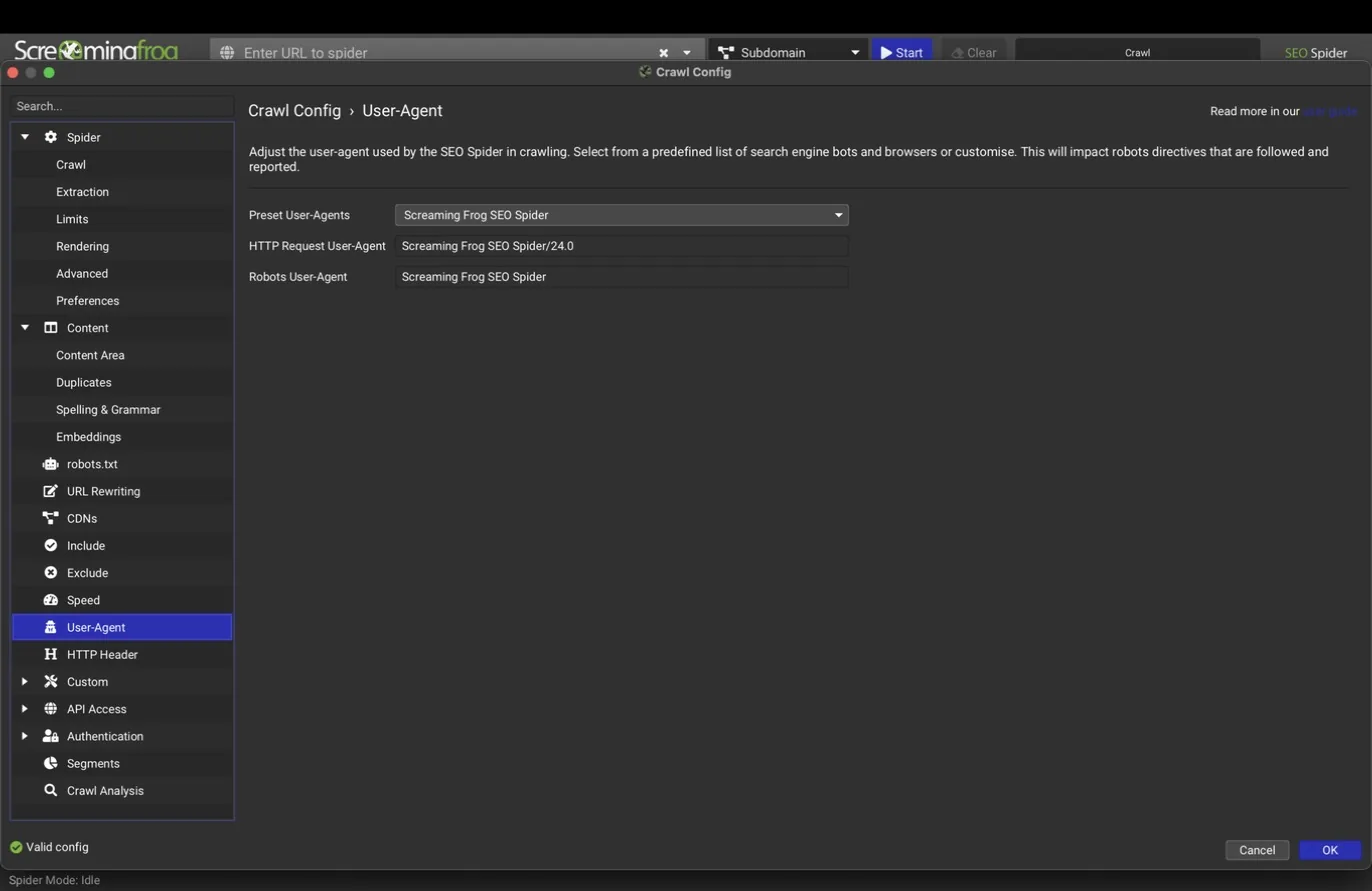
The User-Agent pane picks what the crawler calls itself, with presets for Screaming Frog's own agent, Googlebot variants, Bingbot, and browsers. Crawling as Googlebot reveals whether the server treats Google differently from everyone else, which is how you catch cloaking, bot-specific redirects, and overzealous firewalls. Some security layers block unfamiliar agents entirely; switching the user-agent is the first fix to try when a crawl returns nothing but 403s.
What teams use this for
Check for cloaking
Crawl once as Googlebot and once as a browser; meaningful differences mean bot-specific serving someone should explain.
Get past an overzealous firewall
When every URL returns 403, switching the user-agent is the first fix to try.
Test bot and mobile redirect logic
International and mobile redirects often key off the agent string; the presets let you replay each case.
HTTP header
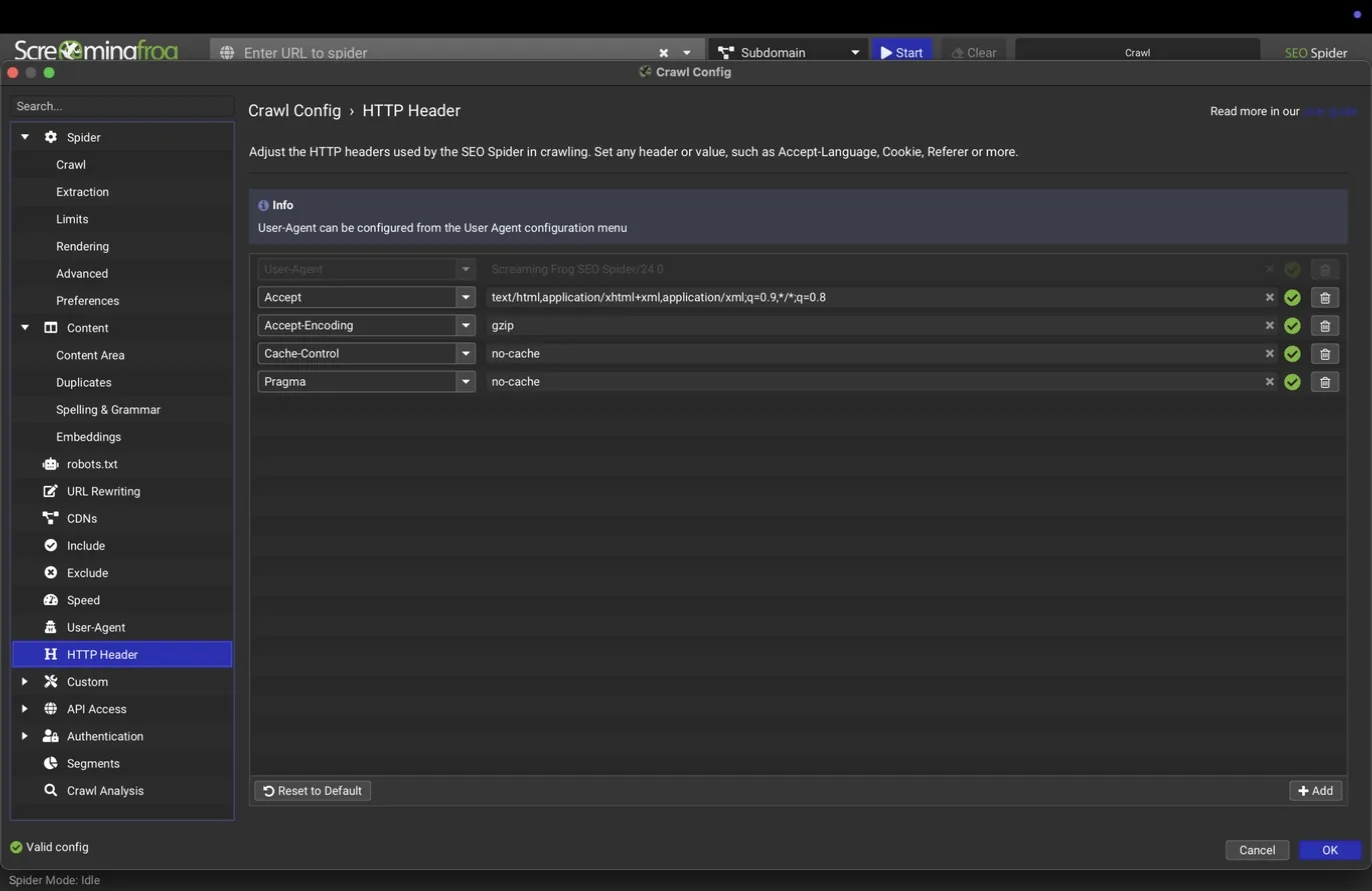
The HTTP Header pane adds or overrides request headers. Common uses: an Accept-Language header to test language-based redirects on international sites, and custom headers a staging environment requires before it will serve pages.
Custom intelligence
Four panes under Configuration > Custom let you pull data the standard tabs don't cover. Each supports up to 100 slots.
Custom search
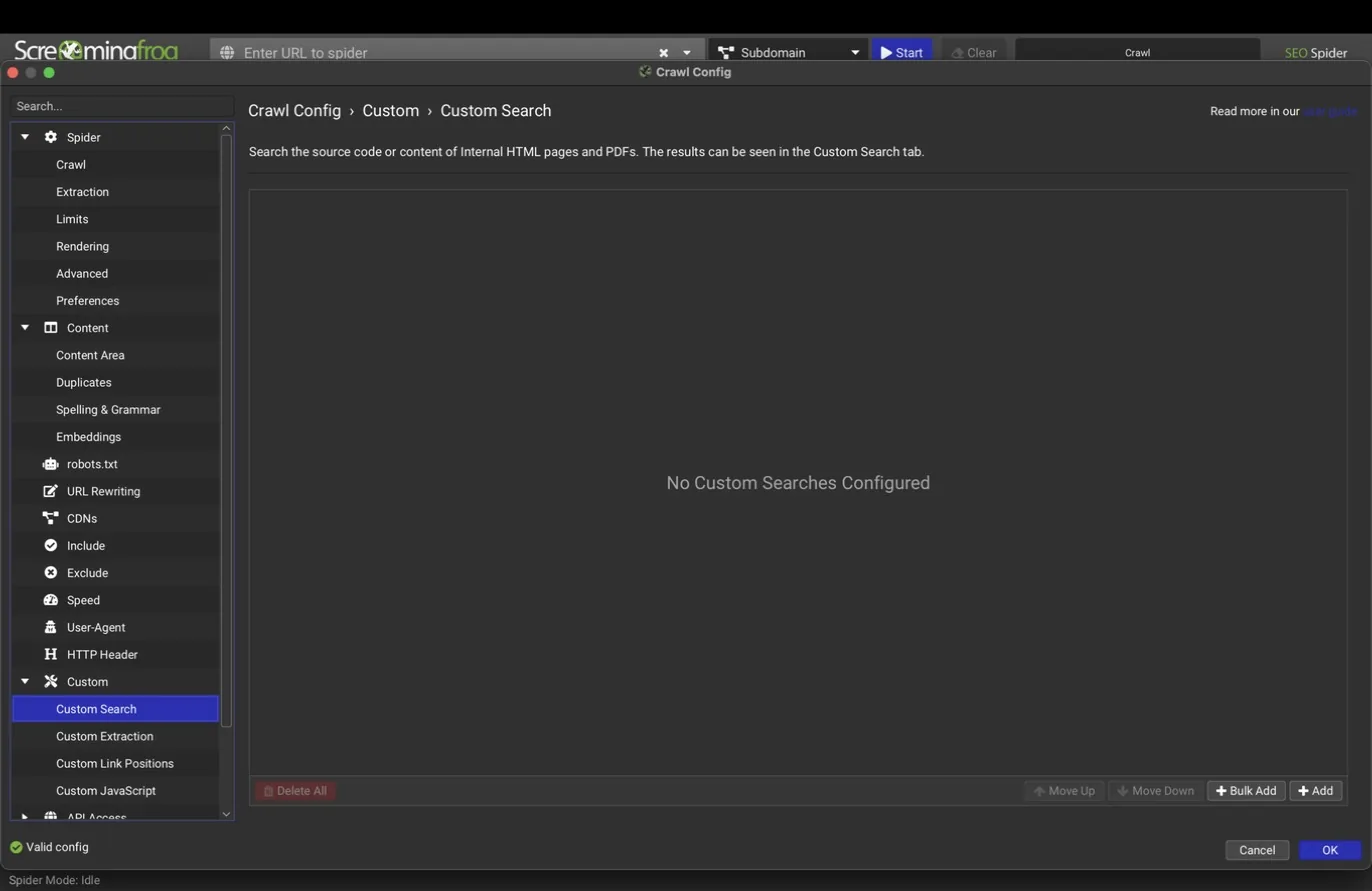
Custom Search checks every crawled page for text or regex patterns you define, in the source or the rendered HTML, and reports which pages contain (or don't contain) each one. Typical uses: verifying an analytics tag exists on every page, finding leftover staging URLs in the source, or locating every mention of a discontinued product.
What teams use this for
Verify the analytics tag on every page
One custom search filter lists every page missing GA4 or GTM, a five-minute enterprise health check.
Find staging leftovers before they ship
Search the source for staging hostnames and internal notes ahead of a launch.
Confirm compliance text everywhere it must appear
Legal disclaimers and cookie language checked across the whole property, with the misses listed.
Custom extraction
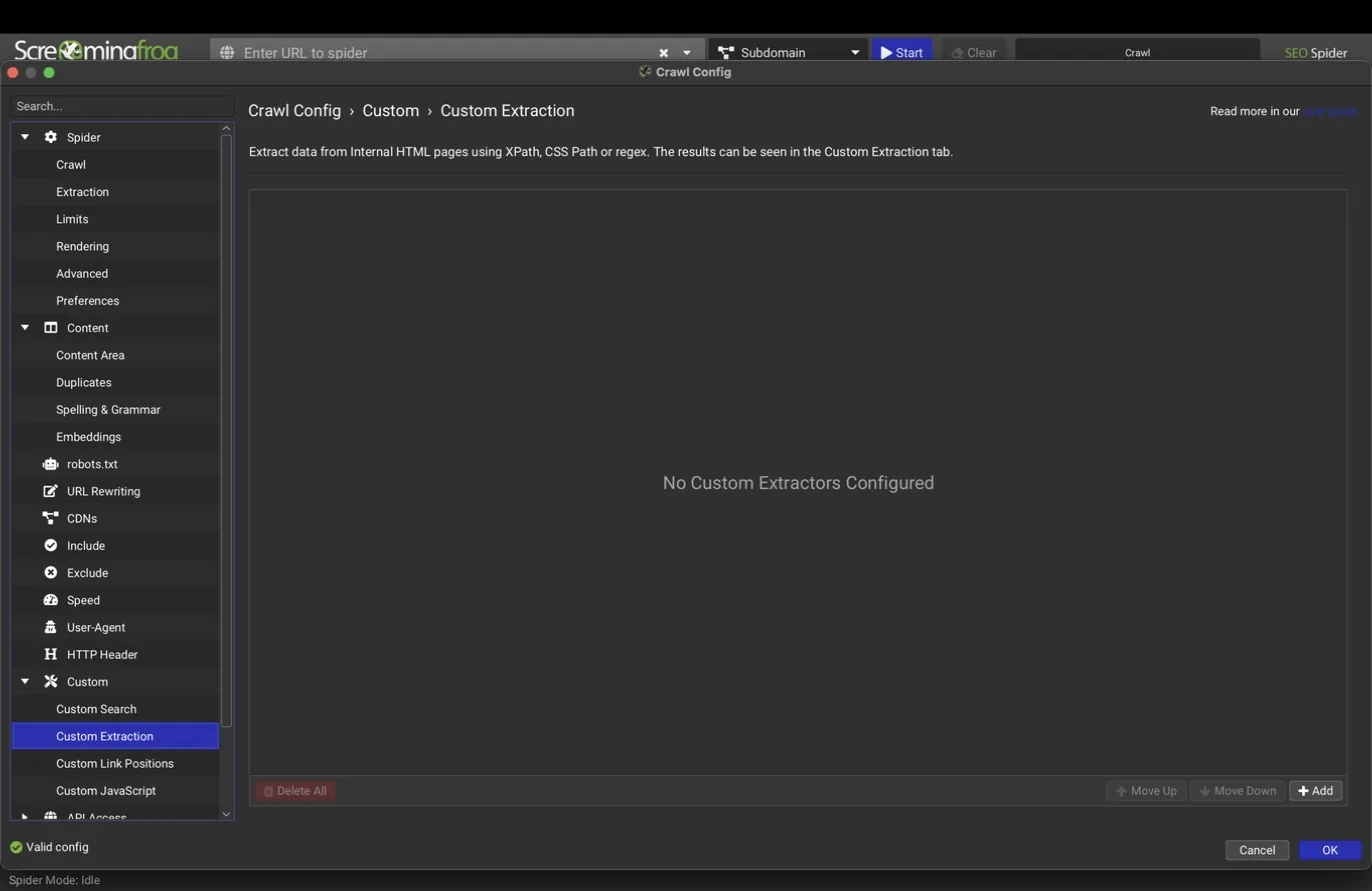
Custom Extraction pulls structured values out of pages using CSS selectors, XPath, or regex, up to 100 extractors per crawl. This is how you turn the crawler into a site-specific data collector: prices, SKUs, author names, publish dates, phone numbers, review counts, anything in the HTML becomes a column in your export.
Agency tip
For local SEO clients, set up extractors for the name, address, and phone markup once, and every crawl becomes a NAP consistency check across the whole site.
What teams use this for
Run a sitewide NAP consistency check
Extract name, address, and phone once per client and every recrawl audits local consistency for free.
Watch prices and stock like a merchandiser
SKU and price extractors turn routine recrawls into catalog QA.
Build a content inventory with authors and dates
Bylines and publish dates per URL drive pruning and refresh decisions with real data.
Custom link positions
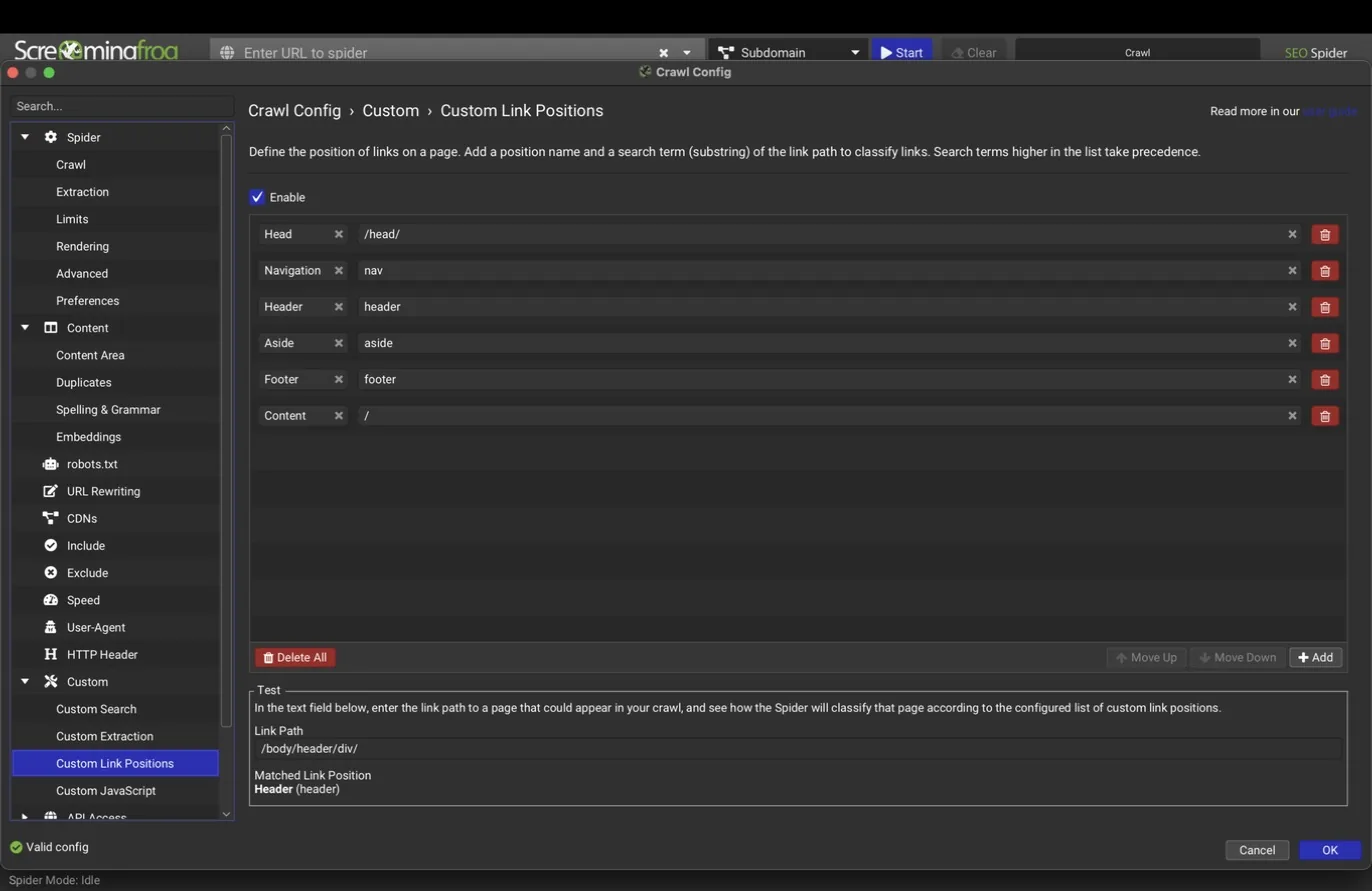
Link position classification labels every link as navigation, content, sidebar, or footer based on where it sits in the page. The Custom Link Positions pane lets you adjust the selectors that define those zones, with a test field to confirm them, so the labels stay accurate on unusual templates. Accurate link positions matter because a link from body content carries different weight, and different intent, than one repeated in a footer; the link exports carry this classification on every row.
Custom JavaScript
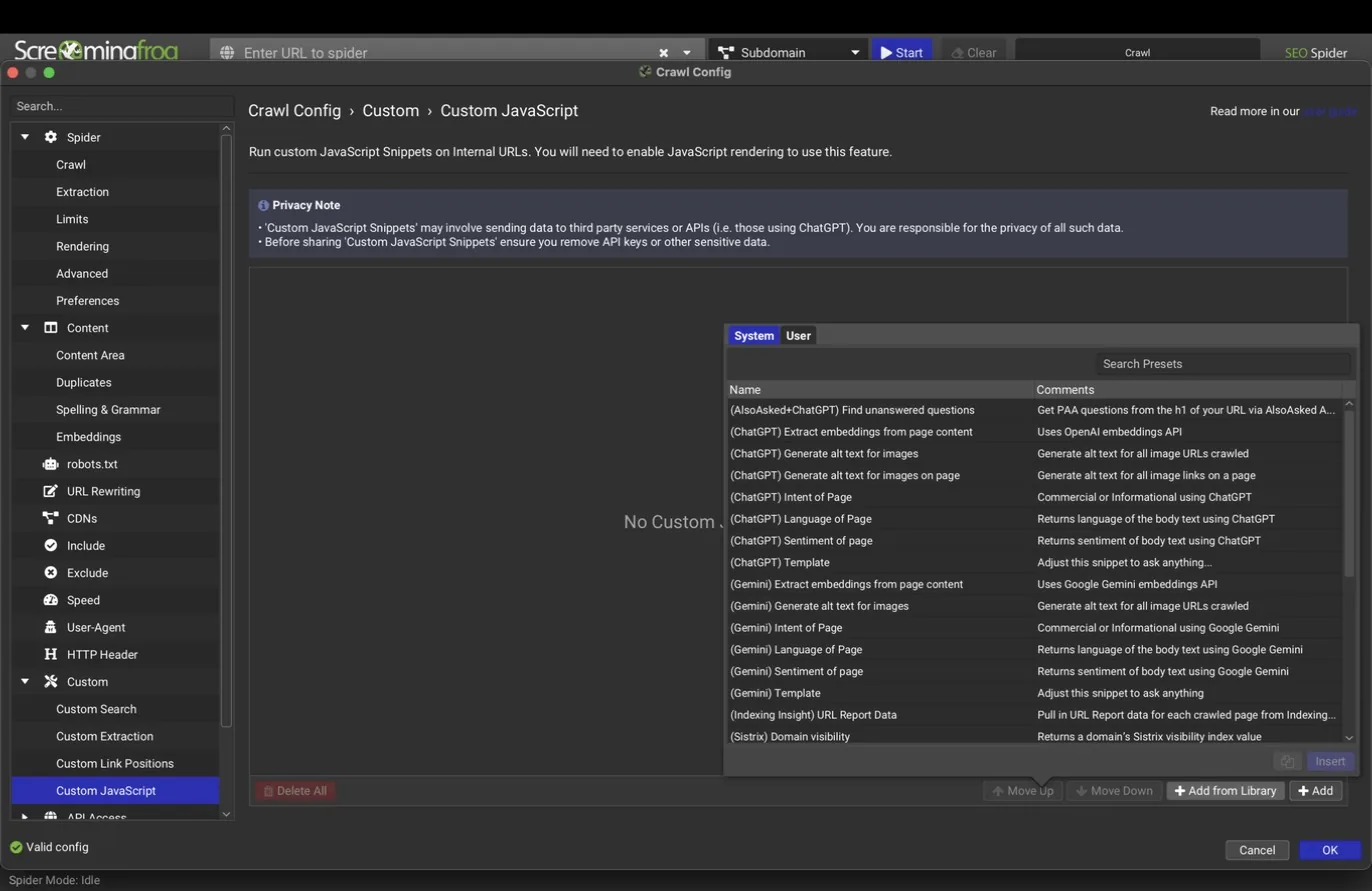
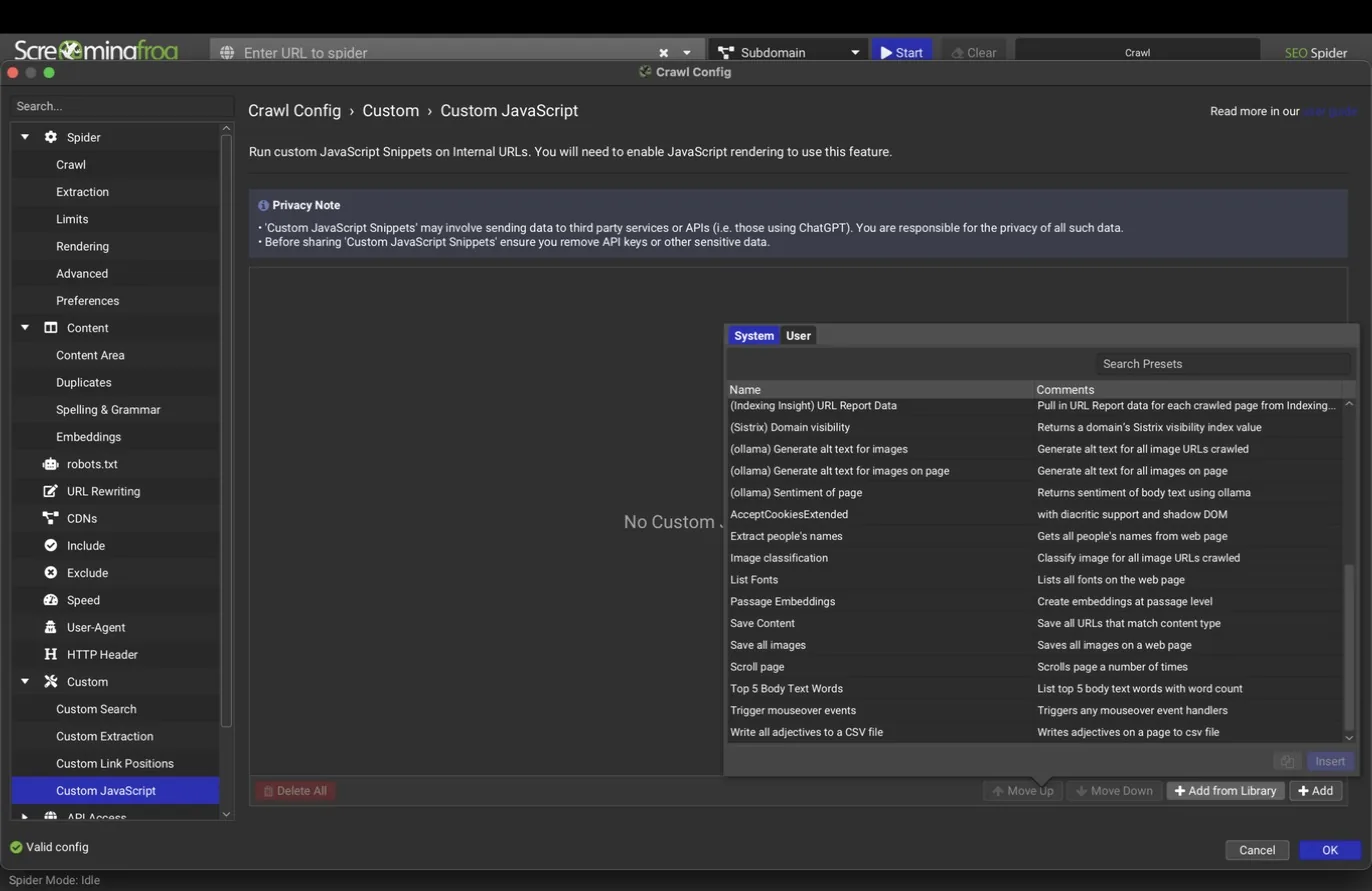
Custom JavaScript runs snippets of your own JavaScript on every rendered page during the crawl and records what they return. It requires JavaScript rendering mode, and the pane carries a privacy note worth reading, since snippets can send page content to external services if you tell them to.
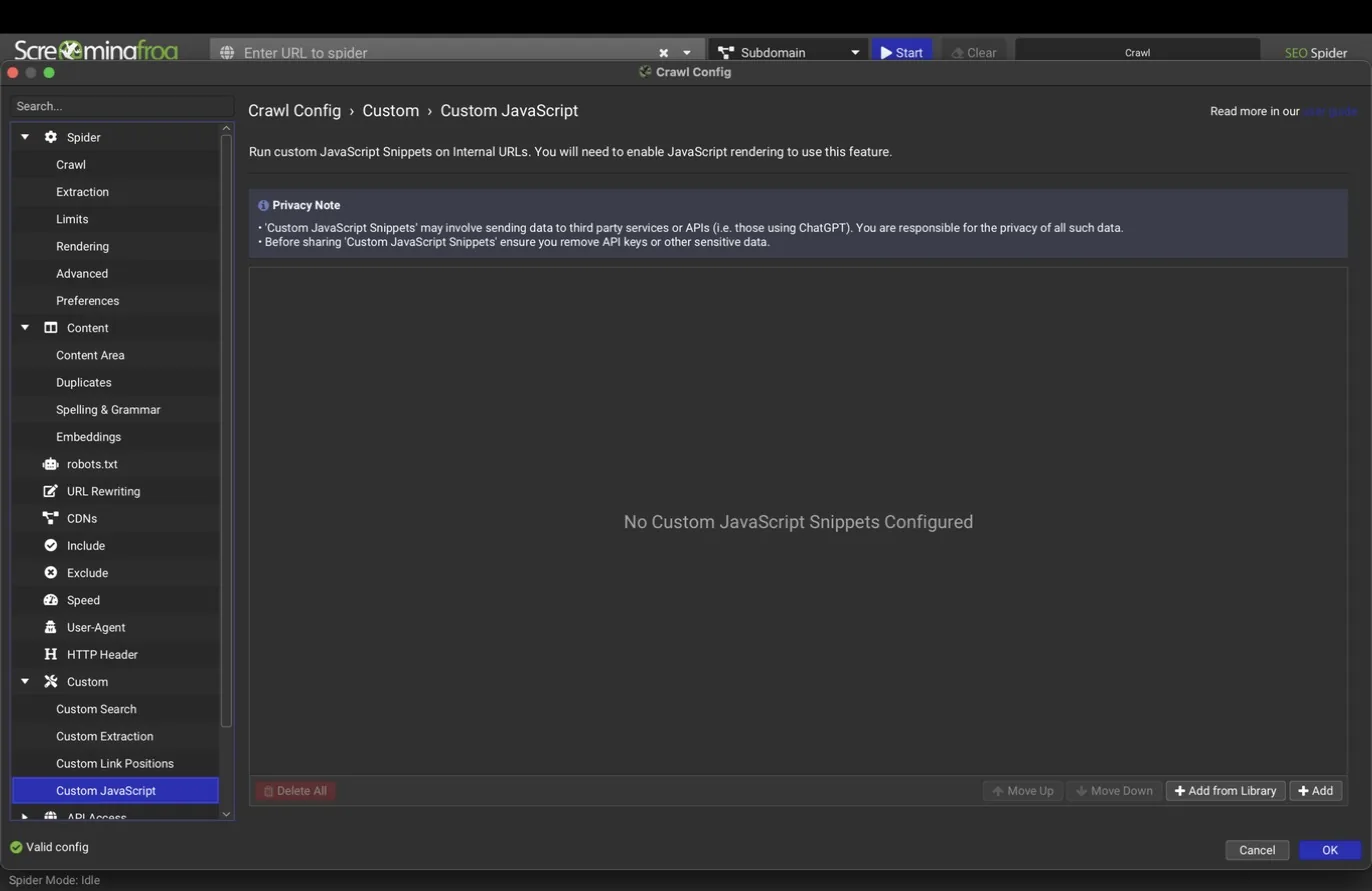
The bundled snippet library is the fast path: around 30 presets covering AI-assisted tasks (generate image alt text, classify page intent, detect language and sentiment via ChatGPT, Gemini, or a local Ollama model), AlsoAsked question research, extracting people names, image classification, passage embeddings, saving page content, and utilities like auto-accepting cookie banners, scrolling the page, or listing the top five words. A User tab stores your own snippets alongside them.
API integrations
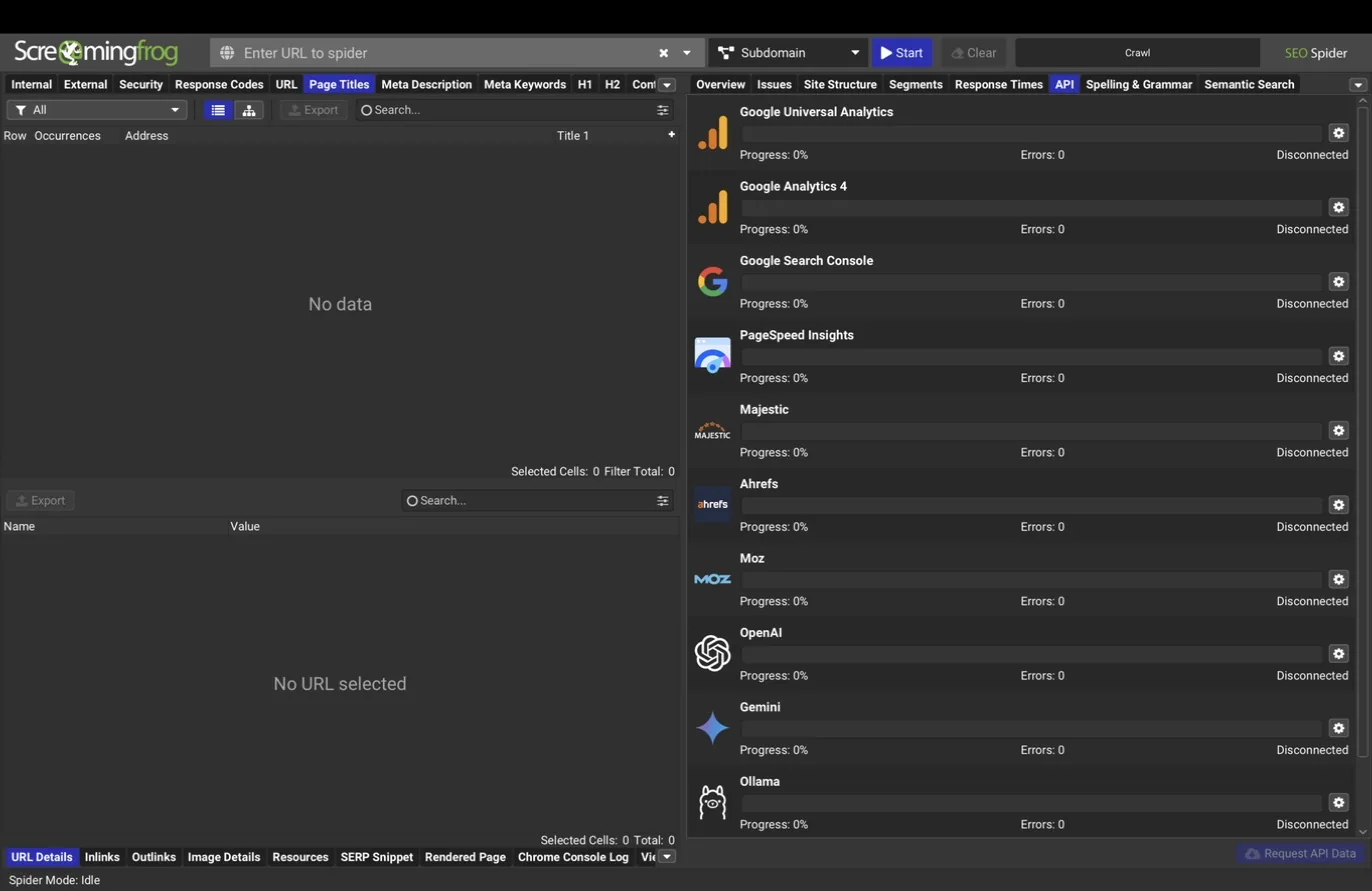
Configuration > API Access connects external data sources so their metrics join onto every crawled URL. Eleven providers are available, and each connection is stored per configuration profile.
Google Search Console
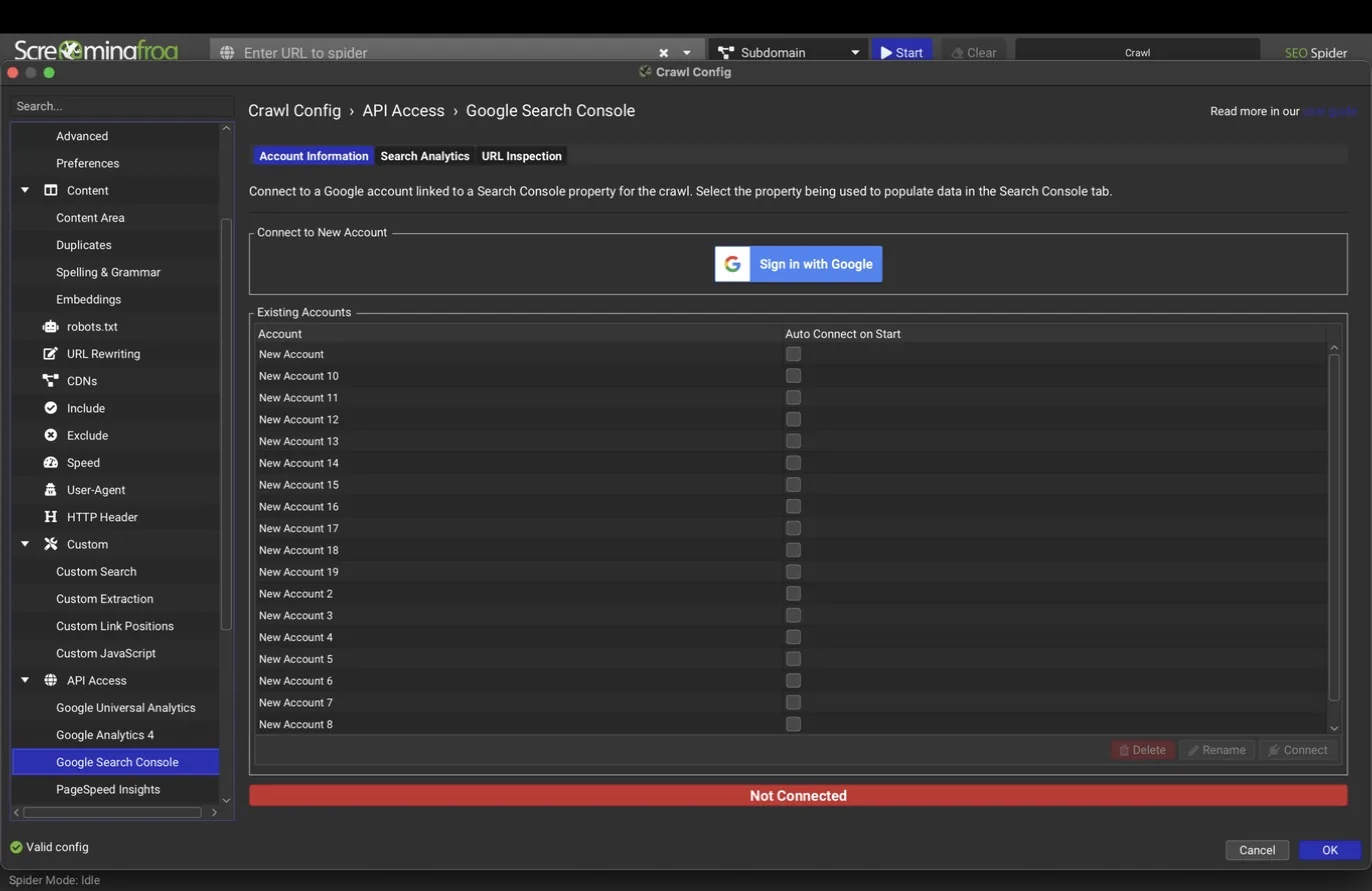
The Search Console connection is the single most valuable one for audit work, and it's free. Once connected, every URL gains clicks, impressions, CTR, and average position.
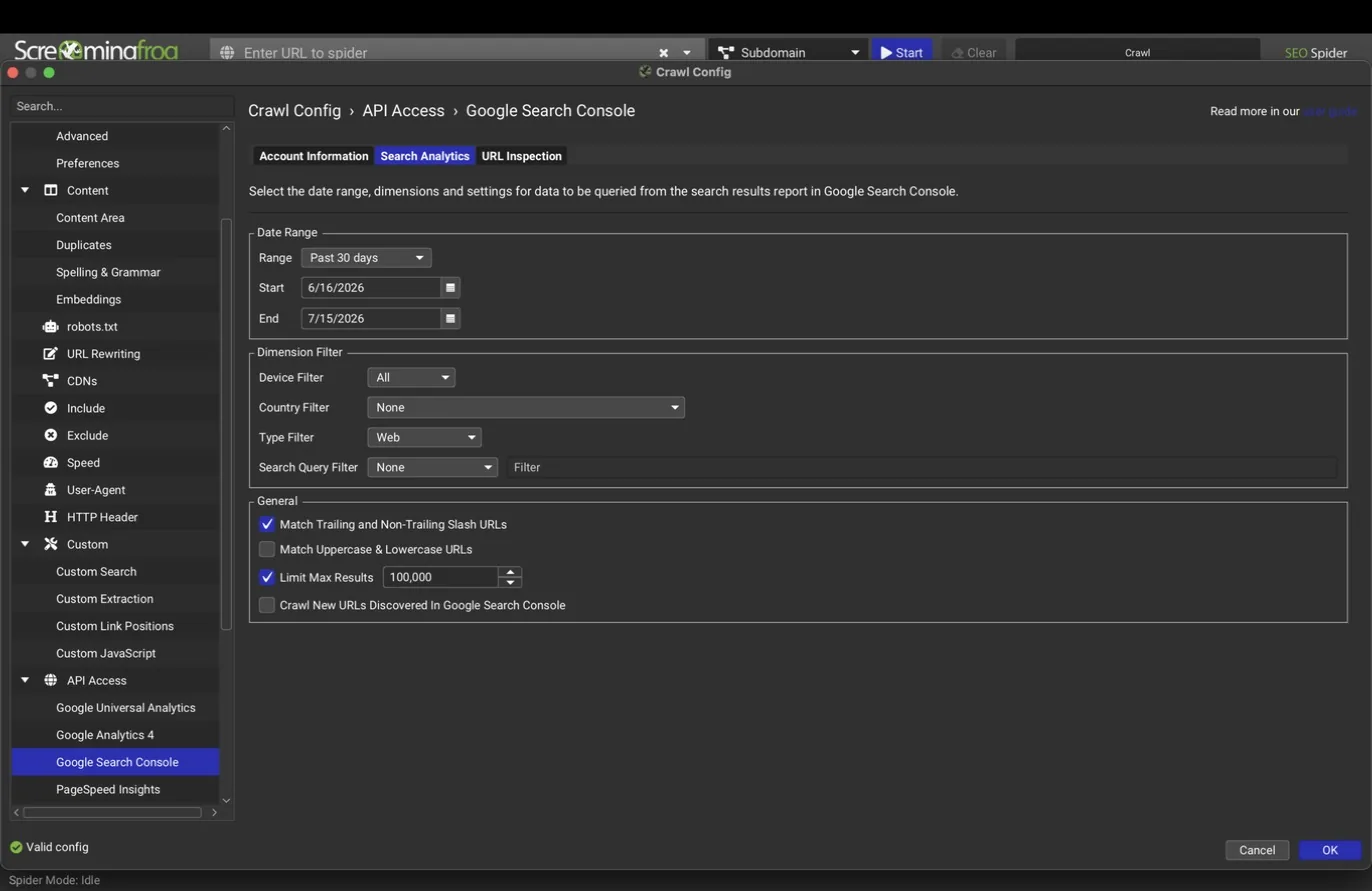
The Search Analytics tab controls the date range, device, country, and search type filters, caps rows at 100,000, and can pull URLs from GSC that the crawl did not find, which surfaces pages Google knows about but your site no longer links to.
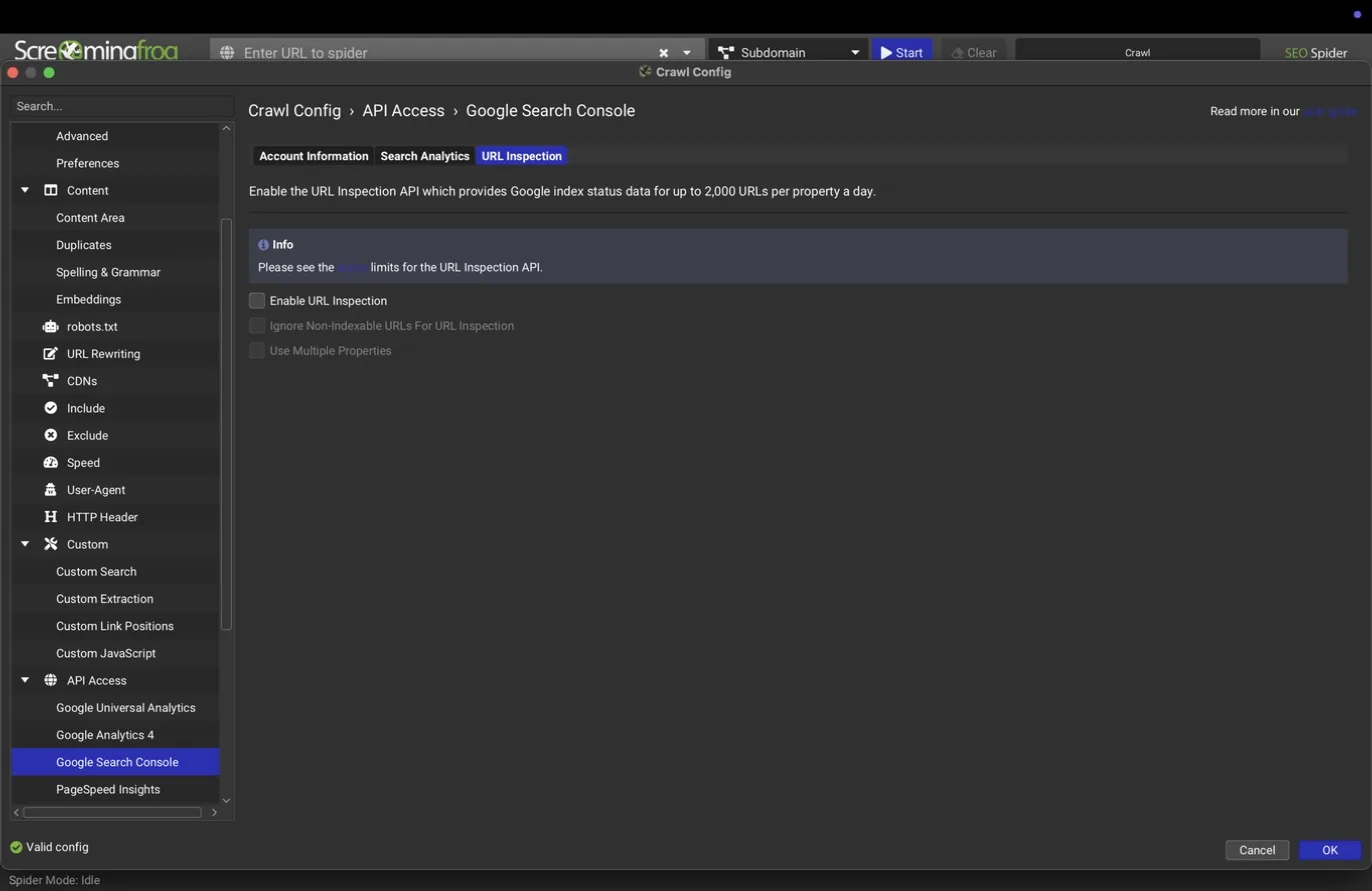
The URL Inspection tab goes further: it queries Google's own index status per URL, including coverage state, the Google-selected canonical versus the declared one, rich result validity, and the filter that pays for the setup time by itself, "Indexable URL Not Indexed." The API allows 2,000 URLs per property per day; the multi-property option spreads a large site across several GSC properties to raise that ceiling.
What teams use this for
Work the Indexable URL Not Indexed list
Pages eligible for the index that Google skipped are the highest-yield quality worklist in the tool.
Prune with evidence, not vibes
Pages with no clicks and no impressions across 16 months are removal candidates you can defend to stakeholders.
Catch canonical disagreements at scale
The Google-selected canonical versus the declared one, on every URL, is an early-warning system for migrations and dedup.
Recover orphans that still have demand
URLs GSC knows about that the crawl never found are pages with search value your internal linking abandoned.
Google Analytics
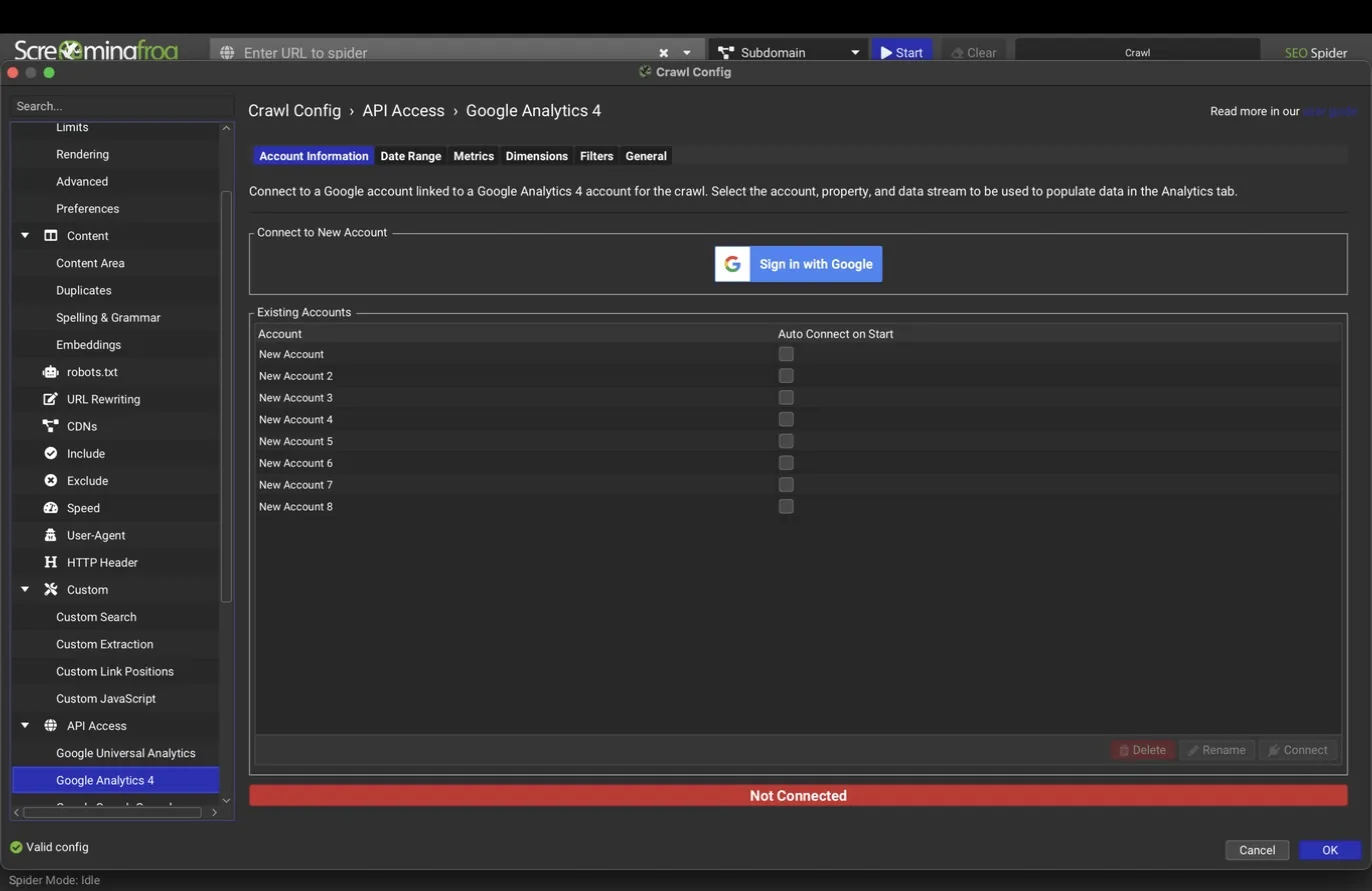
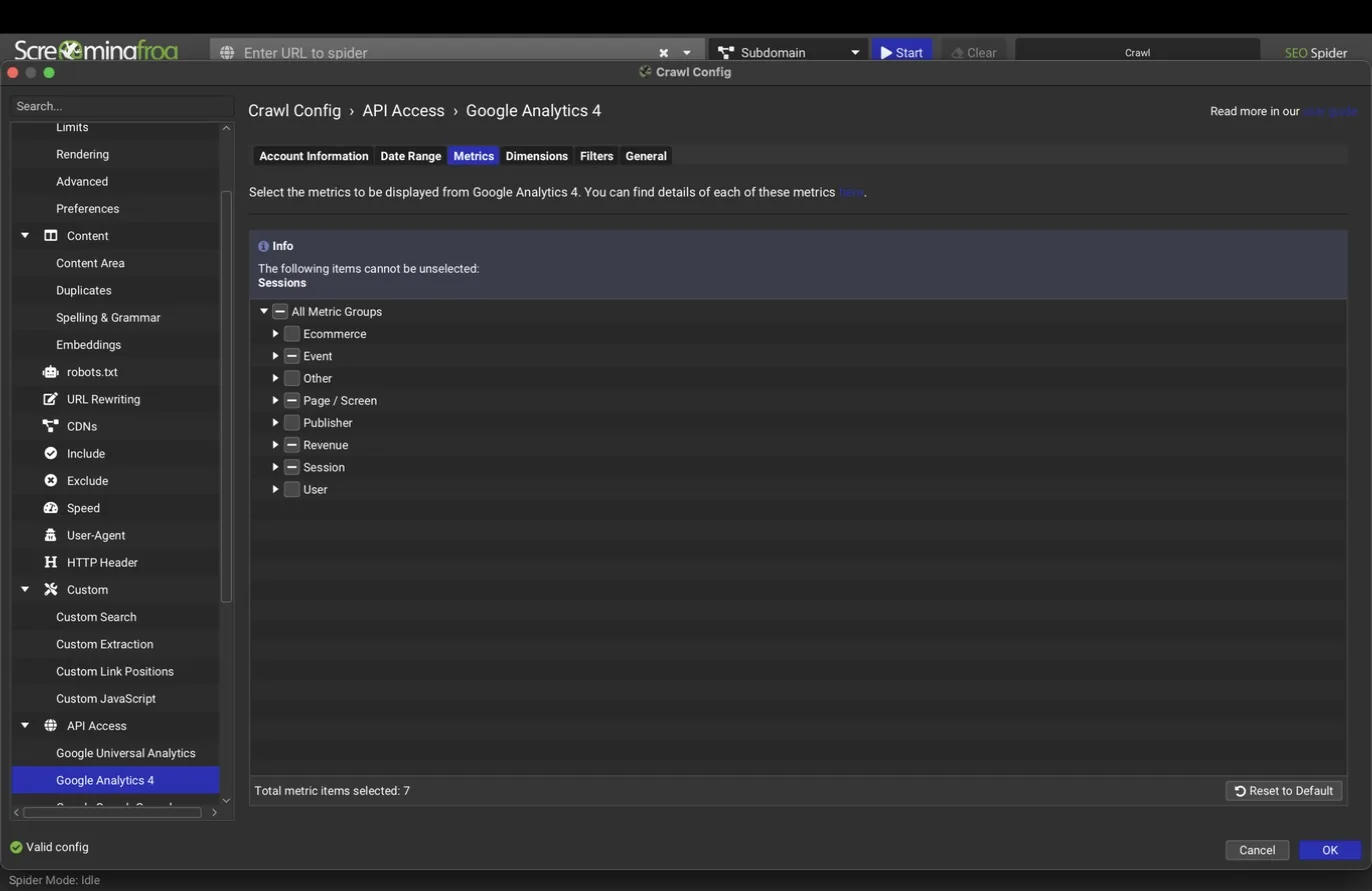
GA4 joins sessions, engagement, and key events onto each URL, with a metrics tree to pick exactly which numbers you want (Sessions is mandatory). The practical win is orphan detection in reverse: pages receiving GA traffic that the crawl never found are pages users reach but your internal linking has abandoned.
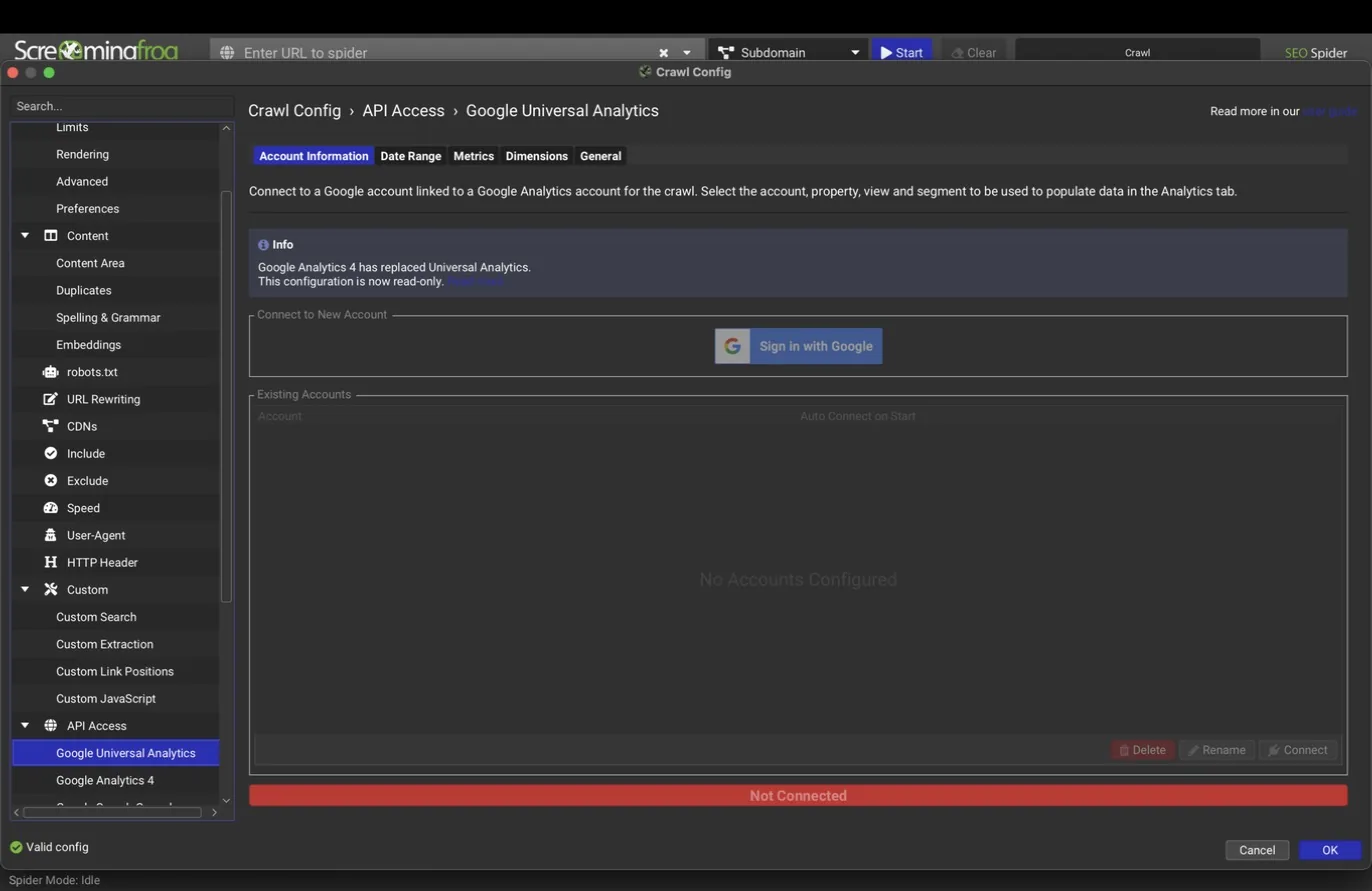
A Universal Analytics connection is still present for anyone with historical UA data, though UA itself stopped processing new data in 2023.
PageSpeed Insights
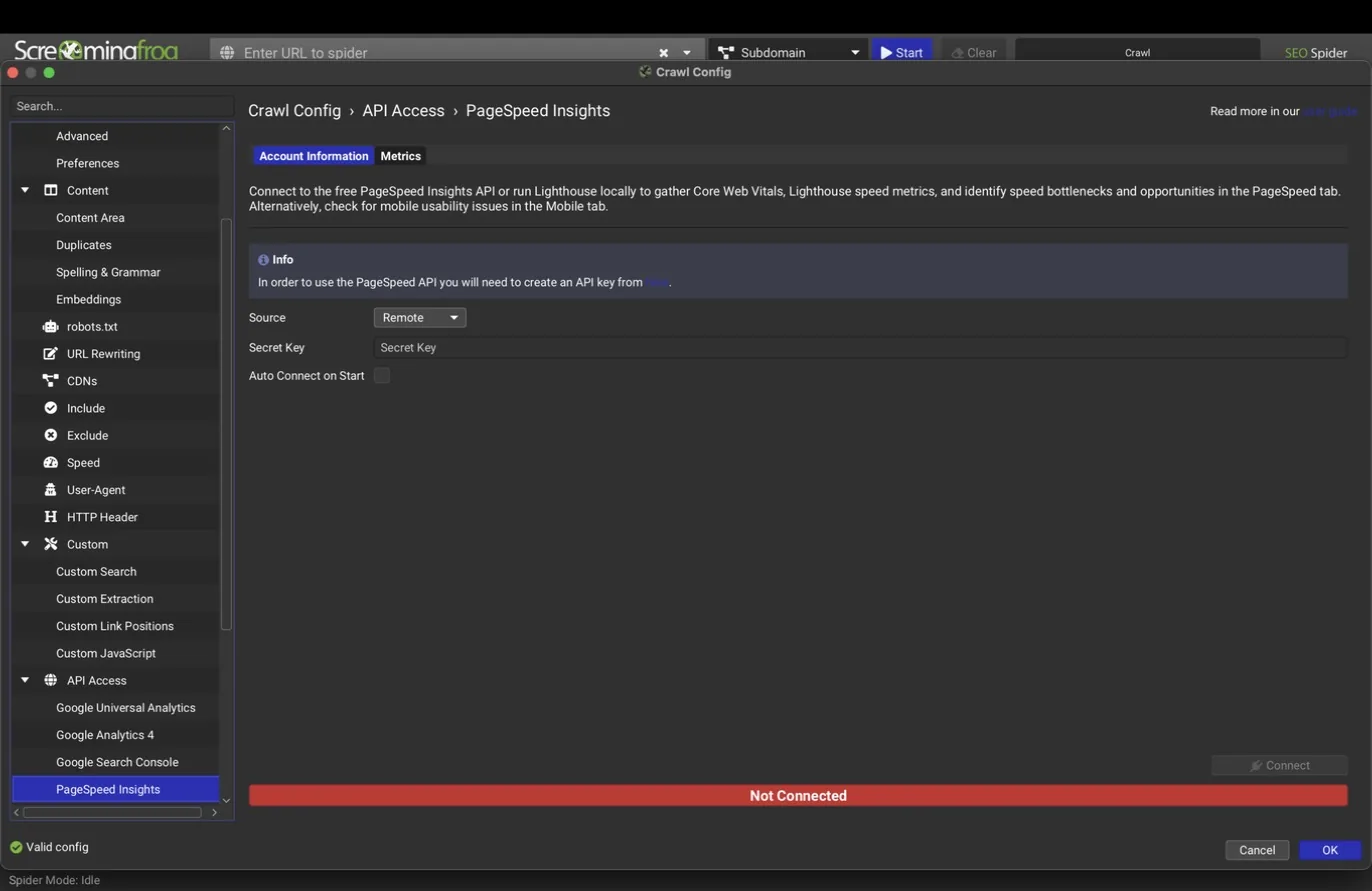
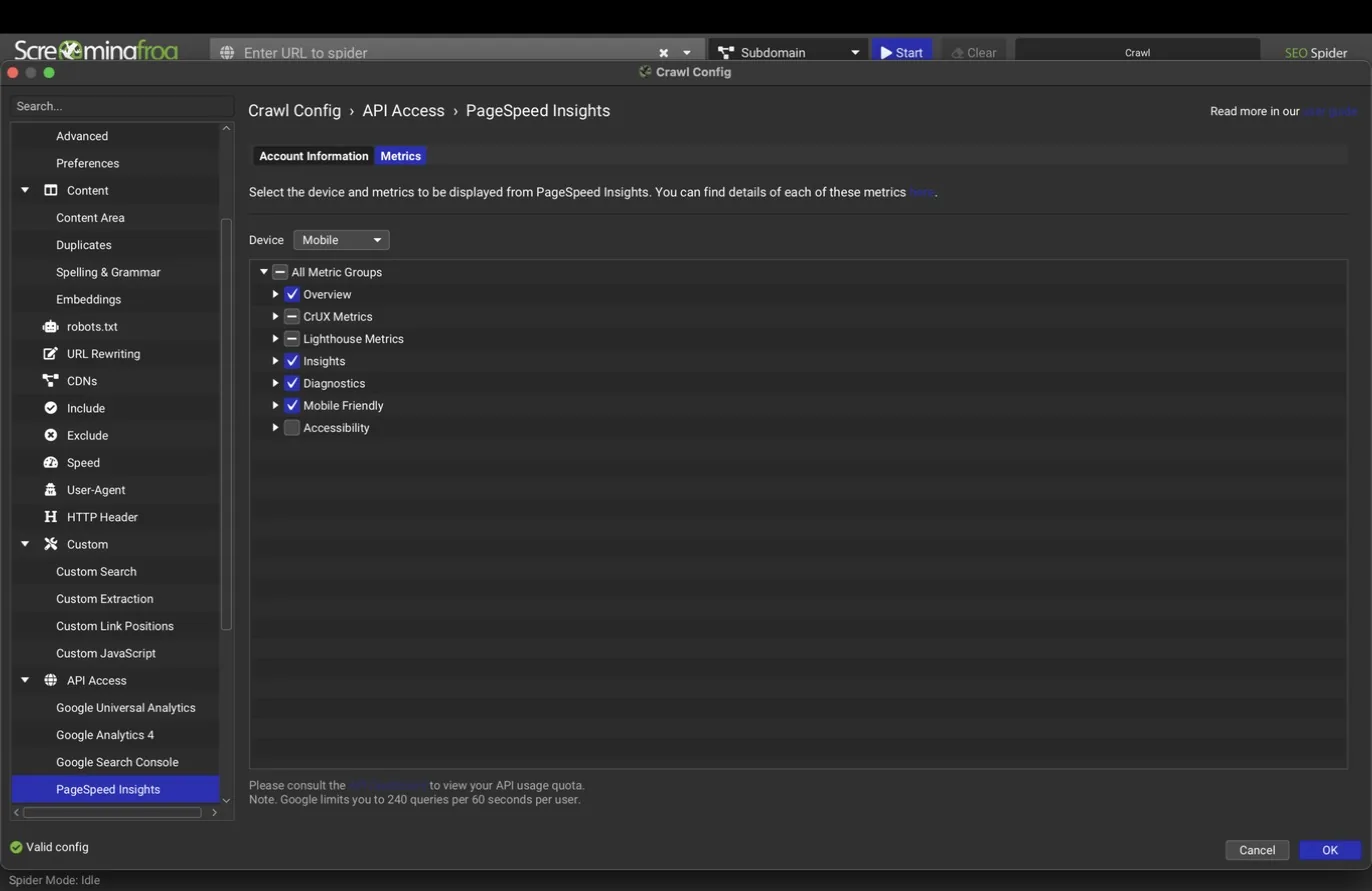
The PageSpeed connection adds Core Web Vitals (LCP, INP, CLS) and supporting metrics like FCP and TTFB to every URL: field values from CrUX where available, lab values from Lighthouse (INP is field-only; TBT is its lab proxy), plus about 20 opportunity audits. The account tab takes a free API key, but check the Source dropdown: version 24 can run Lighthouse locally instead of calling the remote API, which means no key, no quota, and no rate limits on deep crawls. The metrics tab picks device (mobile or desktop) and which metric groups to store.
Agency tip
Use local Lighthouse for full-site sweeps where quota would bite, and the remote API when you specifically want Google's field data (CrUX) rather than lab numbers.
Link metrics: Majestic, Ahrefs, Moz
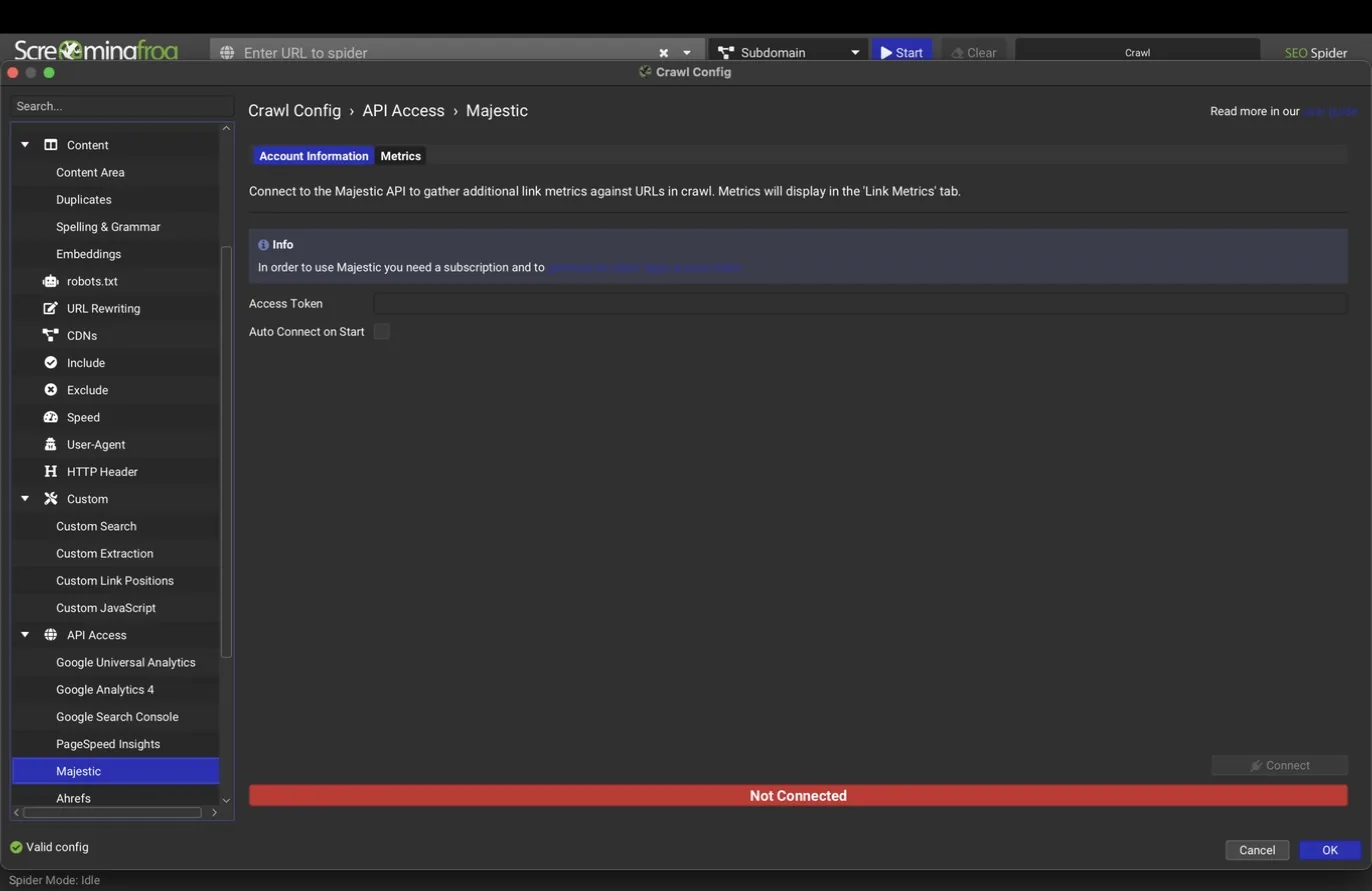
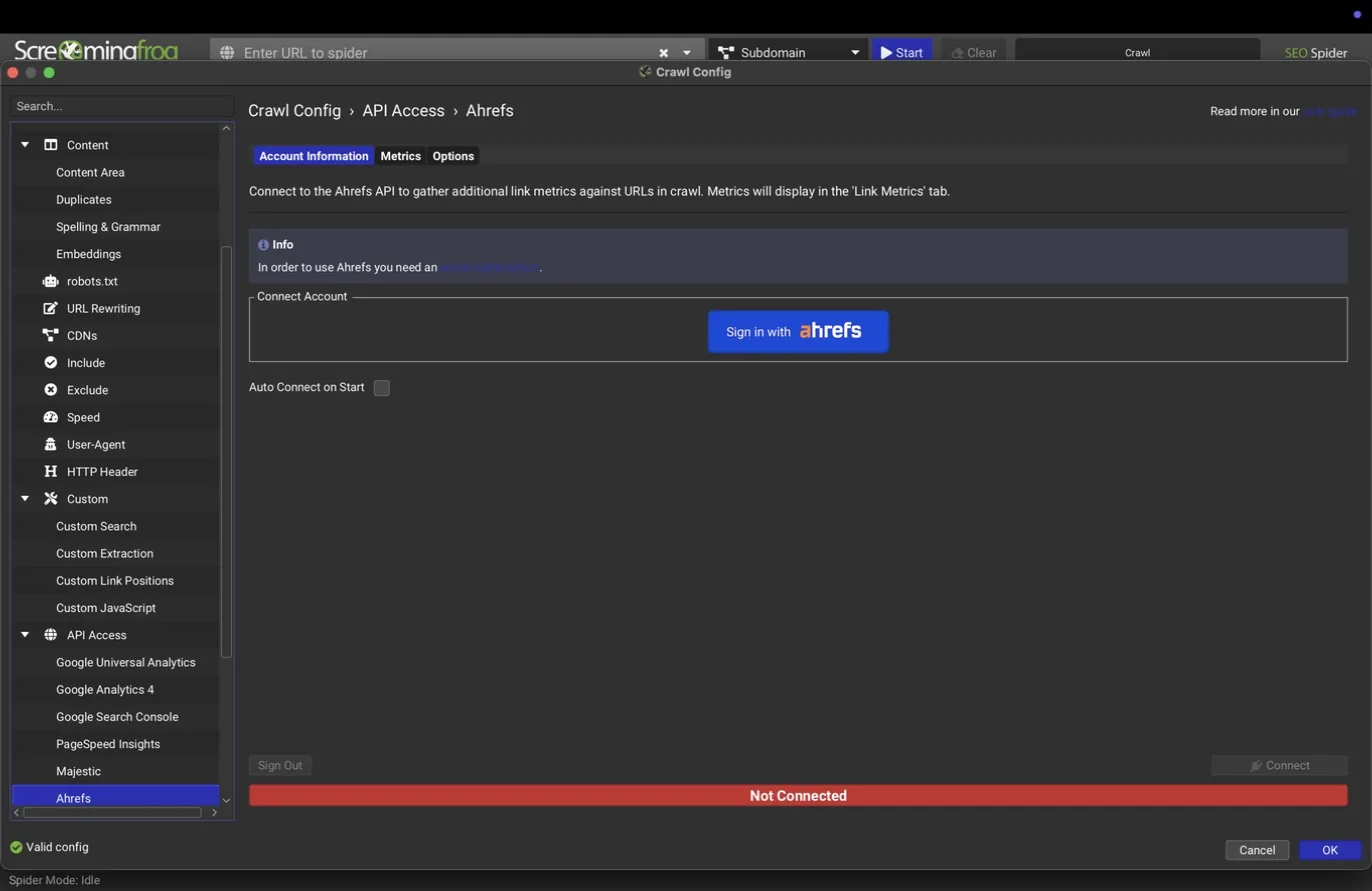
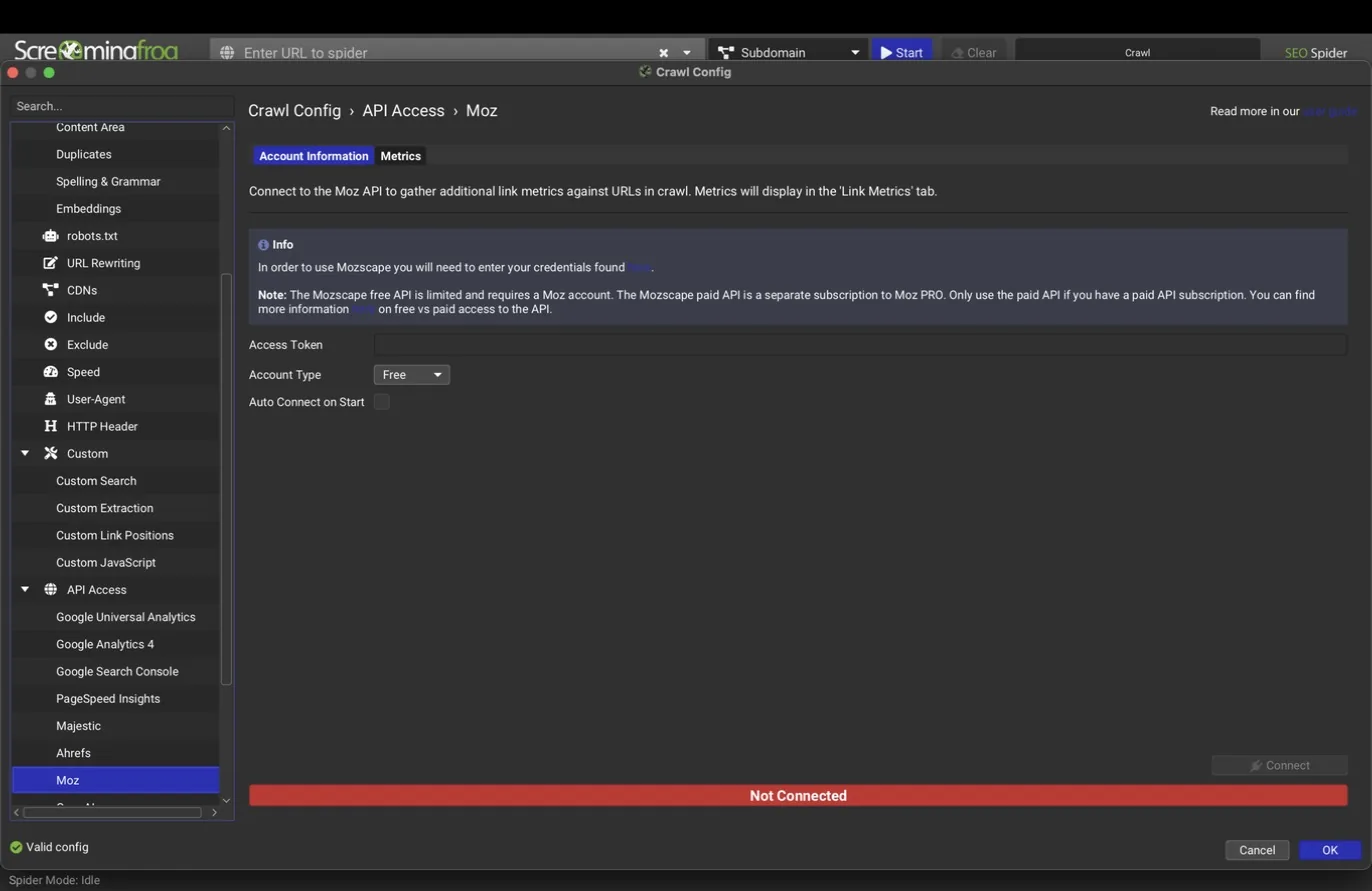
Three backlink providers connect the same way: authenticate, and each crawled URL gains external link metrics, such as referring domains, Trust Flow and Citation Flow (Majestic), DR and UR (Ahrefs, via OAuth sign-in), or DA and PA (Moz). All three are paid subscriptions. Use them when the engagement actually calls for link data, not by default; they add API cost to every crawl they're enabled on.
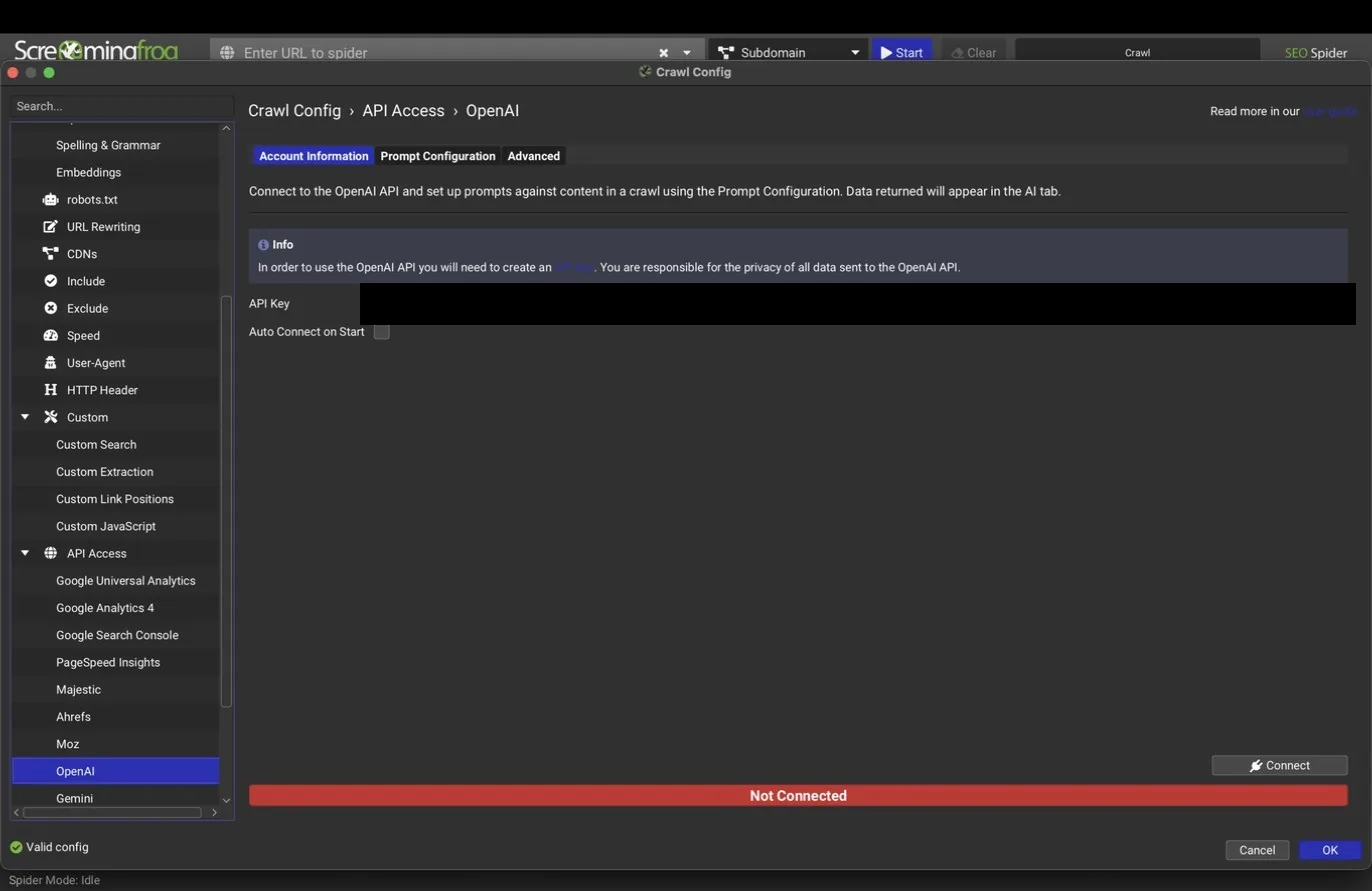
AI providers: OpenAI, Gemini, Ollama, Anthropic
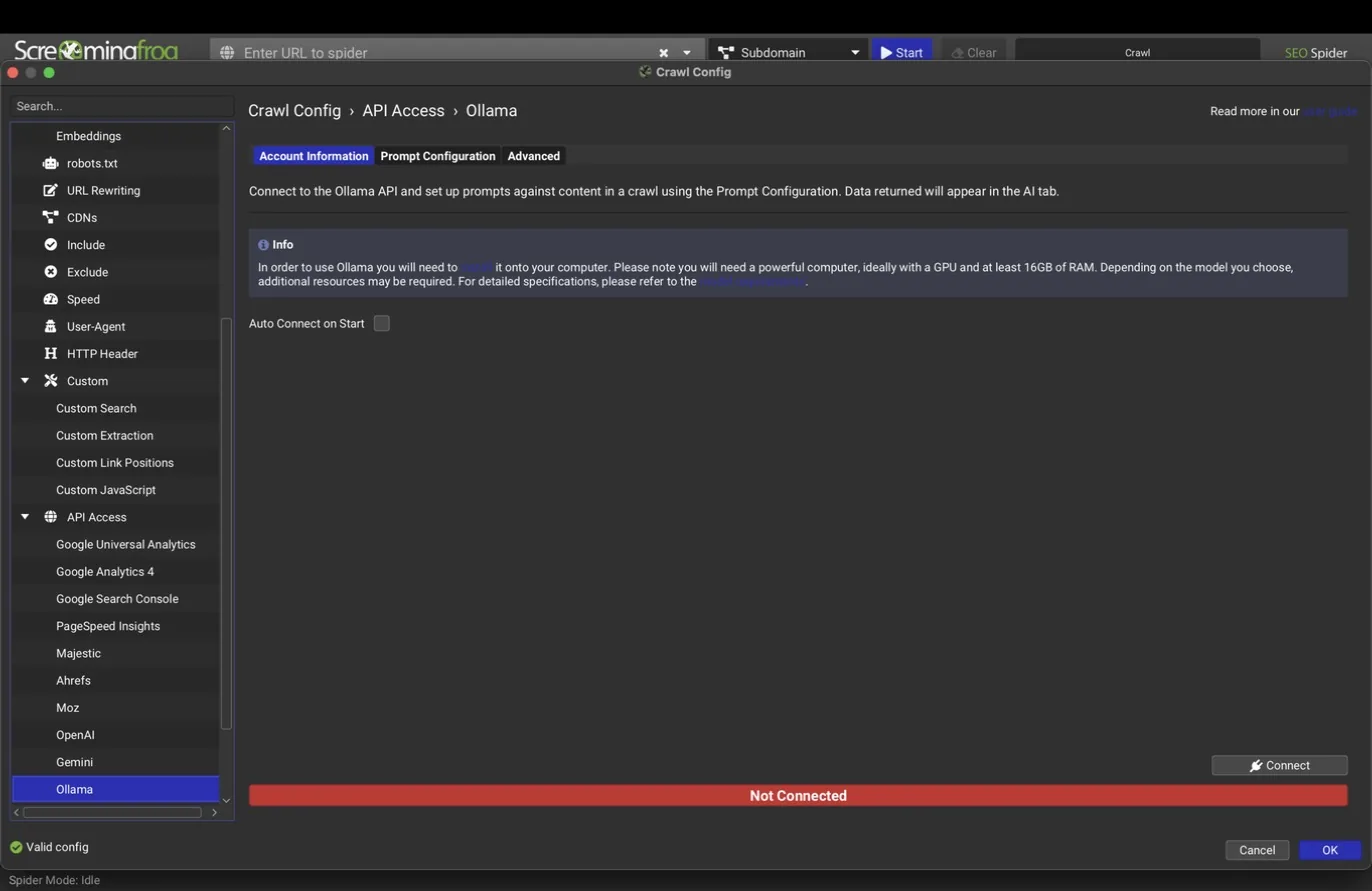
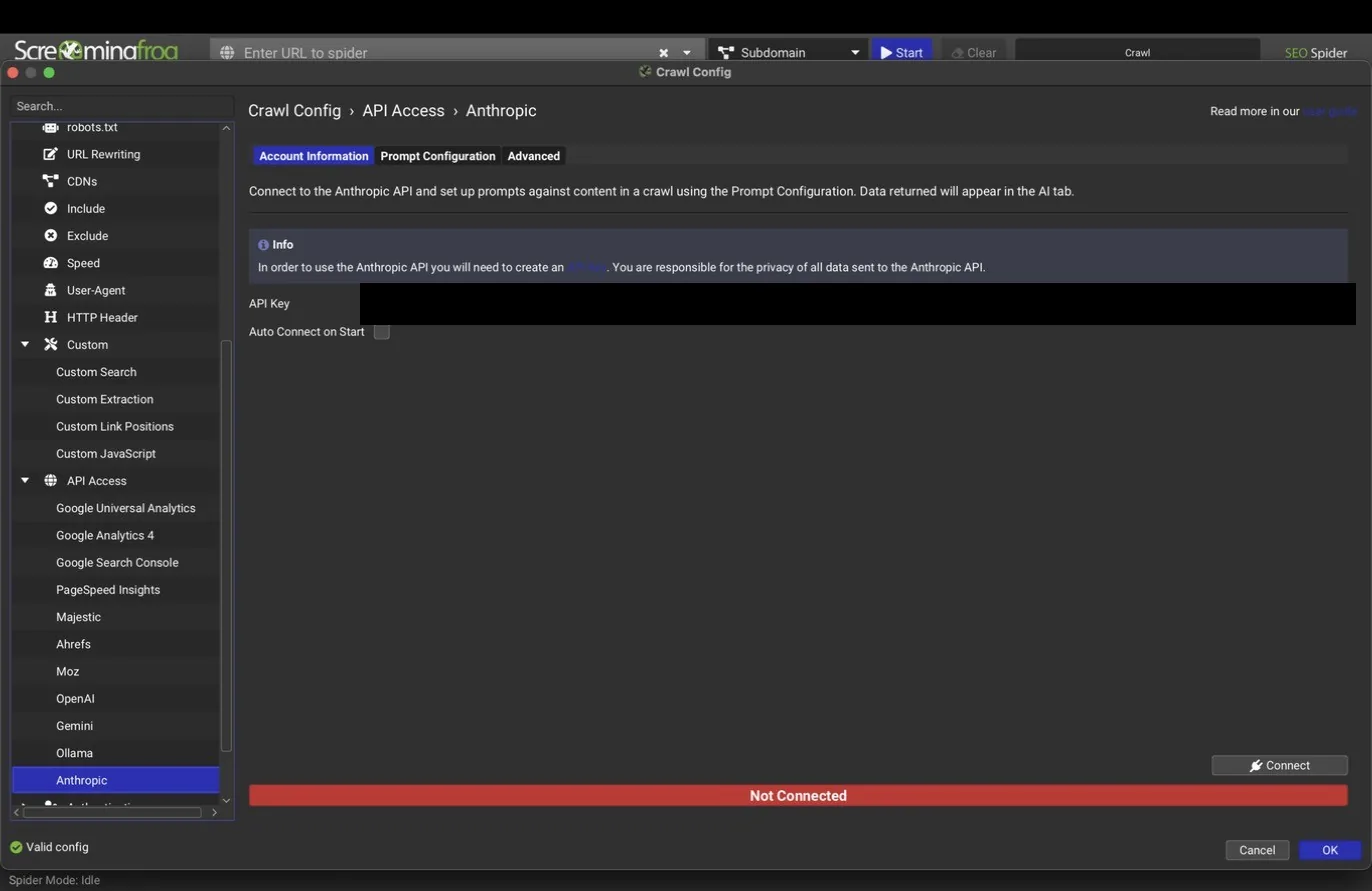
Version 24 ships four AI connections. Each provider dialog has an account tab for the API key, a prompt configuration tab where you attach up to 100 prompts that run against every crawled page, and an advanced tab for endpoint and rate limit settings. Prompts can classify page intent, judge content quality, check whether a page targets the city it claims to, flag thin or doorway-style copy, or anything else you can phrase as a question about a page.
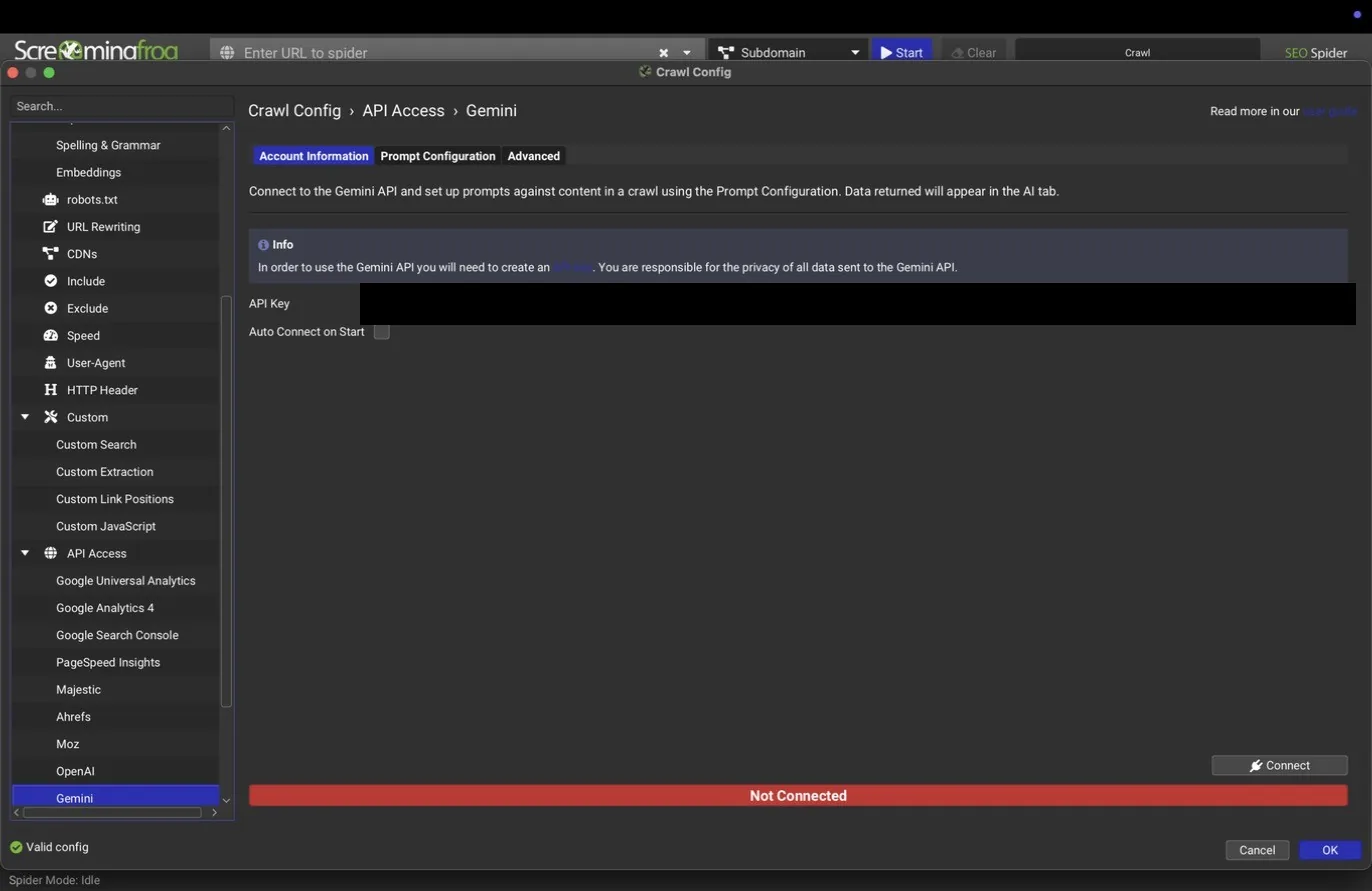
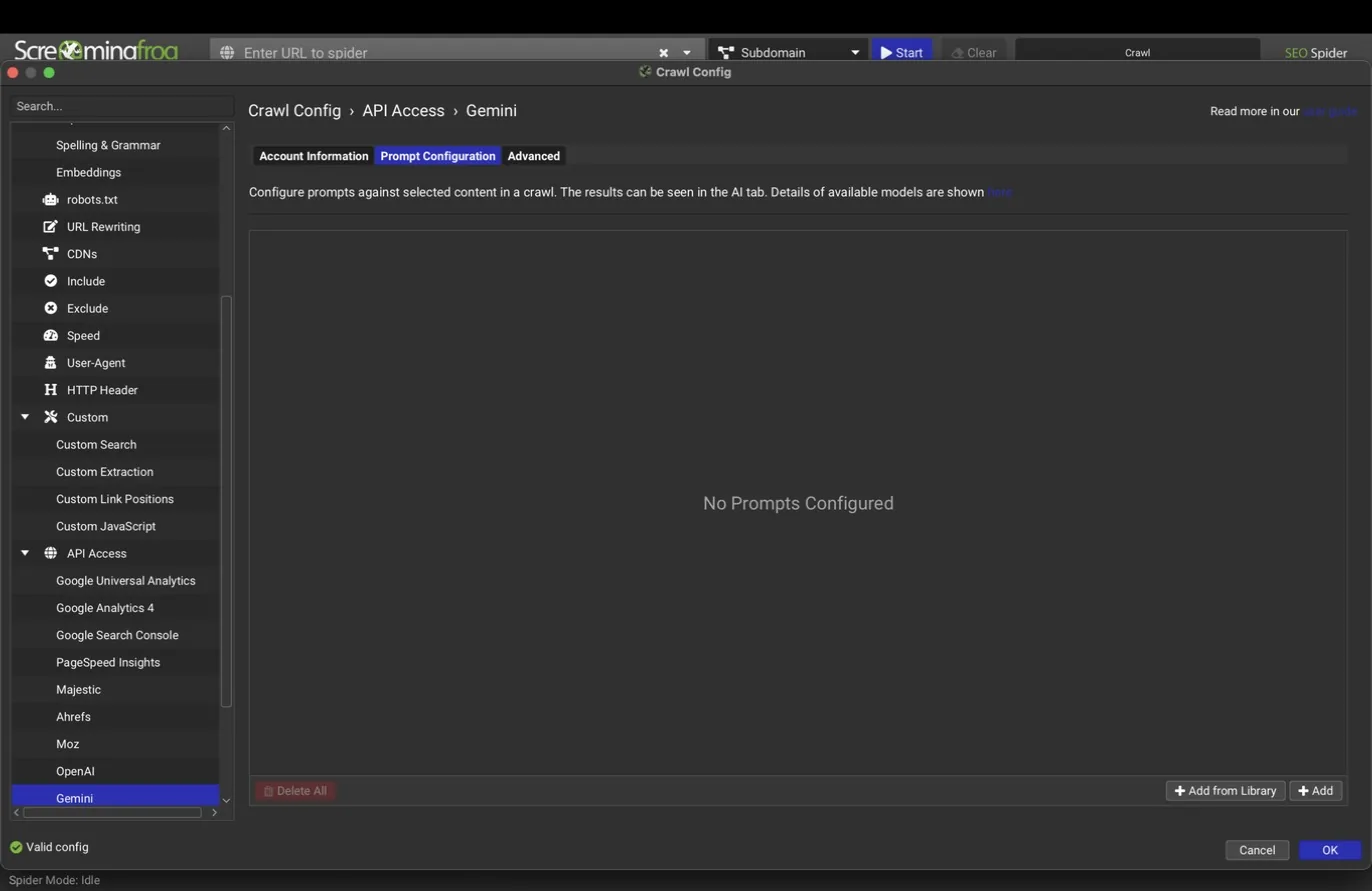
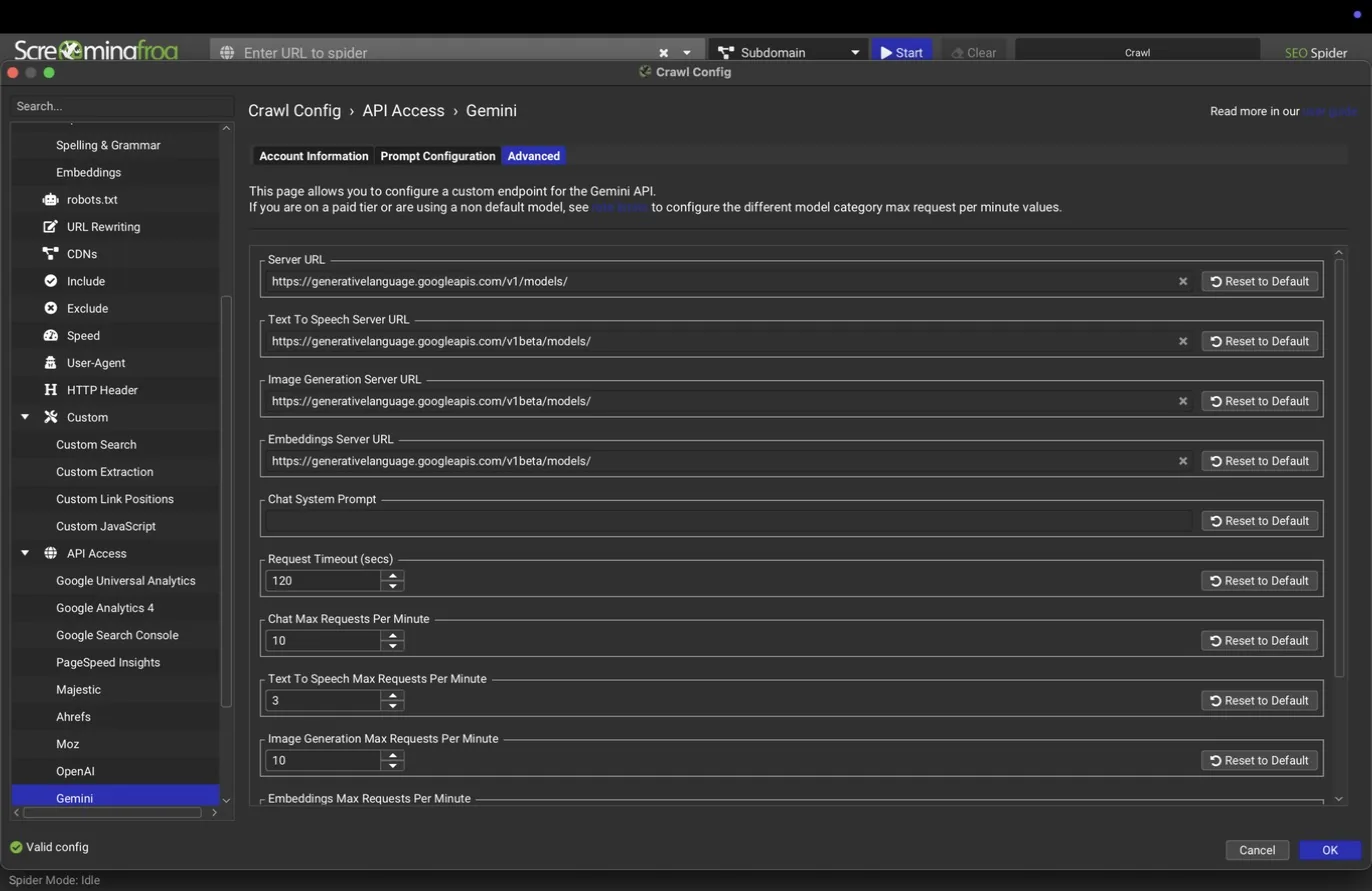
Ollama is the one to notice: it points at a model running locally on your own machine, so per-page AI analysis costs nothing and no site content leaves your computer. For agencies with confidentiality-sensitive clients, that combination is hard to beat.
Two cautions
First, a prompt that runs on every page of a 10,000 URL crawl is 10,000 API calls; estimate cost before you crawl, start with a small List mode batch, and only then scale up. Second, treat the stored API keys with care; they sit in the app configuration on the machine, so screenshots and screen shares of these dialogs need the key fields covered.
What teams use this for
Label page intent across the site
A single prompt classifies every page as commercial, informational, or navigational for template-level strategy.
Score thin content with a consistent rubric
The same quality prompt on every page finds doorway-style copy that human reviewers grade inconsistently.
Keep confidential client data on the machine
Local Ollama runs the same per-page analysis with nothing leaving the laptop, which NDA-heavy enterprise work requires.
Authentication
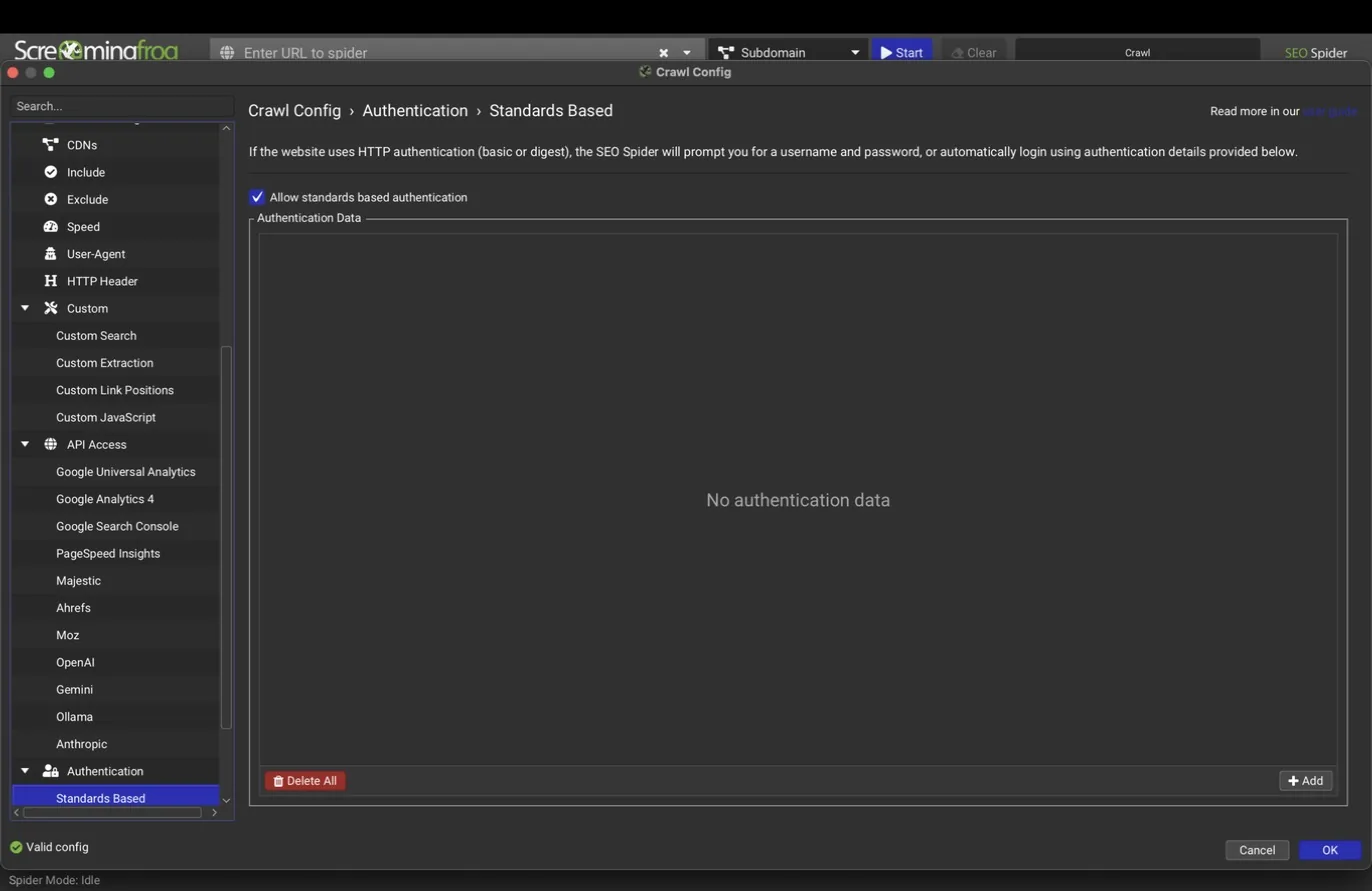
The Authentication section lets the spider crawl sites behind logins. Standards-based covers HTTP basic and digest authentication, the browser-popup kind common on staging servers.
Forms-based opens an embedded browser where you log in to the site yourself; the spider then crawls with your session cookies. This handles normal web login forms, including most CMS and membership logins. Profiles store authentication setups for export and reuse, so a scheduled or command-line crawl can authenticate without a human present.
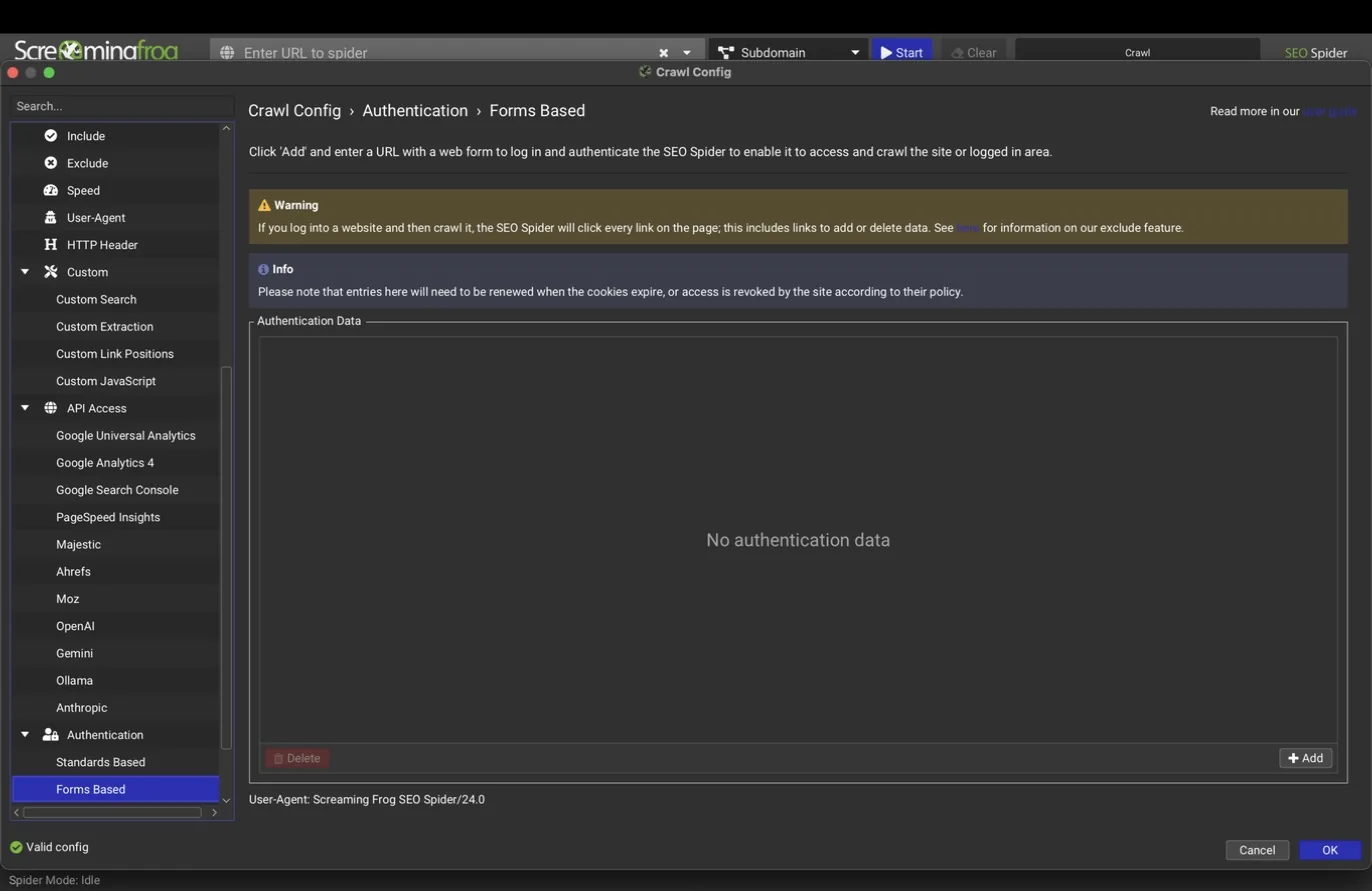
A warning that belongs in every runbook
A logged-in crawler clicks every link it can see. If the account you log in with can delete or modify content, the crawl may do exactly that. Always use a low-privilege, read-only account for authenticated crawls.
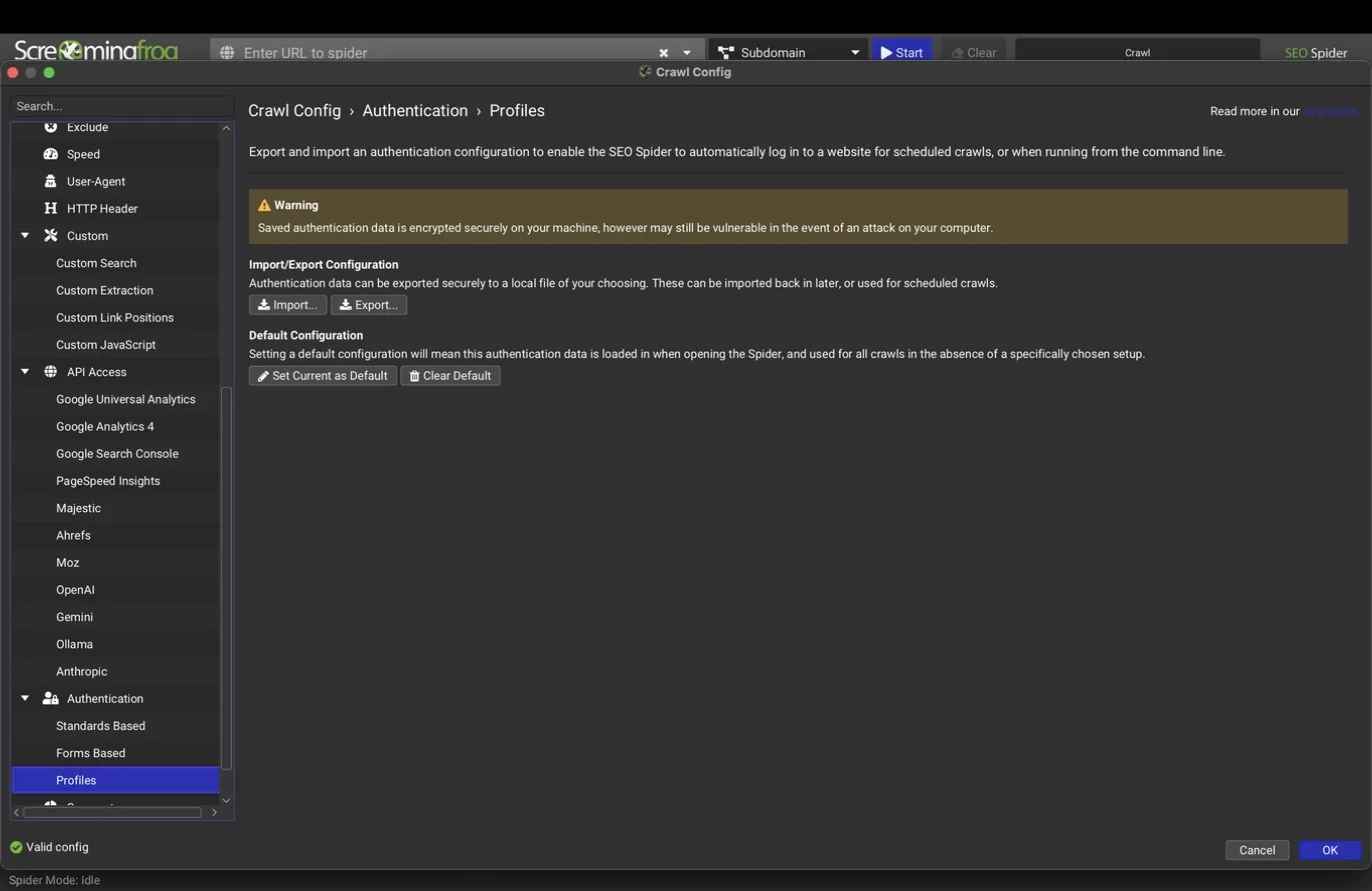
Segments
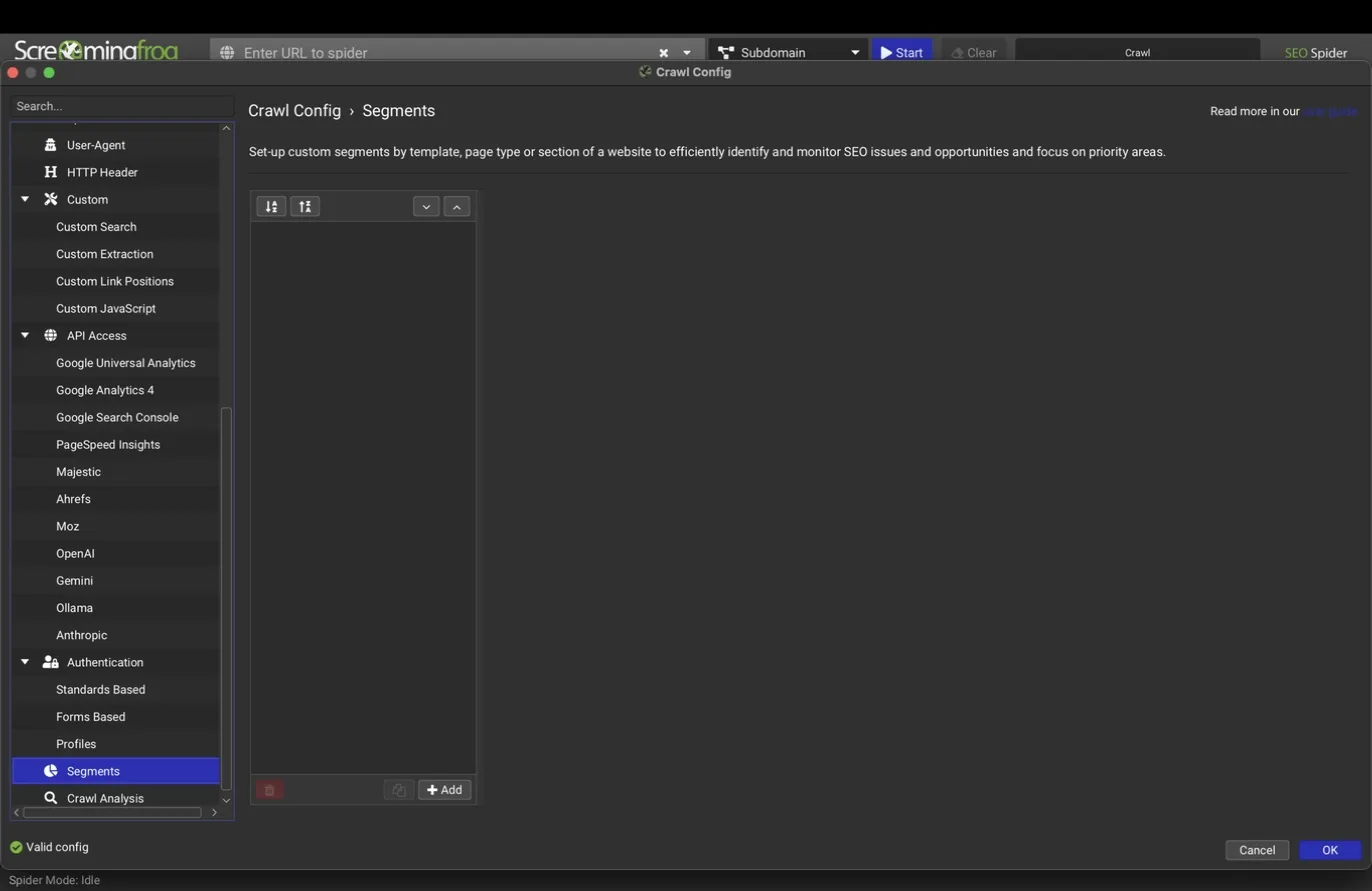
Segments split a crawl into named groups, by URL pattern or other rules, so every tab and report can be filtered to one slice of the site: blog versus product pages, one location folder versus another, templated versus editorial content. Issues can then be counted and trended per segment, which is how you tell a client "the problem is confined to the /shop/ templates" instead of handing over a sitewide list.
Set segments up before a big crawl rather than after; they're the difference between an audit that reads like an inventory and one that reads like a diagnosis.
What teams use this for
Trend issues per template, not per site
Missing titles in /shop/ versus /blog/ tells you whether the fix is a template ticket or an editorial task.
Report by business unit
Enterprise properties get one issue trendline per division or brand from a single crawl.
Shrink the blast radius in client reports
The problem is confined to the /shop/ templates lands better than a 4,000-row spreadsheet.
Crawl analysis
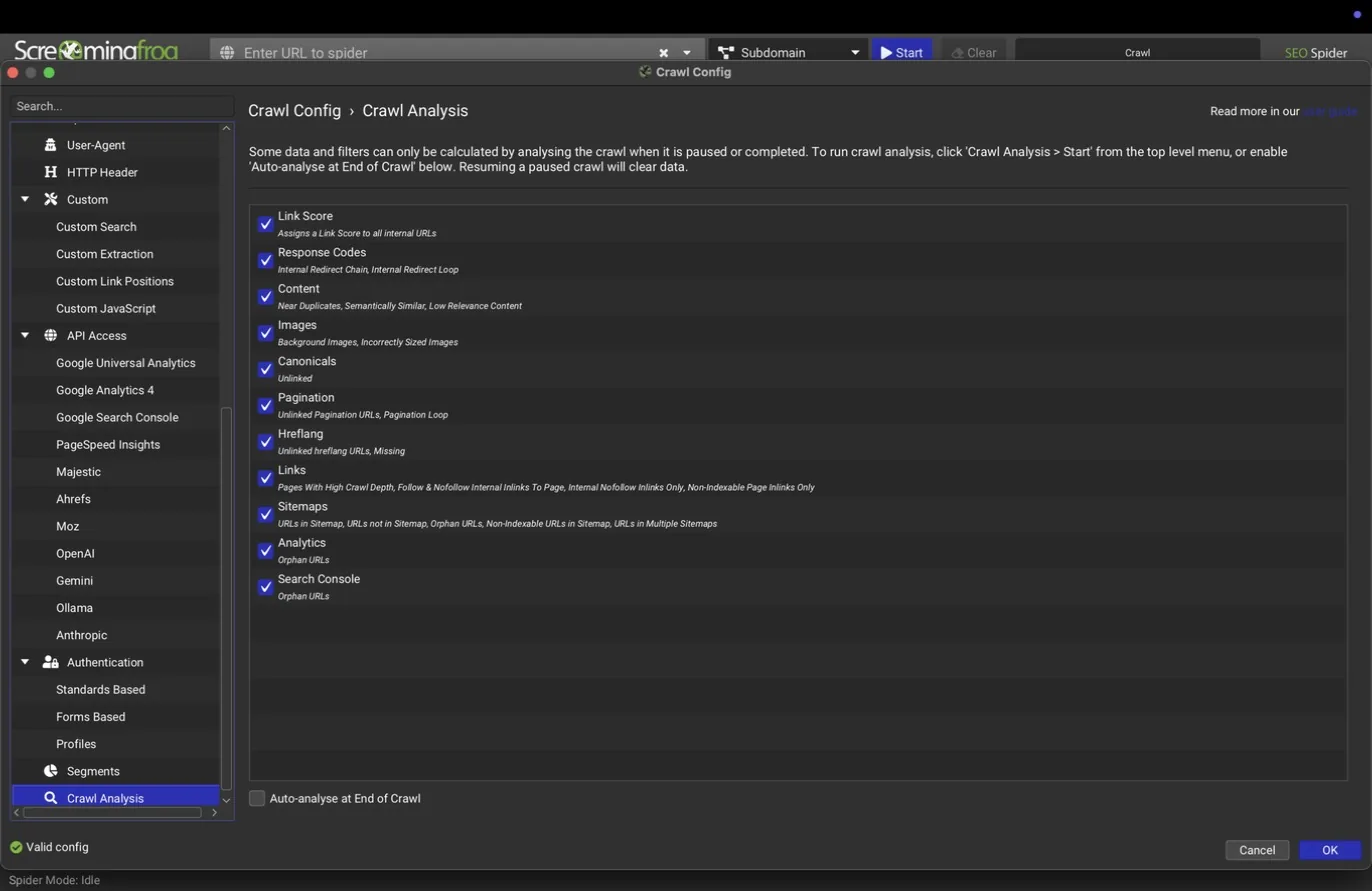
Some metrics can't be computed while the crawl is still running because they need the full link graph or the full content set: Link Score (an internal PageRank-style value per URL), near-duplicate similarity, and semantic similarity from embeddings, among others. The Crawl Analysis config pane selects which of these to compute, and the Crawl Analysis menu runs it after the crawl finishes.
If a column you expected is empty after a crawl, this is the first thing to check. Running crawl analysis is a single click and usually takes seconds to minutes.
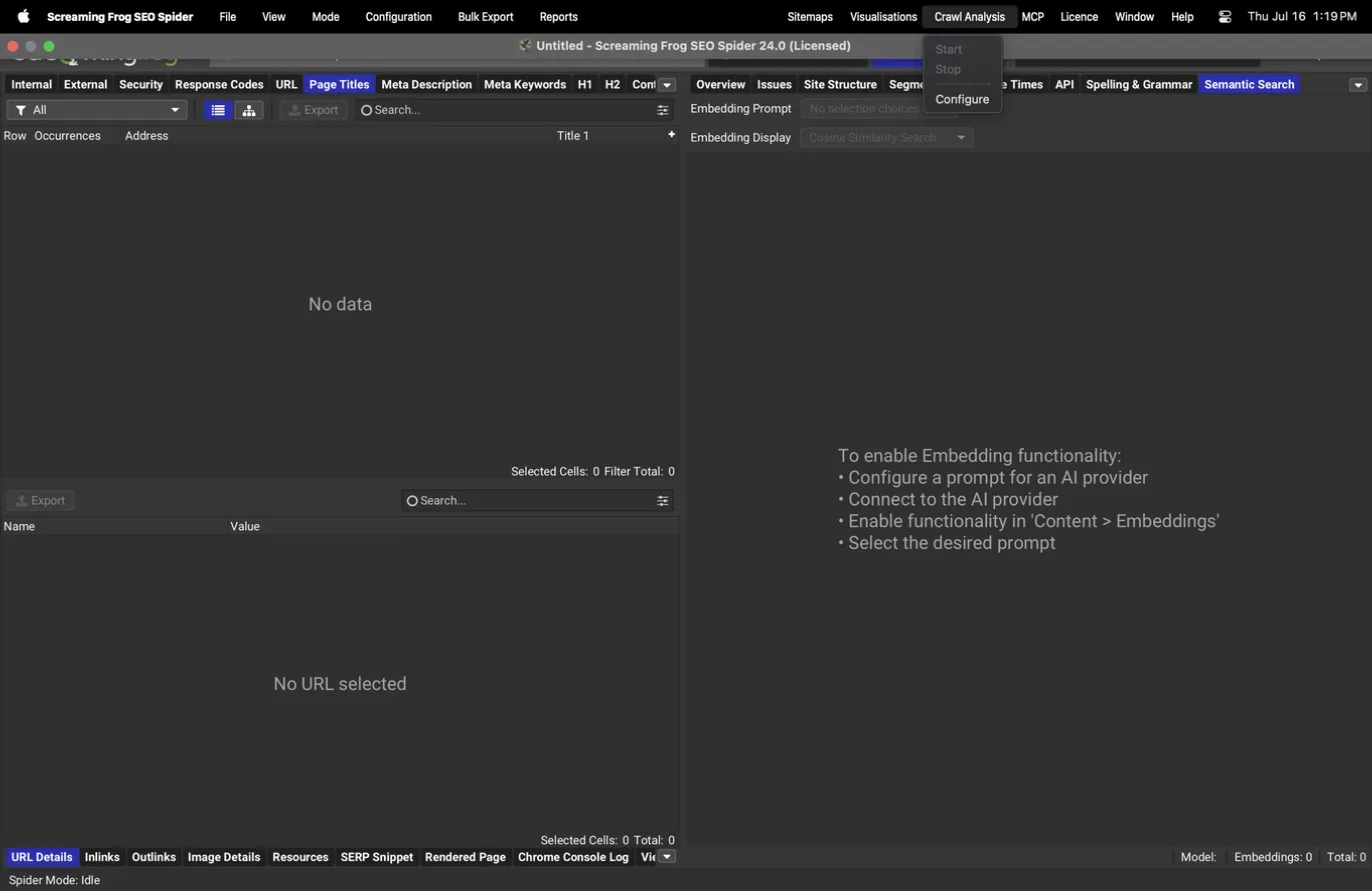
Profiles and scheduling
Everything configured above can be saved as a profile, a .seospiderconfig file, from the Configuration > Profiles menu. Profiles are the backbone of consistent audit work: build one "deep dive" profile with everything enabled and one lighter "routine recrawl" profile, and every crawl of every site runs on identical settings. Profiles travel between machines and feed the command-line interface, so a saved profile is also an automation building block.
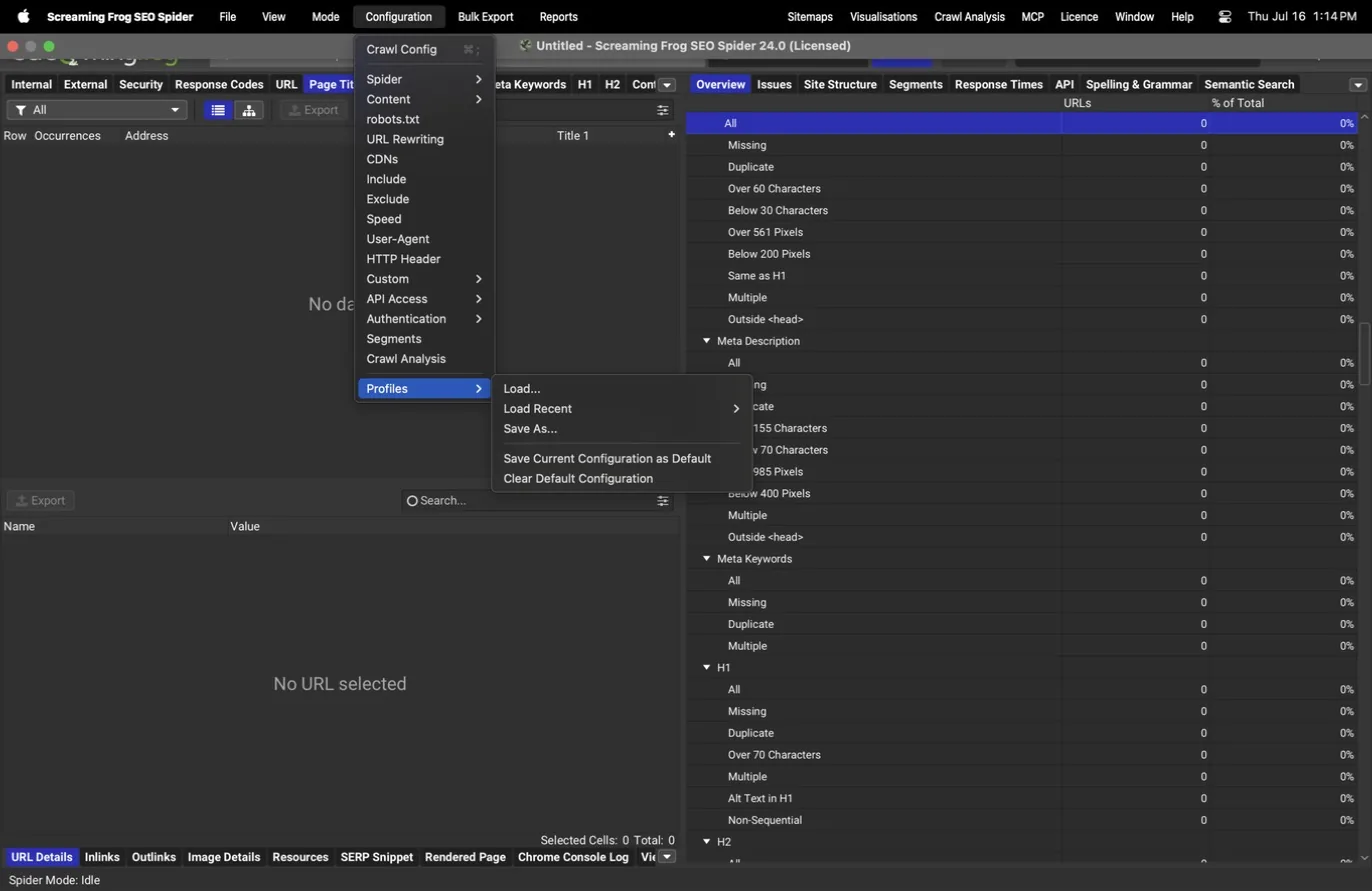
The File menu holds crawl management: open and save crawls, recent crawls, and the scheduler.
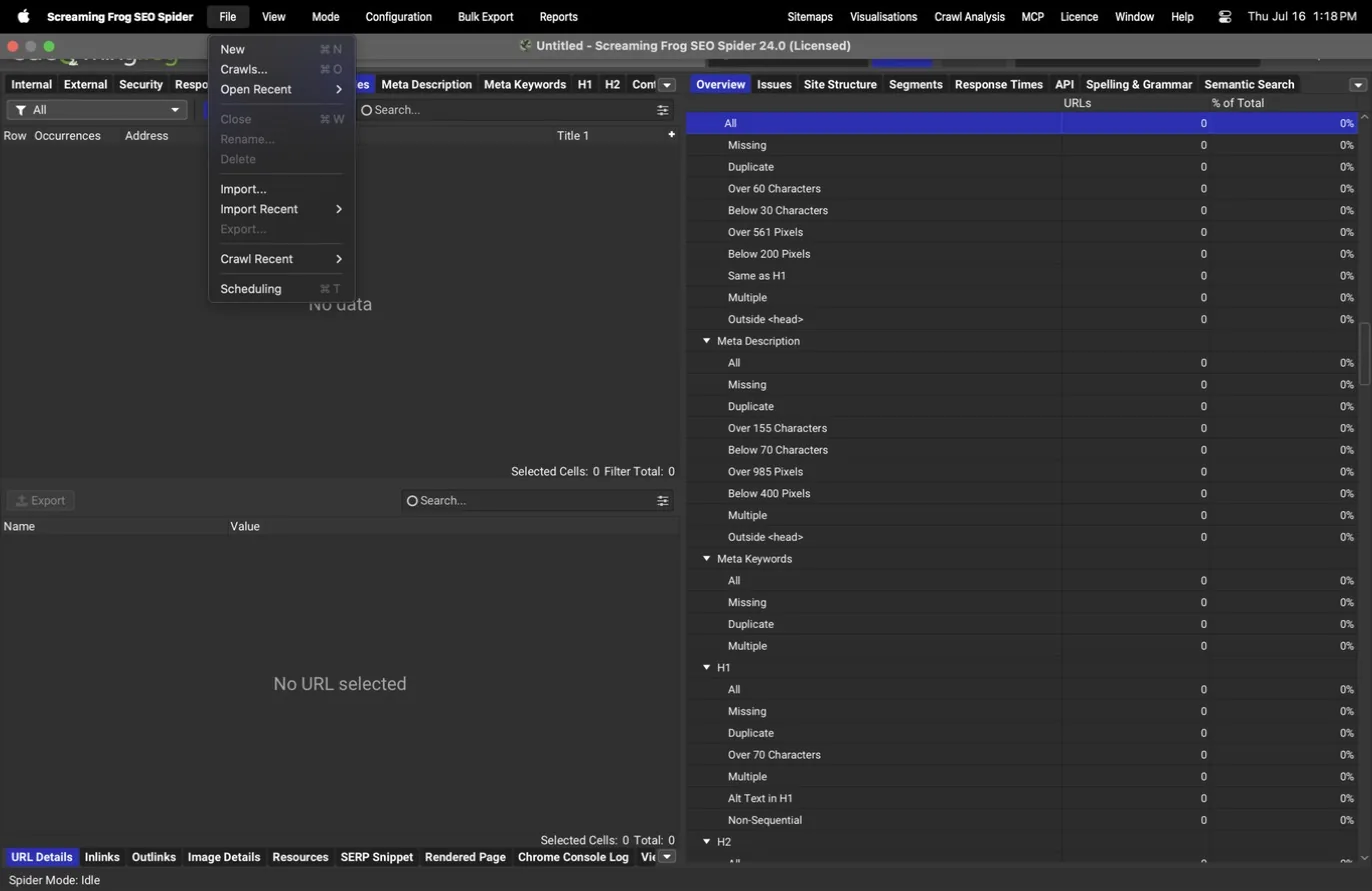
File > Scheduling opens a full in-app scheduler: a task table where each entry pairs a start URL with a configuration profile, an interval, optional API connections, and export actions, plus import/export of tasks and a run history. A monthly or biweekly recrawl can live entirely inside the app with no external cron job.
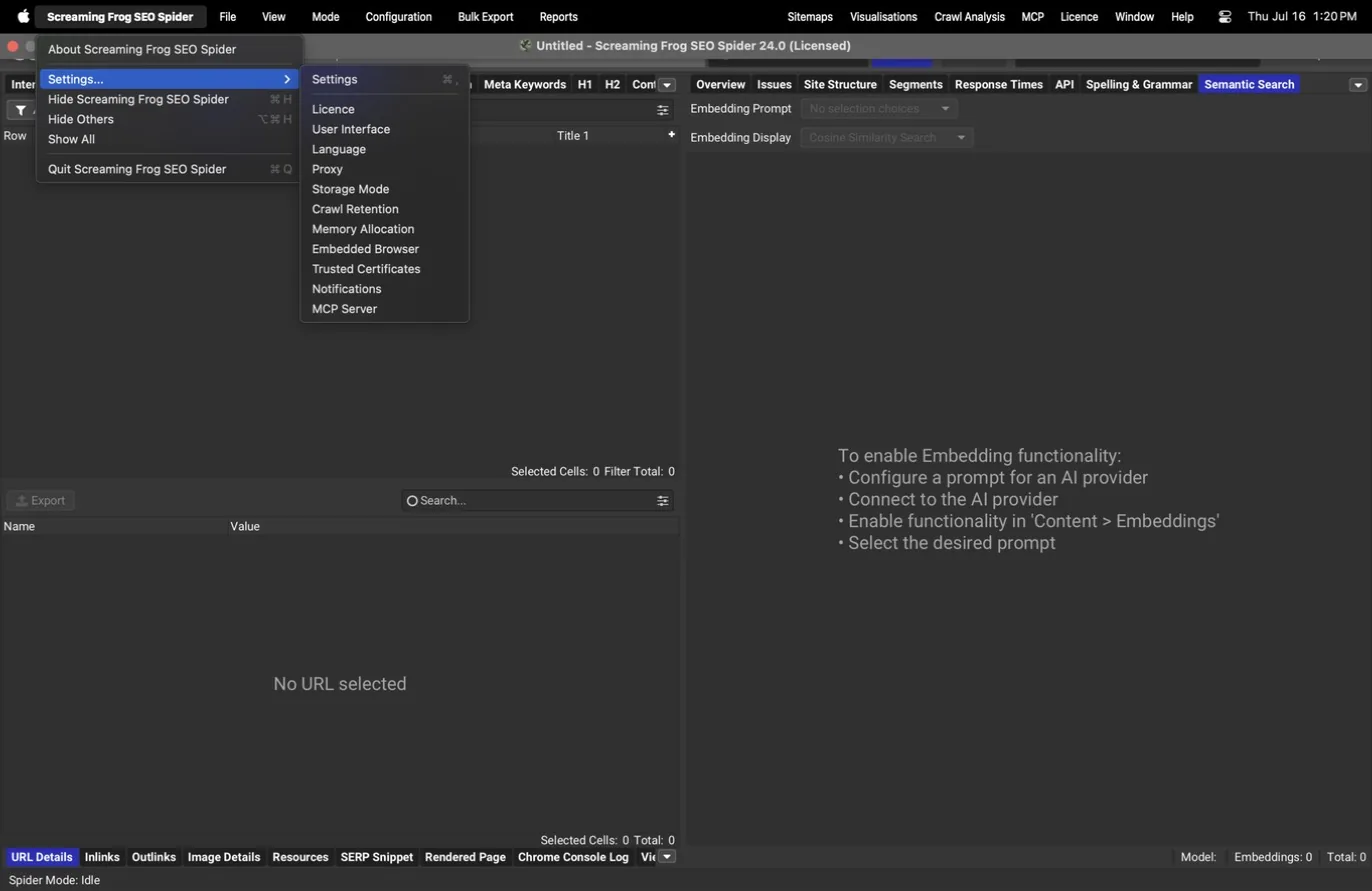
Application-level settings live in the app menu under Settings: storage mode (memory versus database, where database mode is what makes very large crawls and crawl comparison possible), memory allocation, proxy, language, and the embedded browser. These are per-machine settings rather than per-crawl ones.
What teams use this for
Let monthly client recrawls run themselves
A scheduled task pairs the profile, the API connections, and the export actions; the report is waiting in the morning.
Regression-check every release
Crawl after each deploy and Compare against the previous crawl; 15 change dimensions turn deploys into diffs.
Standardize every analyst on one config
A shared .seospiderconfig makes every crawl comparable across the team and across months.
Generating sitemaps
Screaming Frog doesn't just audit sitemaps, it builds them. The Sitemaps menu offers XML sitemap and image sitemap generation from the current crawl.
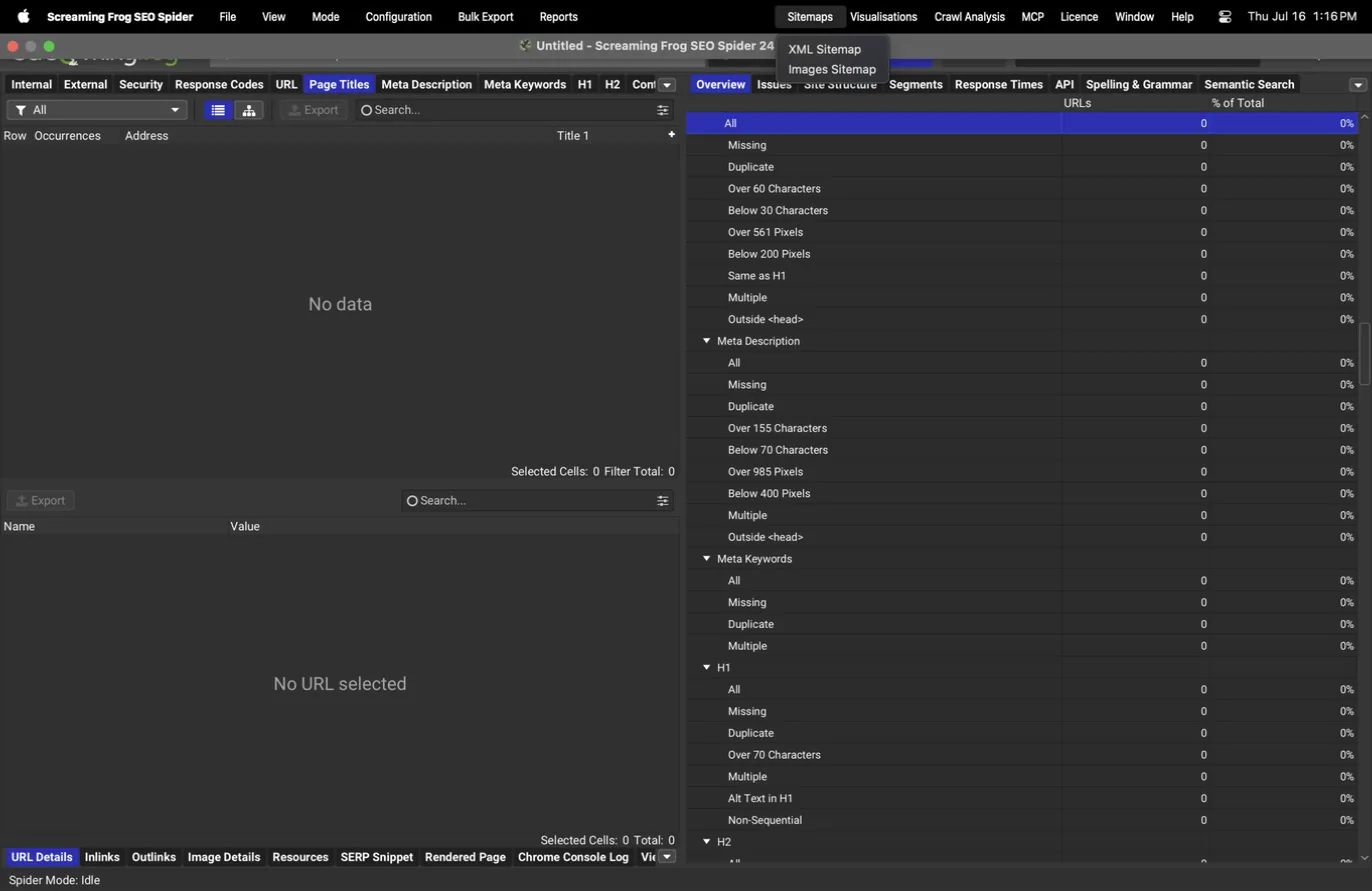
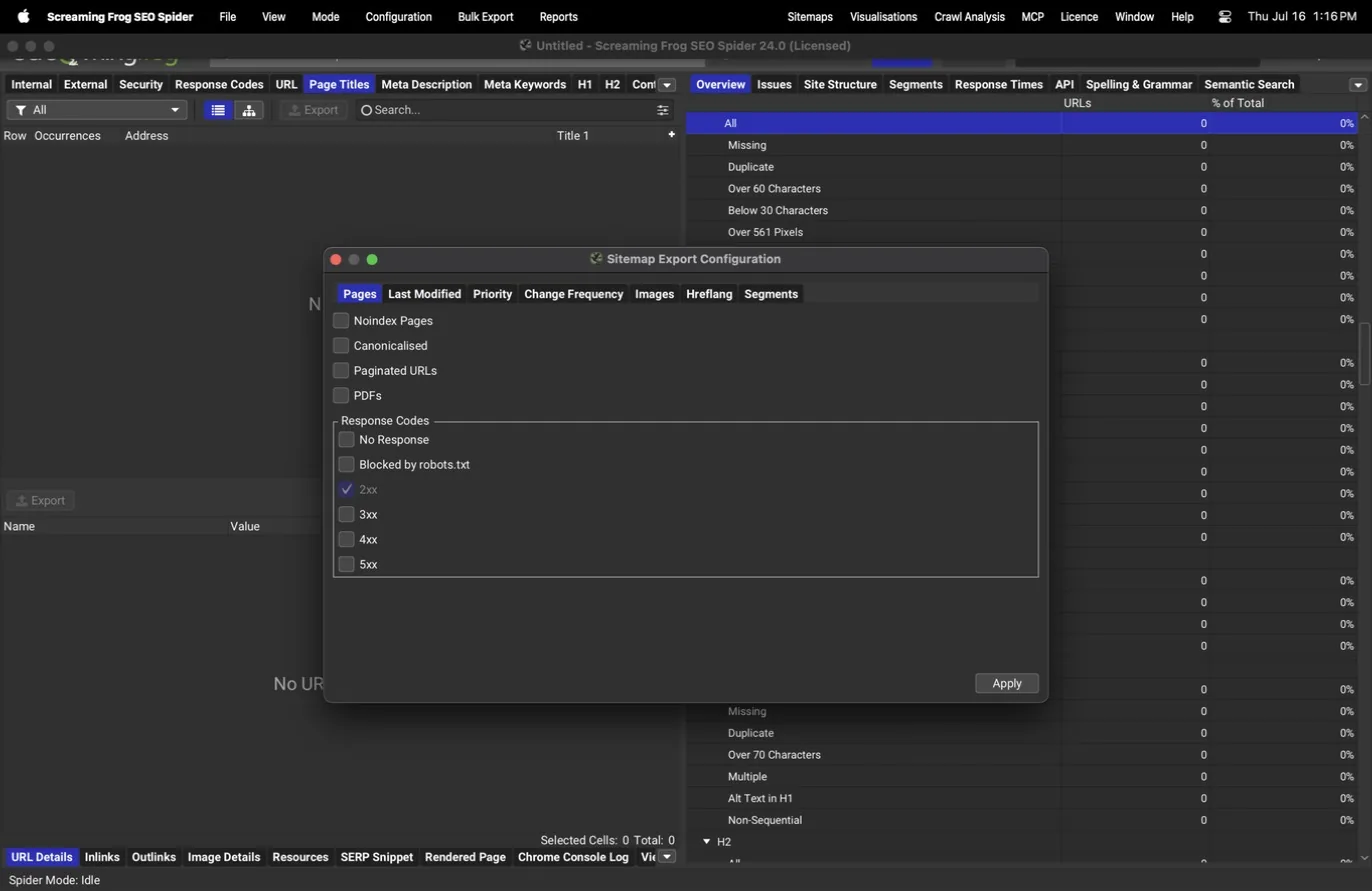
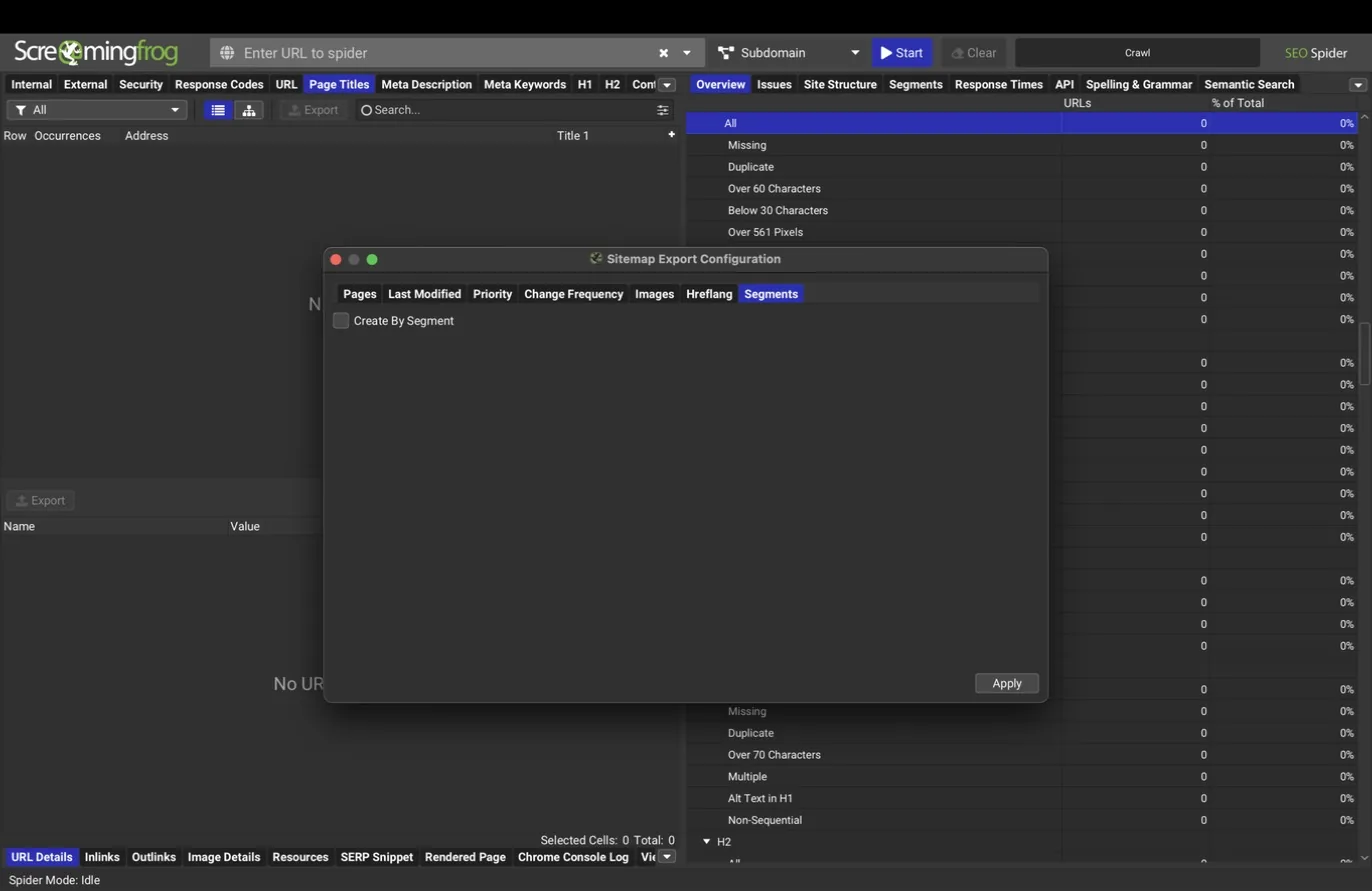
The export dialog has seven tabs. Pages picks which URLs qualify (indexability, response codes, paginated pages, PDFs, and so on).
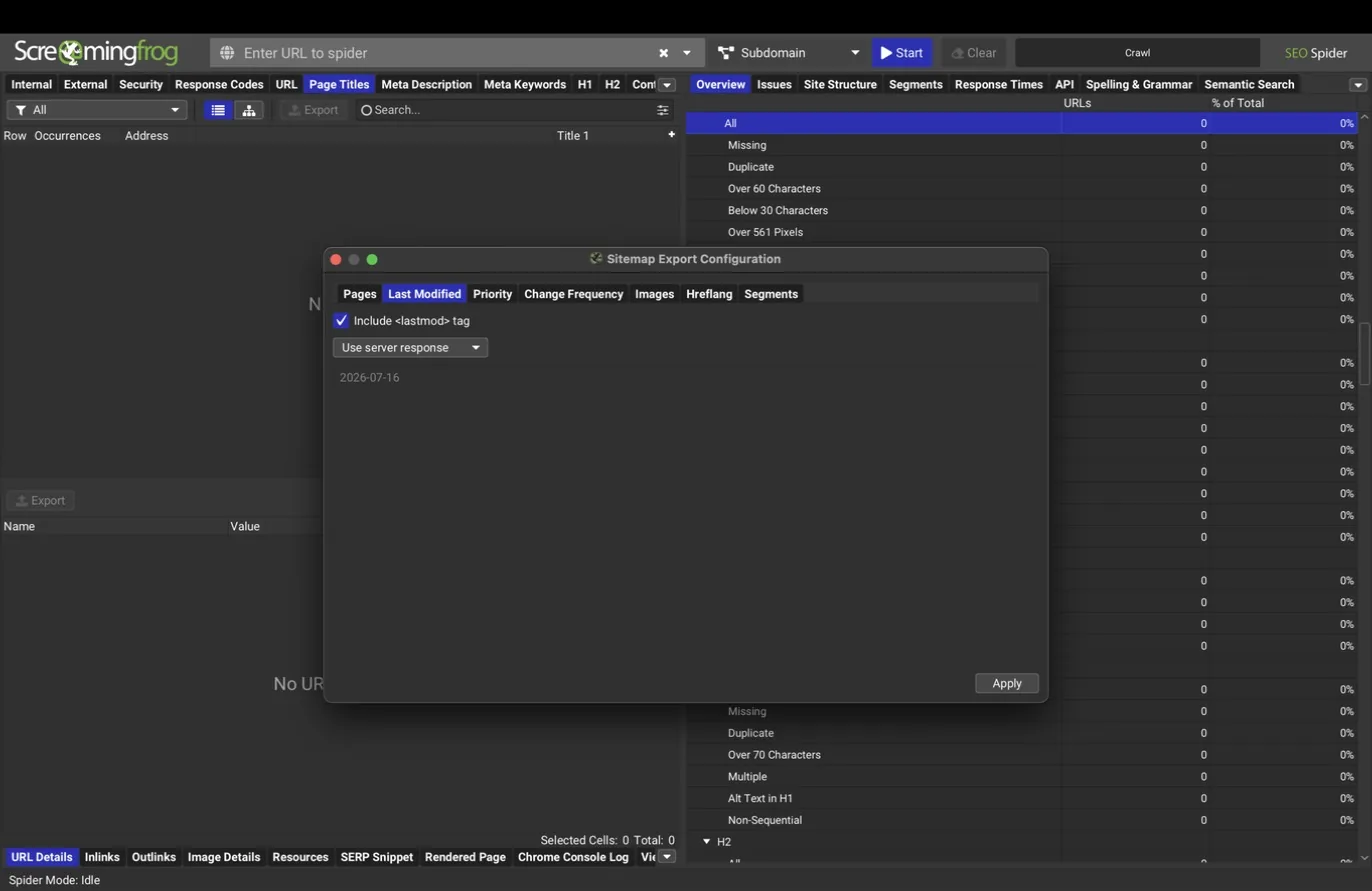
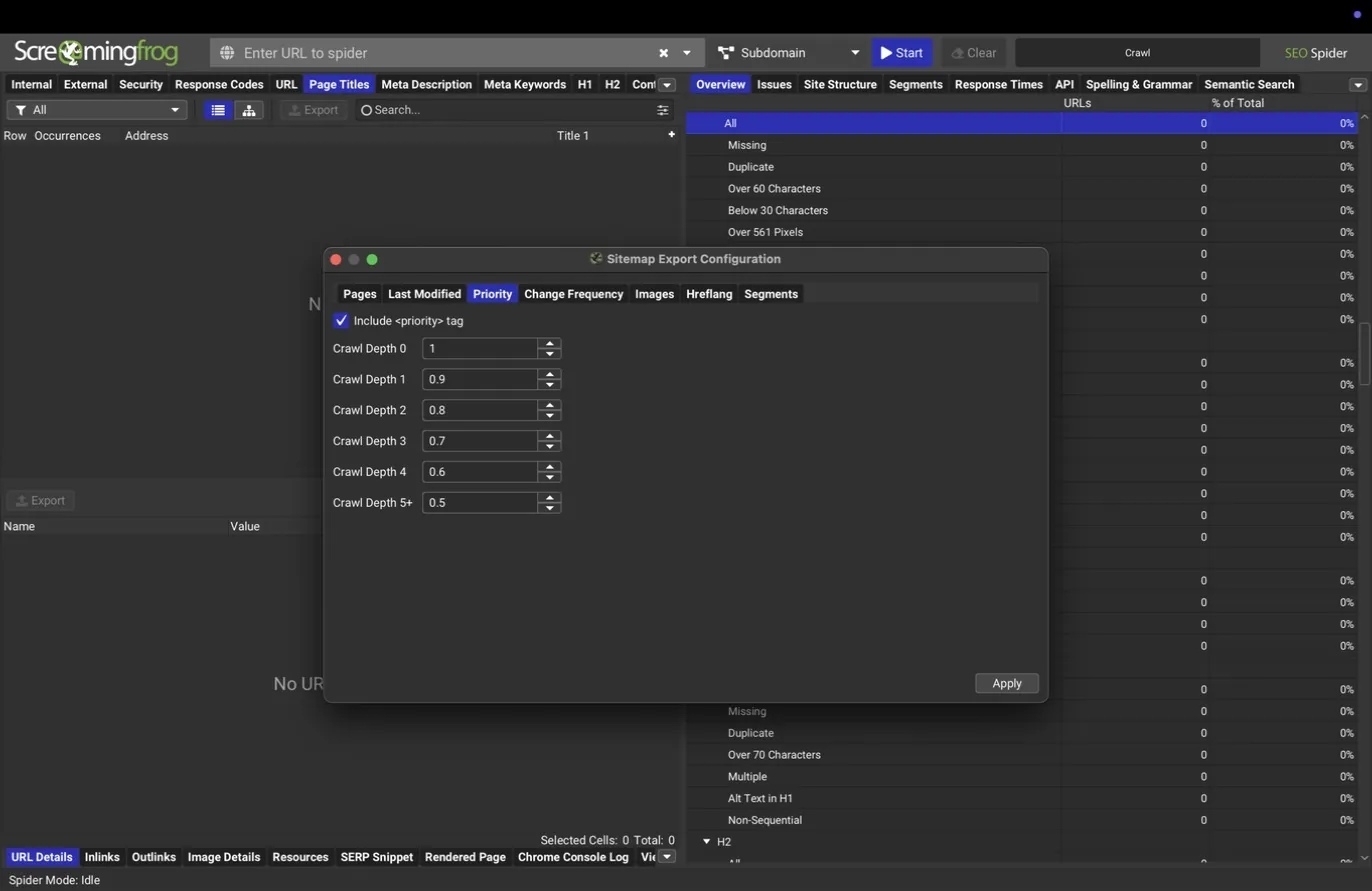
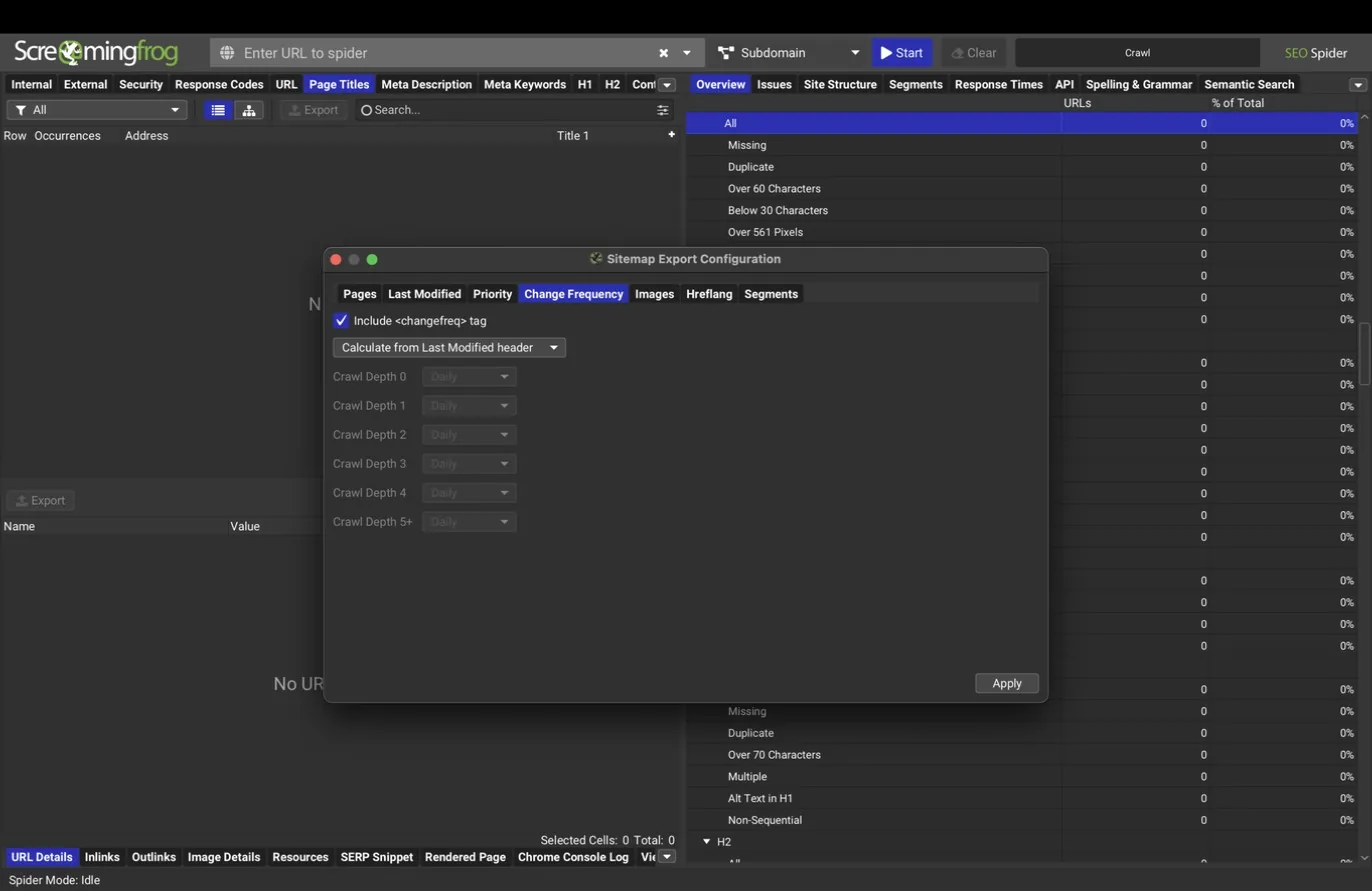
Last Modified, Priority, and Change Frequency control the optional metadata: lastmod from the server response or a fixed date, priority by crawl depth, and change frequency calculated from last modified or set manually. Google ignores priority and changefreq these days, so feel free to leave them out; lastmod is the one that still matters.
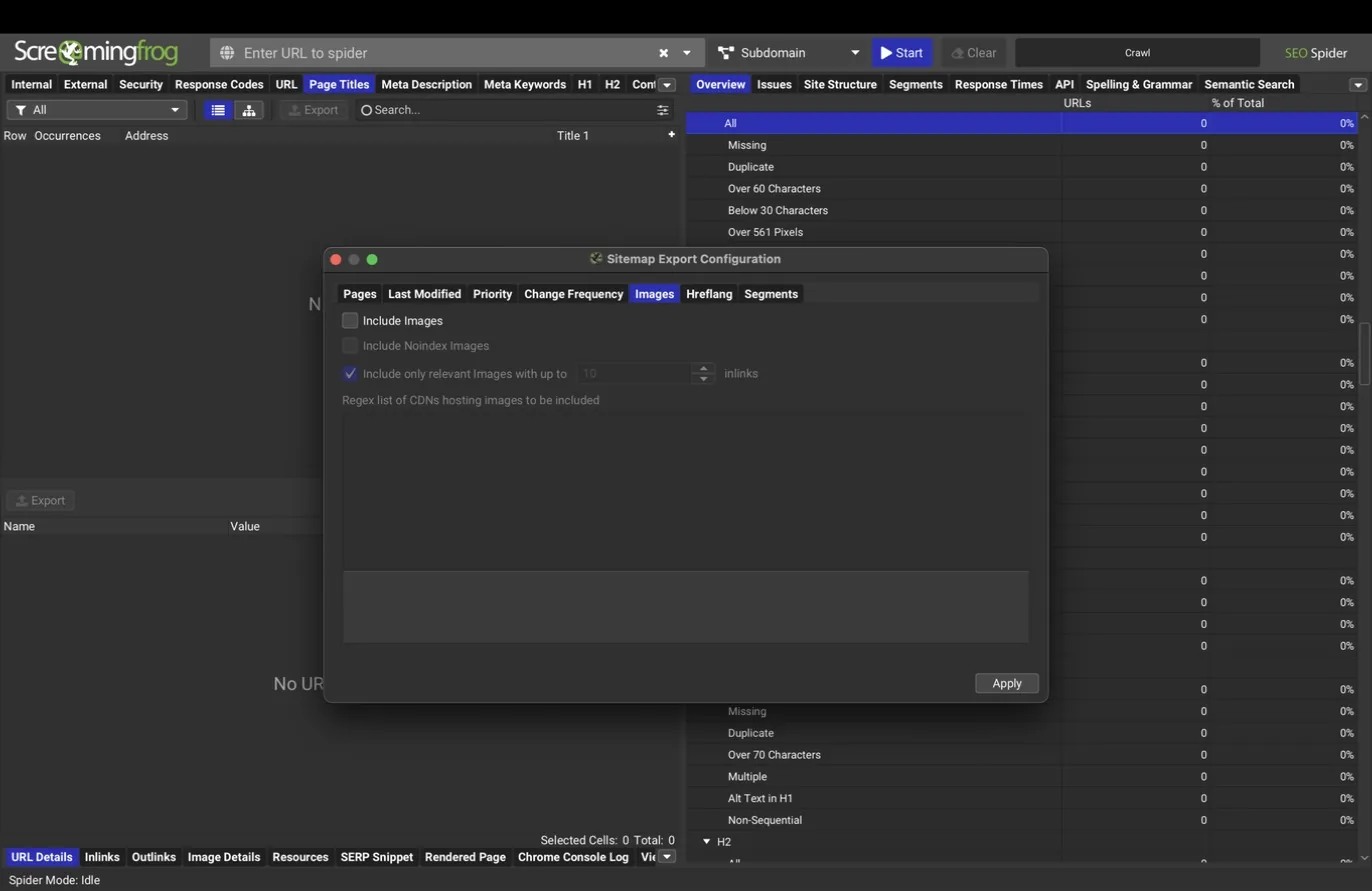
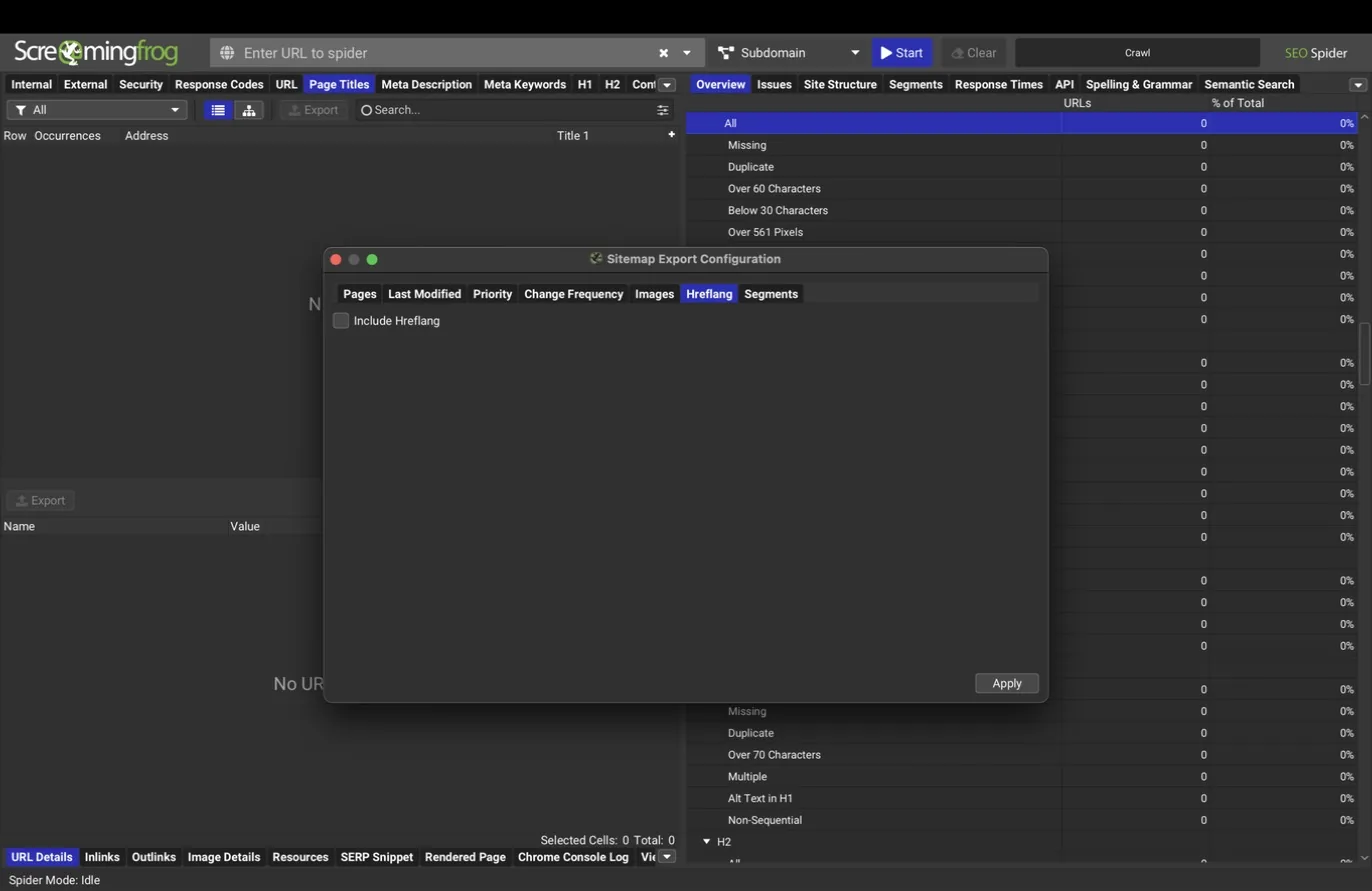
Images controls image sitemap inclusion, with a regex option for CDN-hosted images; Hreflang includes alternate language annotations for international sites.
The Segments tab generates separate sitemaps per segment, which turns a fixed sitemap into a shippable deliverable: one clean sitemap per site section, built from verified crawl data rather than whatever the CMS emits.
Reading the results
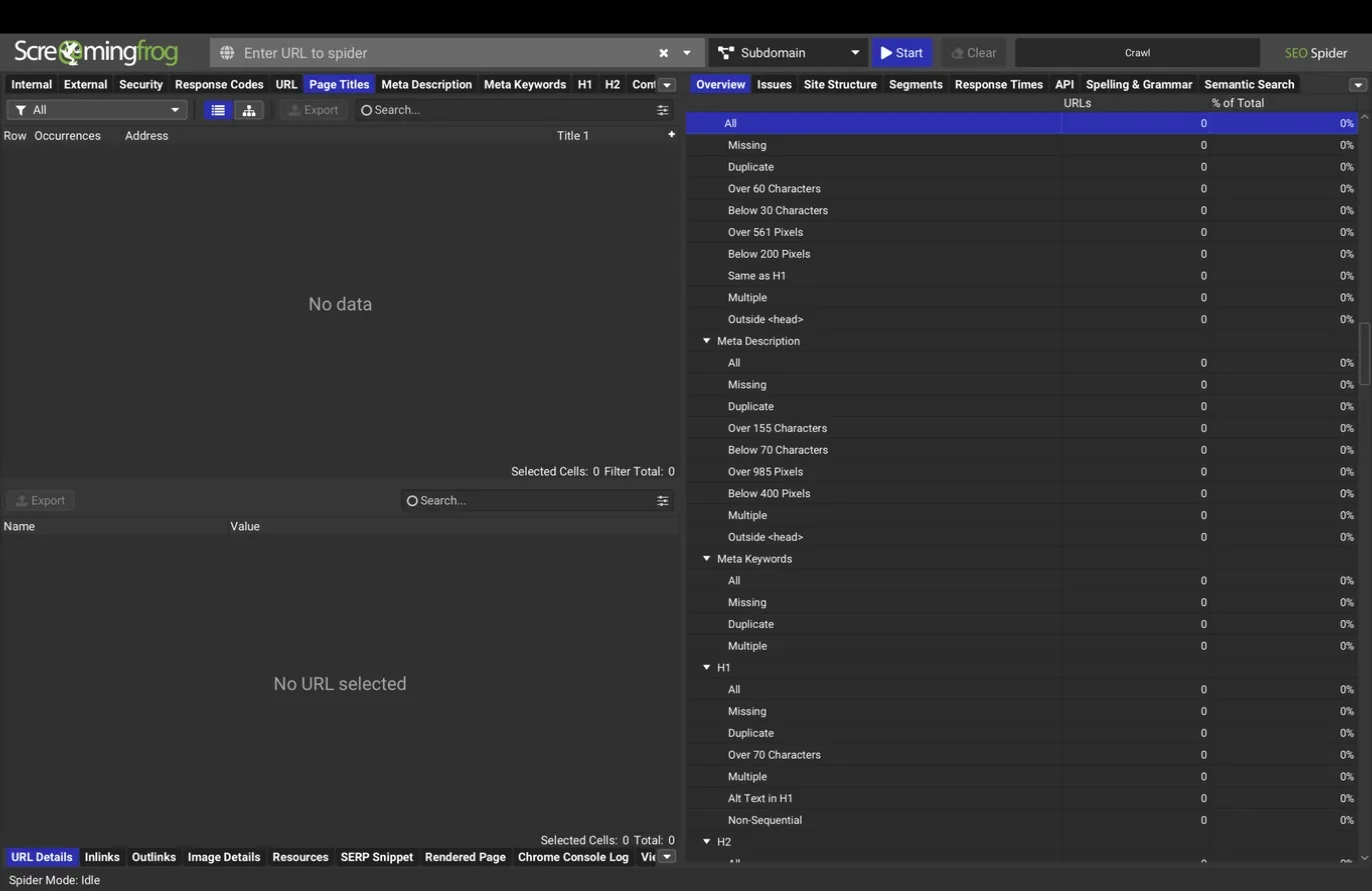
The right-hand pane is where a finished crawl becomes an audit. The Overview tab (visible in the main window screenshot at the top of this guide) lists every tab and filter with live URL counts, so it doubles as a table of contents for the whole crawl.
The Issues tab reorganizes the same data by problem instead of by element: every triggered issue with a priority, a plain-language description, and how many URLs it affects. It's the fastest route from "crawl finished" to "here's what we found," and the matching Issues export gives you one spreadsheet of everything.
Site Structure shows crawl depth distribution and the site's shape. Pages more than three clicks from the home page get crawled and ranked less reliably; this chart makes that argument visually for clients.
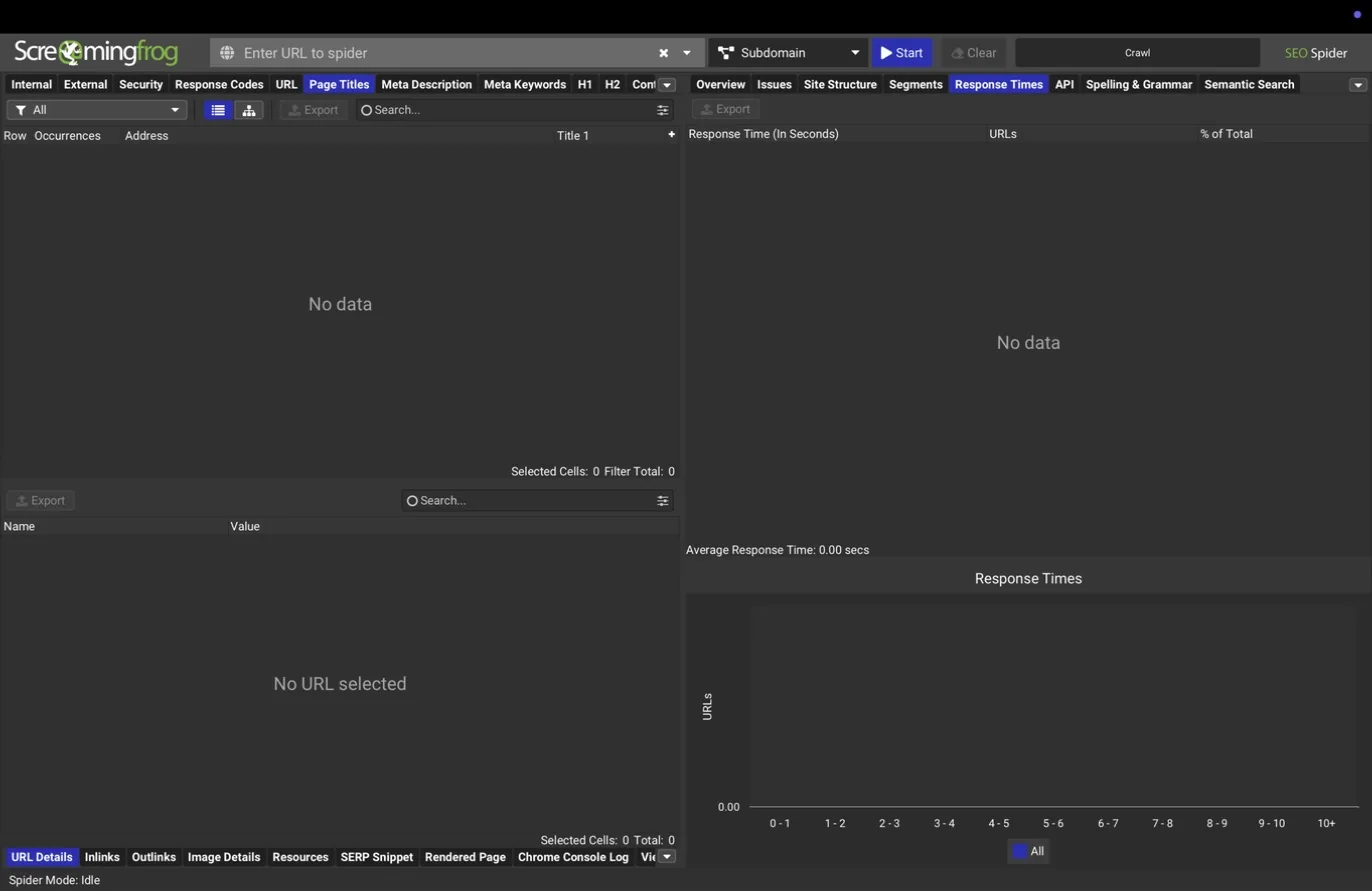
Segments mirrors your segment definitions with per-segment counts, Response Times shows the speed distribution of server responses across the crawl, and API shows the connection status and data volume for each connected integration, which is where you confirm the GSC or GA4 join actually happened.
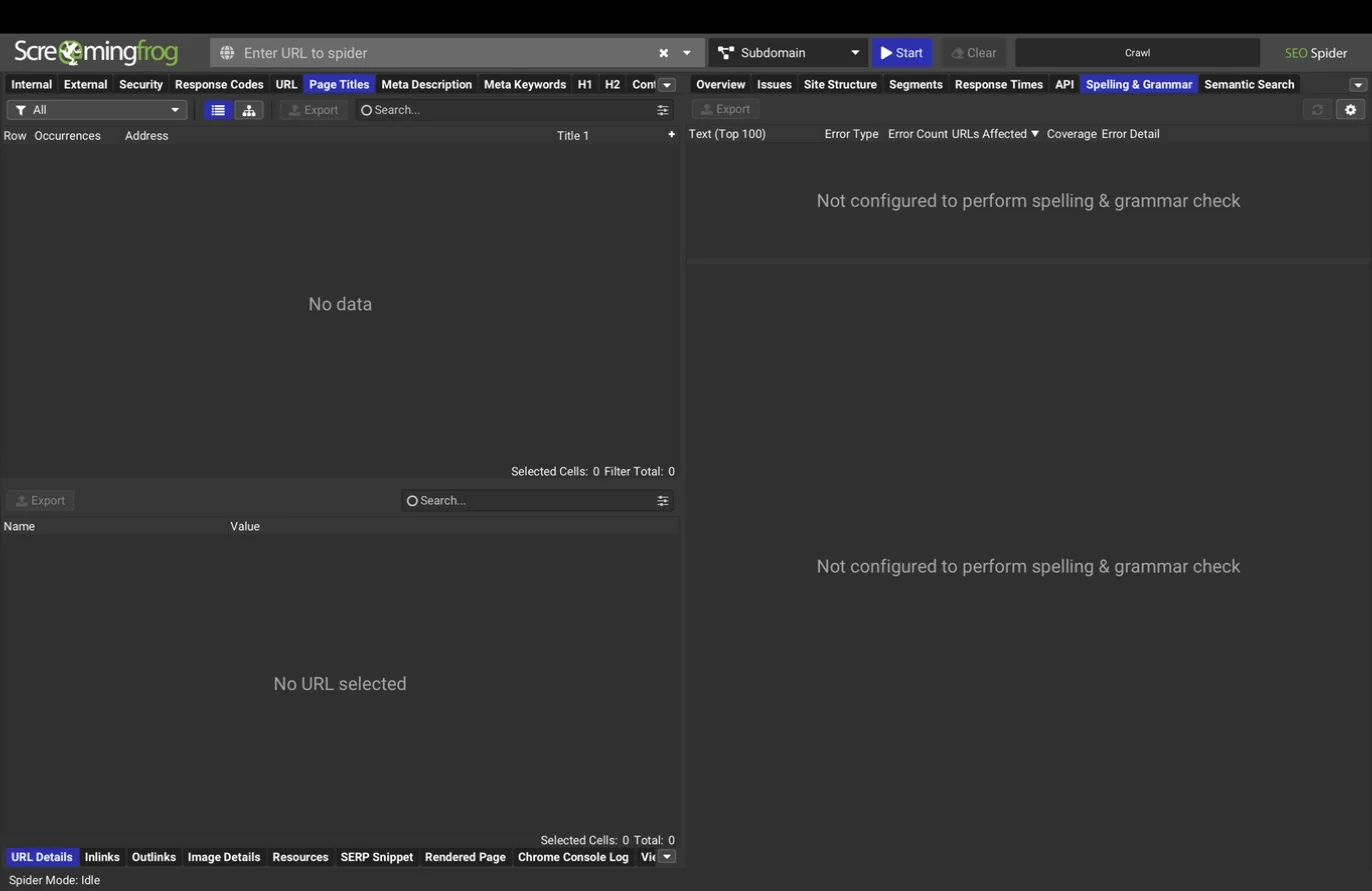
Spelling & Grammar aggregates language findings across the site, with the most common errors ranked.
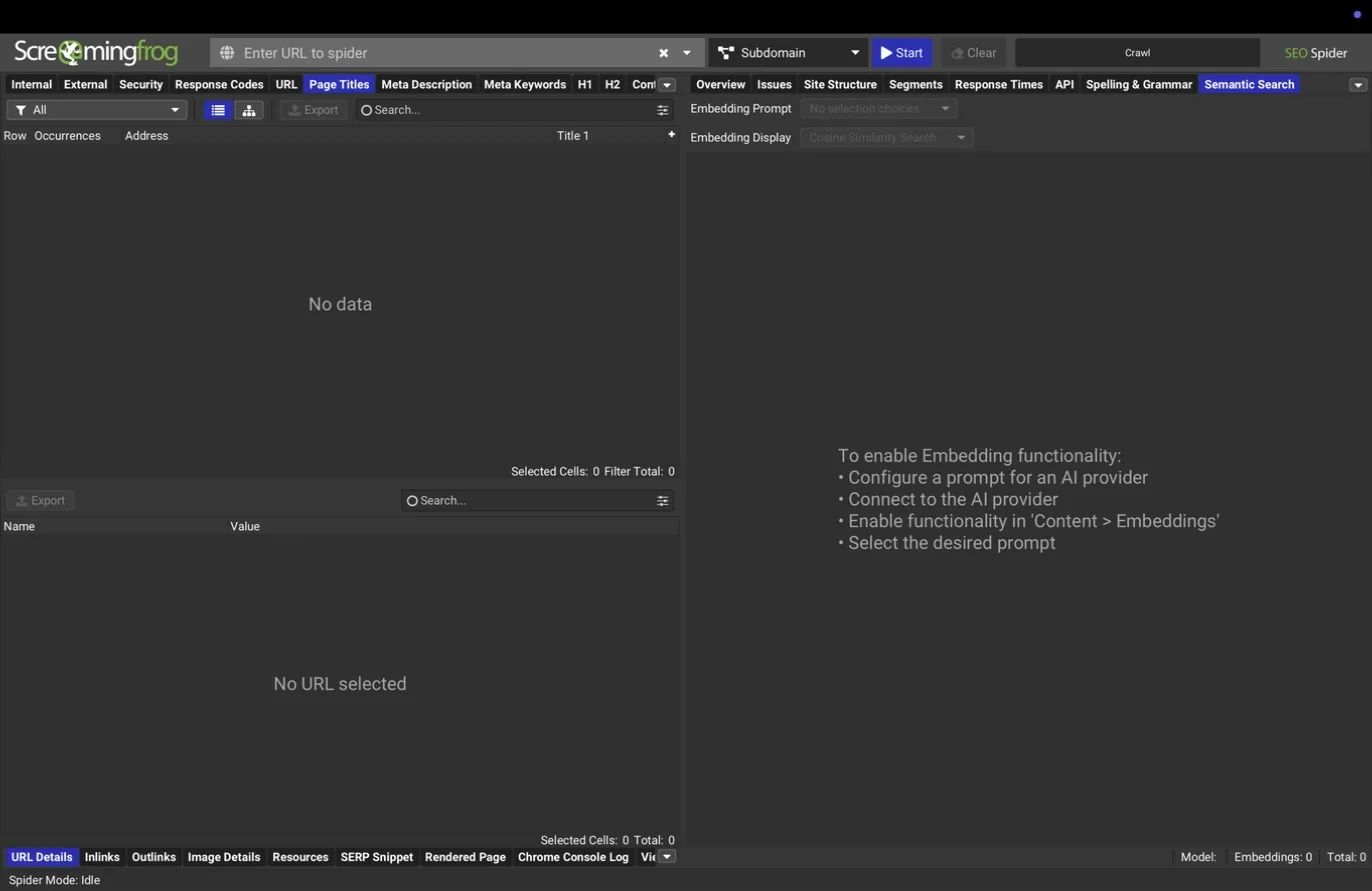
Semantic Search is the newest addition: with embeddings enabled, you can search the crawl by meaning rather than keyword. Ask for "pages about emergency plumbing pricing" and it returns the pages closest in meaning, whether or not they use those words. For content inventories and cannibalization work on large sites, this changes how fast you can move.
Below the main table, per-URL tabs give the forensics on any selected page: inlinks and outlinks, image details, resources, a pixel-accurate SERP snippet preview, the rendered page screenshot, the Chrome console log, and the stored source.
Exports, bulk exports, and reports
Three menus move data out of the tool. Export buttons on each tab save what you're looking at. The Bulk Export menu goes deeper, with around 150 exports including every link edge on the site with anchor text and link position (a small site can easily produce tens of thousands of link rows), all image references, structured data by validation status, accessibility violations, and the AI and custom results.
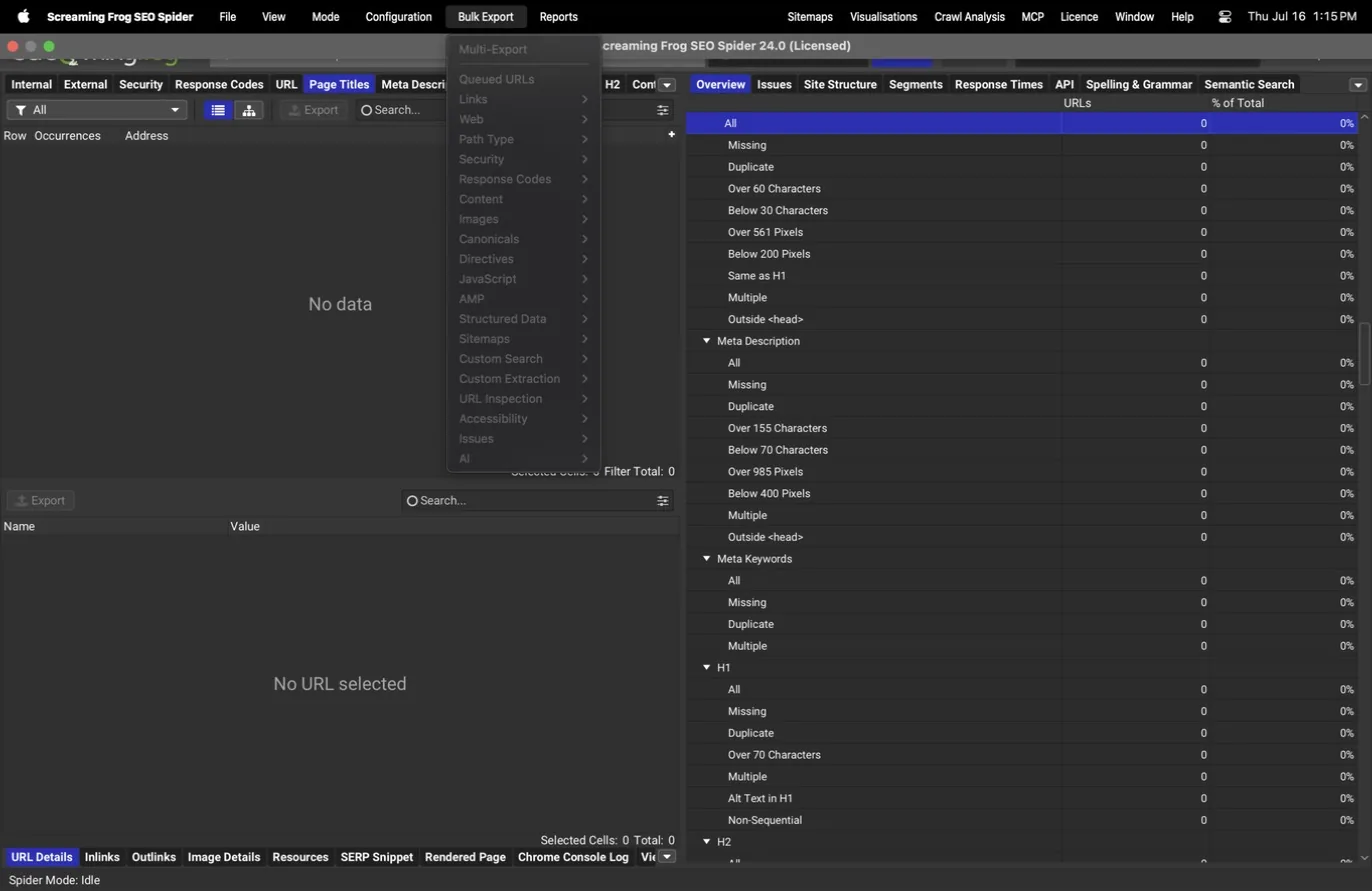
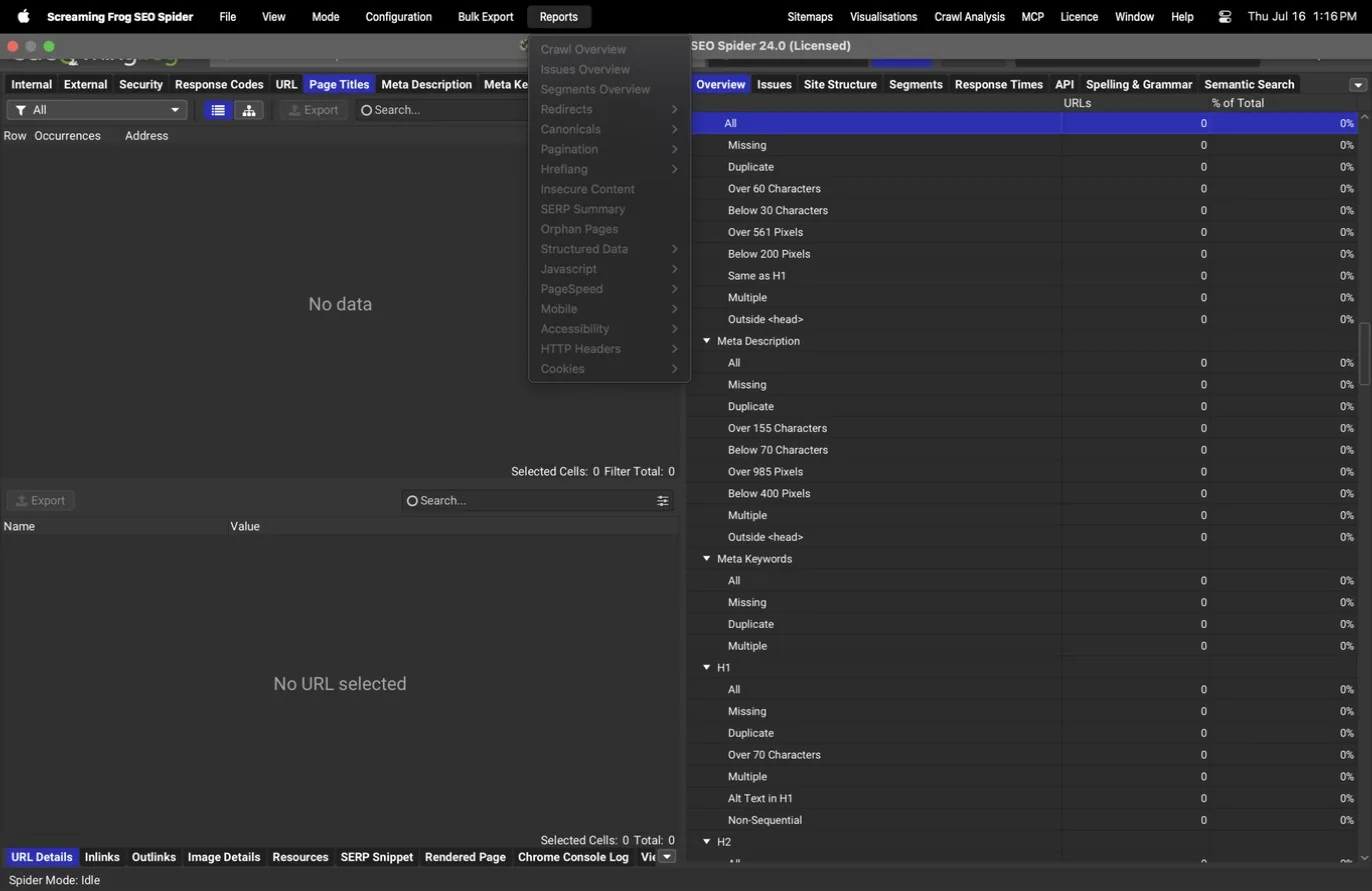
The Reports menu holds 62 prebuilt reports: redirect and canonical chains, orphan pages from sitemap and analytics comparison, insecure content, hreflang issues, PageSpeed summaries, a cookie inventory, and the crawl overview. Redirect chains and orphan pages are the two most teams use weekly.
Visualisations
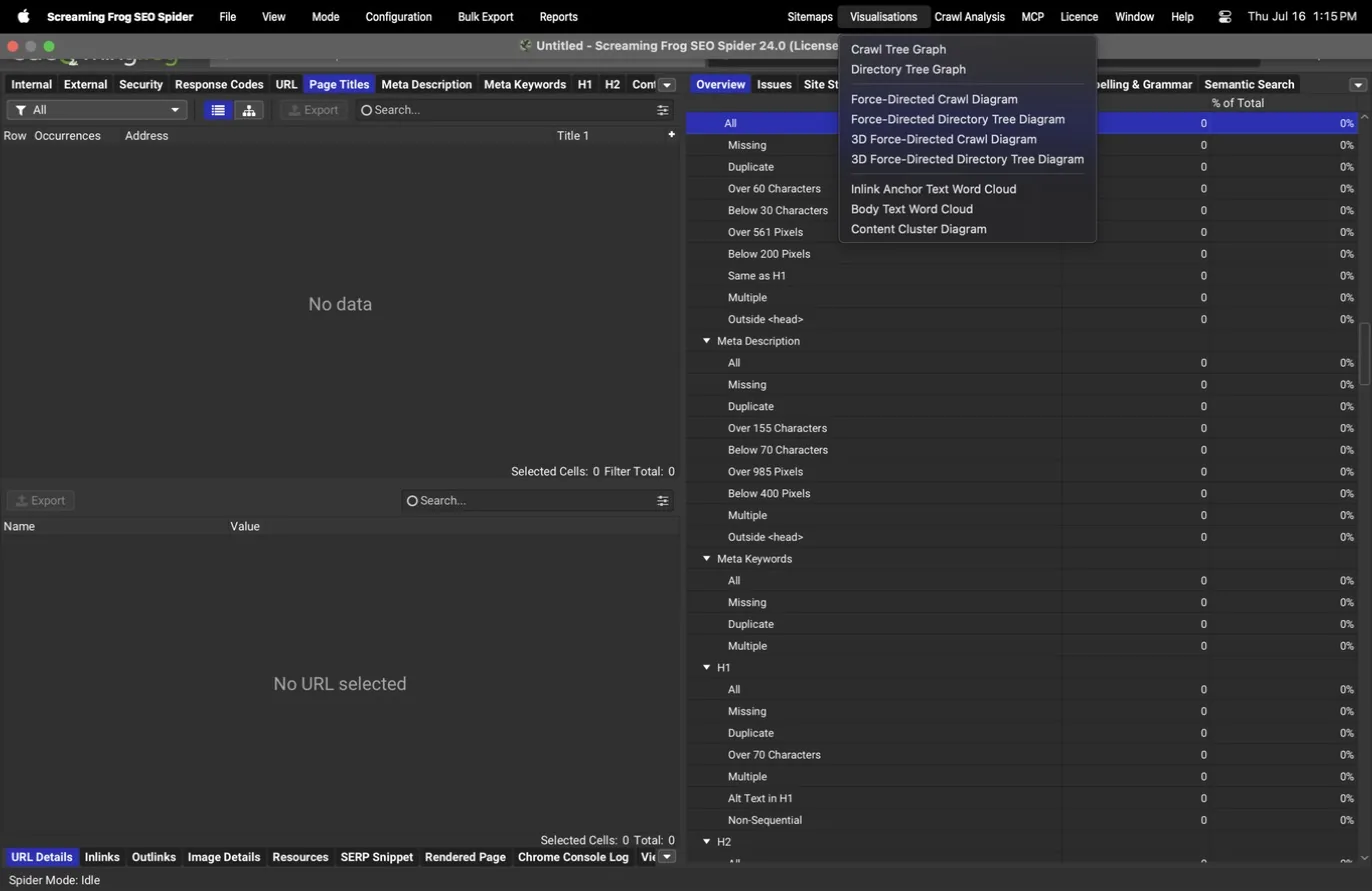
The Visualisations menu renders the crawl as interactive diagrams: crawl tree and directory tree graphs, force-directed diagrams (including 3D variants), anchor text and body text word clouds, and a content cluster diagram built from the embedding data. The force-directed crawl diagram is the one clients remember; a site with a healthy structure looks like a tidy dandelion, and a site with a crawl problem looks like a hairball, no explanation needed.
The MCP server
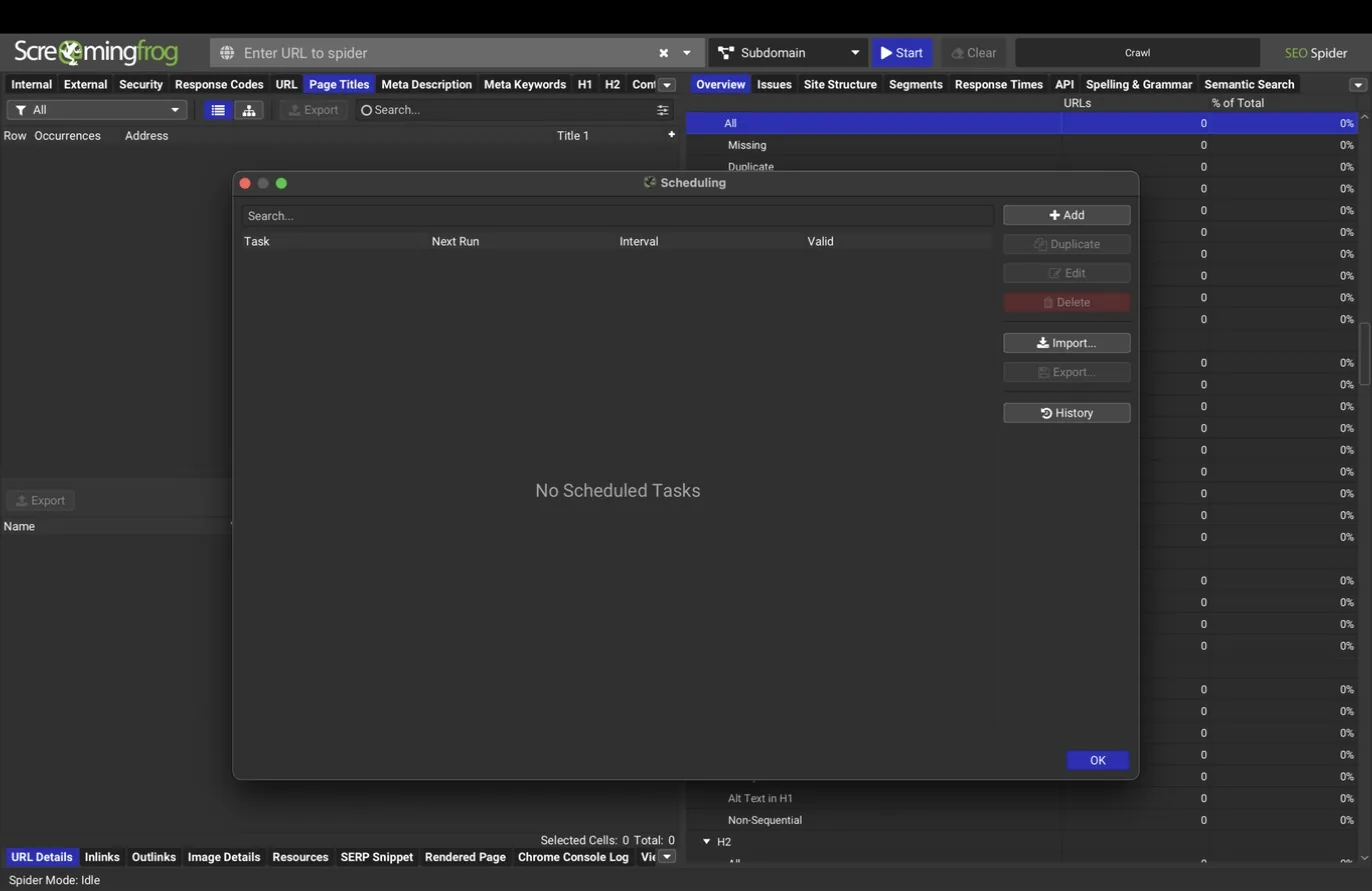
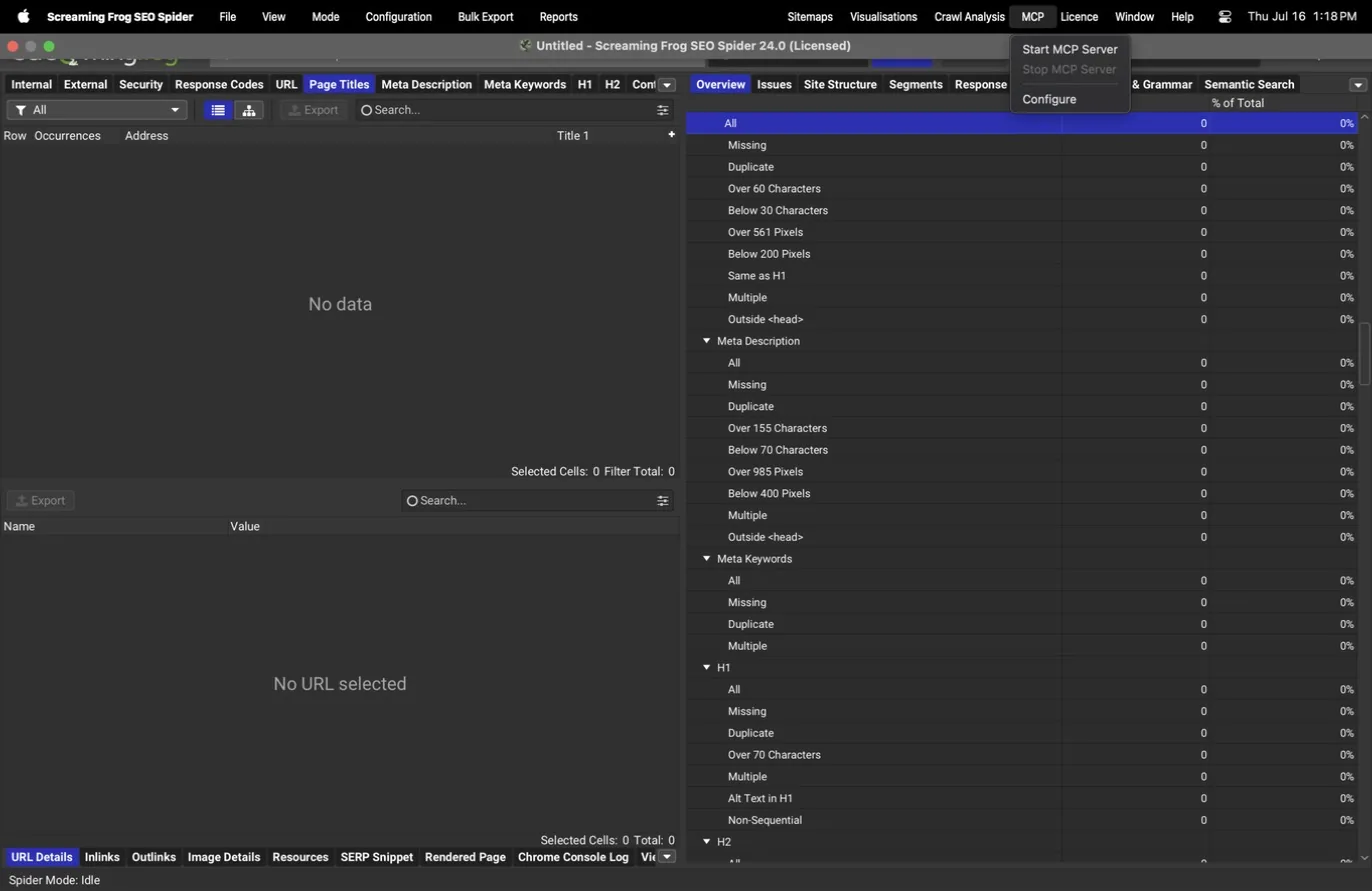
Version 24 includes an MCP (Model Context Protocol) server, available from its own menu with start, stop, and configure entries. Once running, an AI assistant such as Claude can drive the tool directly: start crawls with a chosen configuration file, monitor progress, query individual URLs, pull filters and reports, and run exports, all without a human clicking through the interface.
This is the automation endgame: the same saved configuration profile that standardizes your manual crawls becomes a machine-runnable audit that an assistant can execute, summarize, and file. Combined with the in-app scheduler, the crawl-collect-report loop can run with almost no hands on keyboard.
What teams use this for
Have an assistant run the whole audit
An AI assistant starts the crawl with your saved profile, monitors it, runs the analysis, and files the exports.
Spot-check URLs from chat
Ask for a URL's status, canonical, and issues without opening the app.
Chain crawl, analysis, and export headless
The scheduler plus MCP closes the crawl-collect-report loop with almost no hands on keyboard.
A recommended 2026 configuration
Build one deep dive profile, save it as a .seospiderconfig, and use it for every first crawl and every scheduled recrawl. The point is that nothing important reports zero because it was never measured.
- —Spider > Crawl: crawl and store all resource types, follow internal and external links, discover XML sitemaps.
- —Spider > Extraction: structured data on (JSON-LD, microdata) with validation; Store HTML and Store Rendered HTML both on.
- —Spider > Rendering: JavaScript rendering with page screenshots and JavaScript error reporting, Googlebot Smartphone viewport.
- —Spider > Advanced: respect options off for audits (see everything, filter later), soft 404 detection on, retry 5xx on.
- —Spider > Preferences: defaults, adjusted per site only when a threshold provably misfires, then kept stable across recrawls.
- —Content: content area set to the site's actual template (exclude nav and footer selectors); near duplicates on at 90 percent; spelling and grammar on in the site's language with a brand dictionary; embeddings on for semantic similarity, low relevance, and Semantic Search.
- —Scope: exclude patterns for known URL traps, tested in the dialog; speed kept polite for sites you don't host.
- —Custom: extraction slots for the site's name, address, phone, and schema fields; a custom search slot verifying the analytics tag on every page.
- —API Access: Search Console with URL Inspection enabled, GA4, and PageSpeed Insights using the local Lighthouse source (no key or quota). Link metric and paid AI providers stay off unless the engagement requires them; if per-page AI prompts are useful, prefer local Ollama first.
- —Crawl Analysis: all post-crawl calculations on, run immediately after each crawl.
- —Segments: defined per site before the first big crawl, mirrored into the sitemap export when sitemaps are a deliverable.
- —After the crawl: read the Issues tab first, confirm the API tab shows the joins landed, run crawl analysis, then export Issues plus the Internal:All master sheet as the audit backbone.
Schedule the recrawl in File > Scheduling against this same profile, and use Mode > Compare against the previous crawl to turn each recrawl into a change report rather than a fresh pile of data.
The vocabulary that makes the tool click
JavaScript rendering
aka JS crawling · Rendered crawlA crawl mode where a headless Chrome browser executes each page's JavaScript before the crawler reads it, the same way Google renders pages.
In Text Only mode the spider reads raw HTML, which is fast but blind to anything a framework injects after load. JavaScript mode renders every page in embedded Chrome first, so client-side content, links, and metadata all become visible. It also adds rendered-page screenshots, JavaScript error reporting, and flattened shadow DOM and iframes. The cost is speed and disk space.
- Analogy
- Reading the script of a play versus watching it performed. The script (raw HTML) may say almost nothing; the performance (rendered page) is what the audience, and Google, actually sees.
- Example
- A React site whose product links only exist after hydration: a Text Only crawl finds a near-empty site, a JavaScript crawl finds all of it.
- Why it matters in an audit
- Default to JavaScript rendering on the first crawl of any new site. If the raw-versus-rendered diff comes back quiet, drop to Text Only for routine recrawls and get the speed back.
List mode
aka Mode > ListA mode that audits exactly the URLs you paste or upload instead of discovering a site by following links.
Spider mode answers "what exists on this site?" List mode answers "what is the state of these specific URLs?" Feed it a redirect map, a sitemap file, a batch of landing pages, or an export from another tool, and it checks response codes, titles, canonicals, and everything else for that fixed set and nothing more.
- Analogy
- A roll call instead of a census. You are not counting everyone in the building, you are confirming the people on your list showed up.
- Example
- Post-migration, paste the old URLs from the redirect map into List mode and confirm every one 301s to the right destination in a single hop.
- Why it matters in an audit
- Keep a List mode project loaded with each client's money pages. Spot checks between full crawls take minutes instead of hours.
Crawl analysis
aka Post-crawl analysisA separate calculation pass, run after the crawl finishes, that fills in metrics needing the complete link graph or content set.
Some numbers cannot exist mid-crawl: Link Score needs every link on the site, near-duplicate similarity needs every page's content, semantic similarity needs every embedding. The Crawl Analysis menu computes these on demand once crawling stops. Until it runs, their columns sit empty.
- Analogy
- Grading on a curve. You can score each exam as it lands, but you cannot assign the curve until every exam is in.
- Example
- A finished crawl shows blank Link Score and near-duplicate columns; one click on Crawl Analysis > Start fills them in seconds to minutes.
- Why it matters in an audit
- If a column you expected is empty after a crawl, check this first. Empty means not-yet-computed far more often than it means zero.
Custom extraction
aka Scraping · CSS/XPath extractionRules that pull any value out of every crawled page, via CSS selector, XPath, or regex, and turn it into a column in your export.
Up to 100 extractors run per crawl. Prices, SKUs, author names, publish dates, phone numbers, review counts: anything present in the HTML becomes structured data joined to its URL. Extraction runs against the raw or rendered HTML, so it works on JavaScript-injected values too when rendering is on.
- Analogy
- A highlighter that never gets tired. Tell it once what to mark, and it marks that thing on ten thousand pages.
- Example
- For a local SEO client, extractors for name, address, and phone turn every crawl into a sitewide NAP consistency check.
- Why it matters in an audit
- This is how a generic crawler becomes a site-specific data collector. Set the extractors up once in the client's profile and every recrawl refreshes the dataset.
Segments
aka Crawl segmentationNamed slices of a crawl, defined by URL pattern or rules, that let every tab, filter, and report answer for one part of the site at a time.
A sitewide issue list reads like an inventory. Segmented, the same data reads like a diagnosis: blog versus product templates, one country folder versus another, editorial versus templated pages. Issues count and trend per segment, and the sitemap exporter can emit one sitemap per segment.
- Analogy
- Hospital wards. The same patients exist either way, but grouping them by ward is what tells you where the outbreak is.
- Example
- "Missing meta descriptions: 1,240" becomes "1,180 of them are in /shop/, the templates are the problem, not the writers."
- Why it matters in an audit
- Define segments before the first big crawl, not after. They are the difference between handing a client a list and handing them an answer.
Content embeddings
aka Vector embeddings · Semantic similarityA vector representation of each page's meaning, generated during the crawl, that powers duplicate detection beyond word matching and search by meaning.
Word-level duplicate detection misses pages that say the same thing differently. Embeddings catch them: a semantic similarity threshold (0.95 by default) flags near-restatements, and a low relevance threshold (0.4) flags pages drifting from the site's overall topic. The same vectors feed the Semantic Search tab, which finds pages by meaning rather than keyword.
- Analogy
- Filing pages by what they mean instead of what they say. Two letters with no shared words can still land in the same folder.
- Example
- Searching a crawl for "pages about emergency plumbing pricing" returns the right pages whether or not they use those exact words.
- Why it matters in an audit
- Turn embeddings on for content-heavy sites. Cannibalization that survives a word-level duplicate check rarely survives a semantic one.
Configuration profile
aka .seospiderconfigA saved file capturing every crawl setting, so the same configuration runs identically across clients, machines, schedules, and the command line.
Everything in the Crawl Config window saves to a .seospiderconfig file from Configuration > Profiles. Profiles travel between machines, feed File > Scheduling, drive command-line crawls, and give the MCP server a machine-runnable audit definition. Consistent settings are also what make crawl-over-crawl comparison honest.
- Analogy
- A recipe card. Anyone in the kitchen, or any machine in the fleet, produces the same dish.
- Example
- One "deep dive" profile with everything enabled for first crawls and audits; one lighter "routine recrawl" profile for scheduled monthlies.
- Why it matters in an audit
- Profiles are the backbone of consistent audit work. If two crawls used different settings, their diff is noise.
Link Score
aka Internal PageRankA per-URL value, computed during crawl analysis, that scores how much internal link equity flows to each page across the whole site graph.
Link Score is a PageRank-style calculation over the site's internal links. Pages your navigation and content point at repeatedly score high; pages linked once from a forgotten archive score low. Because it needs the full link graph, it only exists after crawl analysis runs.
- Analogy
- Foot traffic in a building. The lobby everyone walks through scores high; the storage room behind two locked doors barely registers.
- Example
- A money page with a Link Score near the site's floor explains its ranking problem before you ever look at its content.
- Why it matters in an audit
- Sort money pages by Link Score after every crawl. Internal linking is the cheapest ranking lever a site owner controls.
Questions everyone asks
Is Screaming Frog free?
There's a free version that crawls up to 500 URLs per crawl with core features. The paid annual license removes the URL cap and turns on the config-dependent features this guide leans on: saved configuration profiles, JavaScript rendering, custom extraction, API integrations, scheduling, and database storage mode. Check screamingfrog.co.uk for current license pricing.
How do I crawl a JavaScript site?
Configuration > Spider > Rendering, set the mode to JavaScript. A headless Chrome then renders every page before the crawler reads it, and the pane expands with rendered screenshots, JavaScript error reporting, and viewport presets including Googlebot Smartphone. Turn on Store HTML and Store Rendered HTML in the Extraction pane too: the raw-versus-rendered diff is the fastest proof that content or links only exist after JavaScript runs.
Why are some columns empty after my crawl?
Two reasons, both by design. First, several features report nothing until you switch them on: structured data validation, PageSpeed, analytics joins, near-duplicate detection, spelling. An empty column means "not measured," never "no problems found." Second, some metrics (Link Score, near-duplicate similarity, semantic similarity) only exist after you run Crawl Analysis, a one-click pass that happens after the crawl finishes.
How do I find orphan pages?
Orphans are pages that exist but that internal links no longer reach, so a link-following crawl alone can't see them. Cross-reference: turn on XML sitemap discovery in the Crawl pane, connect Search Console and GA4 under API Access, then run Crawl Analysis and read the orphan pages reports. Pages in the sitemap or receiving GSC impressions or GA traffic that the crawl never found are your orphans.
Can Screaming Frog run automatically?
Three ways. File > Scheduling is a full in-app scheduler: each task pairs a start URL with a configuration profile, an interval, optional API connections, and export actions. The command-line interface runs saved profiles headlessly for external automation. And v24 adds an MCP server, so an AI assistant can start crawls, monitor progress, query URLs, and run exports without a human at the interface.
What's new in version 24?
The headline item is the MCP server, which lets an AI assistant drive the tool. v24 also adds automatic comparison of the last two crawls for scheduled and command-line runs, crawl-change summaries and export attachments in notification emails, and a filter for uncrawlable links. The features this guide leans on elsewhere arrived in earlier releases: the unified config window (v19), local Lighthouse (v20), AI integrations (v21, with Anthropic in v22), and embeddings with Semantic Search (v22).
How many URLs can it handle?
In default memory storage, the ceiling is your RAM, fine for most sites. Switch to database storage mode (in the application Settings) and crawls write to disk instead: this is what makes very large crawls and the Compare mode possible. For million-URL e-commerce sites, database mode on an SSD plus deliberate Limits settings (cap query strings, exclude faceted traps) is the working combination.
Will crawling hurt the site I point it at?
It can, which is why the Speed pane exists. More threads means faster crawls and more server load. For sites you don't host, stay conservative and cap URLs per second; slow down further for shared hosting and small business sites. A crawl that degrades a client's site is a first impression no report recovers from.
Can it crawl a staging site or a site behind a login?
Yes. Standards-based authentication handles the browser-popup logins common on staging servers. Forms-based opens an embedded browser where you log in yourself, and the spider crawls with your session cookies. One warning that belongs in every runbook: a logged-in crawler clicks every link it can see, so always use a low-privilege, read-only account. An account that can delete content will delete content.
What does "Indexable URL Not Indexed" mean?
It's a filter from the Search Console URL Inspection integration, and it pays for the setup time by itself. It lists pages that are technically indexable (no noindex, canonical to self, 200 response) that Google has nonetheless chosen not to index. That gap between eligible and chosen is where quality problems, crawl budget issues, and near-duplicates hide. The API allows 2,000 URLs per property per day.
Screaming Frog or a cloud crawler?
Different jobs. A desktop crawl is fast to start, private (client data stays on your machine, especially with local Ollama for AI analysis), and costs nothing per crawl. Cloud crawlers win on always-on monitoring, team dashboards, and crawls too large for one machine. Many teams run both: Screaming Frog for audits and forensics, a cloud platform for continuous monitoring.
Go deeper
Sources & further reading
The official reference for every setting covered here
Every built-in issue with its trigger logic and how to fix it
Free version limits and current license pricing
The API behind the Indexable URL Not Indexed filter, including quotas